The rotation page
Works on the Free plan. Options marked Pro below need a Pro plan.
The rotation page shows who is on duty, the shifts ahead and the settings behind them. Plan opens first; the other tabs hold coverage, people, channels and the record of what changed.
You need: access to the rotation.
The top of the page
Section titled “The top of the page”Under the rotation’s name is a line saying what the rotation is: whether it rotates automatically or by hand, whether it picks its next person at random, whether it is private, and whether it keeps an on-duty user group or writes the channel topic. Only what is true of this rotation is listed.
Rotation notes is in the page header, with a dot when a note has been written: see Rotation notes. The … menu beside it holds Copy link for everybody. People who can edit the rotation also get Disable rotation or Enable rotation, and, on a disabled rotation, Delete rotation.
When Round Robin can’t reach one of the rotation’s channels or people, a Delivery problem block sits under the header, on every tab: see Fix a delivery problem.
Two cards sit under the header. Current duty says who is on duty now, and Next handover says who takes over next. Each card leads with the person, and its actions sit along the bottom.
Times on both cards, and on every tab, are shown in the time zone and time format you choose in the top bar. See Change the time zone or the clock format.
Current duty
Section titled “Current duty”Each person on duty is named with the moment their duty began, for example Since Mon 6 Oct, 09:00.
| Action | What it does |
|---|---|
| Rotate now | Hands over to the next person who is free, without waiting for the schedule. It asks Rotate now? first. See Who a rotate puts on duty. |
| Change assignment | Puts a person you choose on the current shift. See Change an assignment. |
| Request cover | Asks another member to take your shift. Shown when the duty is yours and its window is open. See Request cover. |
Rotate now and Change assignment need permission to edit the rotation. Change assignment shows only when the list that lane and window deal from has somebody on it. No action shows while the workspace is above its plan’s limits.
Where nobody is on duty, Change assignment asks Who is on duty? On a rotation with more than one lane or window it names the row, as in Who is on duty on Primary (EMEA)? The person you pick goes on duty at once.
The card shows a state where it cannot name a person:
| What you see | What it means |
|---|---|
| Nobody on duty, in amber | A window is open and nobody is on duty in one of its lanes. Open Coverage to see which lane and window, then put somebody on its list or use Change assignment. |
| Paused, and Nobody on duty, all windows shut until a time | Every coverage window is shut. The person on duty comes back when cover resumes. Rotate now still works: see Rotating while a window is shut. |
| 1 more in a shut window, or 2 more in shut windows | Under the people on duty: others are waiting for a shut window, and come back when it opens. |
Next handover
Section titled “Next handover”The card names who takes over at the next handover, with when it starts and how far away that is, for example From Tue 7 Oct, 09:00 · in 21 hours.
On a rotation that hands over on a schedule, the card has two actions for that coming shift:
| Action | What it does |
|---|---|
| Change assignment | Puts somebody else on the coming shift. |
| Request cover | Asks another member to take the coming shift. Shown when you are the one taking over. |
The same permissions apply as on Current duty.
Where nobody can be named yet, a state stands in place of the name:
| What you see | What it means |
|---|---|
| Random order | The rotation picks at random, so the person is chosen at the handover. |
| Empty (absence) | The person due is absent and nobody on the list is free to stand in. Open Plan to see the gap, or put somebody else on the list. |
| No handover scheduled | Nothing hands over ahead. Set when the rotation hands over: see Create or edit a schedule. |
| Different for each window: see the Plan tab | The windows hand over at different times. The card lists the soonest; Plan shows the rest. |
| No one free | Rotate now would leave this lane as it is, because nobody on its list is free. The person on duty keeps it. The line under it names the lanes. Add somebody to the list on People & groups. Shown for a window you rotate by hand. |
A rotation you rotate by hand has no handover time. Its card names who Rotate now would put on duty, marked Next in line, and has no actions: use Rotate now on Current duty to hand over. With nobody next in line and no lane marked No one free, the card reads Rotated by hand.
A rotation linked to PagerDuty or Jira Service Management names who the provider has on duty next, and when. Nothing on either card can change it: shifts change at the provider. See Read overlapping shifts.
Several lanes or windows
Section titled “Several lanes or windows”On a rotation with more than one lane or window, Current duty lists a row per lane in each window. The row names the lane, with the window in brackets when the rotation has more than one: Primary (EMEA) · Since Mon 6 Oct, 09:00. A window that is shut has no rows on Current duty.
Next handover lists each person once for each start. Somebody who takes several lanes at the same moment has one row, with all of them on the line under their name: Primary (Berlin IM), Secondary (NY IM) · Next in line. When they take a lane in every window, the line names the lane alone, as in Primary. The same person at two different starts has two rows.
The actions move into the ⋯ menu on each row, so they act on that row alone:
| Card | Row menu |
|---|---|
| Current duty | Rotate this lane (Rotate this window on a rotation with one lane and several windows), Change assignment, and Request cover when the row is yours |
| Next handover | Change assignment, and Request cover when you are the one taking over |
On a Next handover row that stands for several lanes, each action names its lane, as in Change assignment · Primary (EMEA).
Current duty keeps Rotate every lane along the bottom, which hands over every row at once. A rotation with one lane and several windows calls it Rotate every window.
Who a rotate puts on duty
Section titled “Who a rotate puts on duty”Rotate now, Rotate every lane, Rotate in Slack and POST /v1/rotations/{rotationId}/rotate rotate the whole rotation at once. Each list hands its lanes to the next people on it who are free.
A person is free for a lane when:
- they are not the person holding it now. Nobody gets their own lane back.
- they are not staying on duty in another lane, one the rotate leaves as it is. That includes somebody waiting for a shut window.
The people being rotated out are free for the other lanes. On two lanes dealt from a list of two people, the two trade places.
When nobody on a lane’s list is free, the person on duty keeps that lane, with the same start. The other lanes still move. If no lane can move, nothing changes and nobody is told.
Rotate this lane, and a row’s rotate button on Coverage, rotate that lane alone by the same rules. Everybody in the other lanes stays on duty. Next handover does not predict this one.
| Where | What you see | What to do |
|---|---|---|
| Next handover, on a window you rotate by hand | No one free in place of a name, before you rotate | Add somebody to that lane’s list on People & groups. |
| Rotate now or Rotate every lane | Not rotated: No one free to take the next turn. | The same. |
| Rotate this lane, or a row’s rotate button on Coverage | Lane not rotated: Nobody on list can take the next turn. Add people on the People & groups tab. | The same. |
| Slack | No Rotate button. It shows only when a rotate would change at least one lane. | The same. |
A rotation can let one person be on duty in two lanes at once when a list is too short to fill both (doubleCover in the API). There, a rotate puts somebody who stays on duty elsewhere into a lane only when nobody else on the list is free. Nobody gets their own lane back either way.
These rules apply to a rotate somebody asks for. A scheduled handover follows the schedule.
A disabled rotation
Section titled “A disabled rotation”A disabled rotation has nobody on duty. It says Disabled beside its name and shows one banner in place of Current duty and Next handover:
Rotation disabled
Nobody is on duty. Enable the rotation to resume handovers.
People who can edit the rotation see Enable on the banner. It asks Enable rotation?, and on an automatic rotation the next person in order goes on duty. See Switch it back on for manual and linked rotations.
The Plan tab is hidden while the rotation is disabled. Coverage stays, with nobody on duty in it, and people who can edit the rotation can still change its lanes and coverage windows there. Saving puts nobody on duty: the rotation starts on the new coverage when it is enabled. See Switch a rotation off for what disabling does.
Fix a delivery problem
Section titled “Fix a delivery problem”A delivery problem means Round Robin can’t reach one of the rotation’s channels or people. For a channel, that is a channel it posts duty messages in, keeps the topic of, or keeps in step through channel membership sync. For a person, it is their direct messages. A channel shows a problem the first time Round Robin can’t post, set the topic or sync members there, for example after someone removes Round Robin from the channel. The block under the header lists each one. Its heading is Delivery problem, or the count when there are several, as in 2 delivery problems. On the rotations list, the same words show as a tag beside the rotation’s name.
Everybody who can see the rotation sees the block. Only people who can edit the rotation get the buttons that fix it: on a paid plan, that is its owners and the workspace admins.
Each problem names the channel or the person and gives:
| Line | Shows |
|---|---|
| State | Not posted for a channel the rotation posts in, Not reached for a channel it only keeps the topic of or keeps in sync, Duty messages not sent for a person |
| Cause | Why Slack refused, in the words of the tables below |
| Count | How many messages failed, as in 3 messages. Left out while none has. |
| Since | The day the problem began |
| Latest attempt | The day and time of the most recent failure. Left out while none has. |
A private channel you are not in is named Private channel, and a channel whose name doesn’t load shows Name unavailable. For both, the cause and the buttons say this channel, as in Round Robin was removed from this channel. and Add Round Robin to this channel.
A channel
Section titled “A channel”| Cause | What to do |
|---|---|
| Round Robin was removed from #channel. | Choose Add Round Robin to #channel, which opens the channel in Slack, and run /invite @Round Robin there. |
| Round Robin isn’t in #channel. | The same: Add Round Robin to #channel, then /invite @Round Robin. |
| Only some people can post in #channel. | Choose Open #channel in Slack and change the channel’s posting permissions so Round Robin can post. |
| A Slack admin has to add Round Robin to this channel’s workspace. | On Enterprise Grid, the channel belongs to a workspace where Round Robin isn’t installed. Ask a Slack admin of your organisation to add Round Robin to that workspace. |
| This channel is archived. | Remove the channel from the rotation. |
A channel the rotation posts in or keeps the topic of also offers Remove #channel from this rotation. It asks first, with the same question as the Channels tab: Remove #channel from this rotation?, or Remove this channel from this rotation? when the name isn’t shown. Remove channel confirms. The rotation stops posting there and stops updating the channel’s topic.
A channel kept only by channel membership sync has no remove button. It offers Change channel sync instead, which opens the Channels tab.
A channel that is deleted or archived in Slack is taken off every rotation that uses it, without anybody removing it.
A person
Section titled “A person”| Cause | What it means |
|---|---|
| Slack account not found. | The person’s Slack account no longer exists. |
| Slack account deactivated. | The account was deactivated in Slack. |
| Slack account disabled. | The account was disabled in Slack. |
| A Slack admin has to add Round Robin to this person’s workspace. | On Enterprise Grid, the person is in a workspace where Round Robin isn’t installed. A Slack admin of your organisation can add it there. |
Open People & groups, on the problem, opens the rotation’s lists. Take the person off the lists they are on, and the problem leaves with them.
When it clears
Section titled “When it clears”A problem goes away on its own when:
- Round Robin is added to the channel again
- Round Robin sets the channel’s topic, or changes its members through the sync
- a Slack admin adds Round Robin to the workspace
- a message to that channel or person gets through
- the channel or the person is no longer on the rotation
Only some people can post in #channel clears only when a message is posted there.
Add a channel or a person back without fixing the cause, and the problem shows again. A problem with no new failure in 90 days is dropped.
To see which messages one turn sent, and which failed, open Told on the turn in History: see Check which messages a turn sent.
Plan shows who is on duty and when assignments change. It is the first tab and opens by default.
For a linked PagerDuty or Jira Service Management schedule, see Read the Plan. The lanes and windows below belong to rotations managed in Round Robin.
The timeline draws a band per coverage window and a row per lane inside it, with a bar for each turn. Colour is the person, so you can follow somebody across the week without reading every bar, and their name is in the bar wherever it is wide enough to hold one. A gap is blank track: nobody is on duty there.
Under the rows is a Covered strip: pale where one person is on, solid where two or more are, blank where nobody is. Read it to see whether anybody at all is on duty at a given hour, across every lane and window.
Day, Week, 2 weeks and Month rescale the same picture, so no turn is hidden behind a “+3 more”. The arrows move by the range you are looking at, and Today brings you back.
Filter by window with the chips, on a rotation that has more than one. Only my shifts dims everybody else rather than hiding them, so you keep sight of who you hand over to.
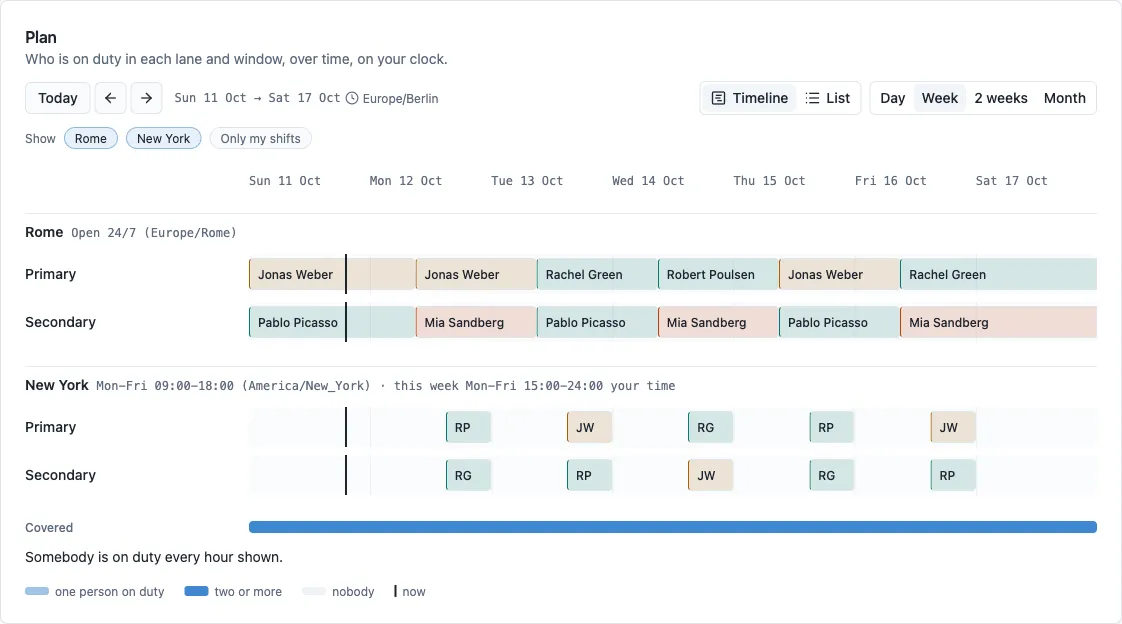
List shows the same turns as text, grouped by day and window. It is the default on a phone, and the choice is remembered.
A turn somebody is covering for a colleague is marked in the bar.
A rotation with Random order on still has a plan. Its windows hand over on their schedule like any other, so the turns ahead have their times; only the name is decided at the moment of handover. Those turns are drawn as an outlined bar with a shuffle mark, and the legend under the picture names it. In List they read Picked at random. They count towards the Covered strip, because somebody will be on duty for those hours.
Switch it on and off with Random order, in the Random rotation plan card under Settings → Behavior. Switch it off and the rotation goes back to its list order, starting with whoever comes after the person on duty now. The plan and Next handover then name people again.
A window you rotate by hand (schedule type Manual) has no handover date: the turn stays with whoever holds it until somebody hands it over, and has no end time. Its plan draws that turn across every hour the window covers, so a window covered Monday to Friday shows a bar on each of those days. On a rotation with more than one window, this applies to the hand-rotated window alone: the others keep their own handovers. A rotation linked to an external schedule draws whatever the provider has planned.
When the plan is empty
Section titled “When the plan is empty”| What you see | What it means |
|---|---|
| No people yet, with Add people | Nobody is on the rotation, so there is nothing to plan. Add people opens People & groups. |
| No shifts in this range | The dates you are looking at hold no shifts. Move with the arrows, or go back with Today. |
Coverage
Section titled “Coverage”Coverage is when this rotation is covered, and who is on duty in each stretch of it.
On a rotation managed in Round Robin, the tab draws one band per coverage window. A band names the window, states the hours it covers and the clock they are read in, and says whether it is open right now. Under it is a row for each lane, naming who is on duty in it and the list it deals from in that window.
On a rotation linked to PagerDuty or Jira Service Management, the tab names the linked schedule, with a link to open it at the provider, and a note headed Hours set in PagerDuty or Hours set in Jira Service Management. The provider’s schedule decides when the rotation is covered. See Set the hours it covers.
When a lane in an open window has nobody on duty, a line above the bands names it, such as Primary (EMEA) has nobody on duty. With more than one, the line is headed with the count, such as 3 lanes in windows have nobody on duty., and lists each underneath. The empty row says Nobody on duty from the name list, naming the list it deals from. That name opens the list: put somebody on it to fix the gap. A rotation outside its hours, or one with somebody on duty in every lane and window, gets no such line.
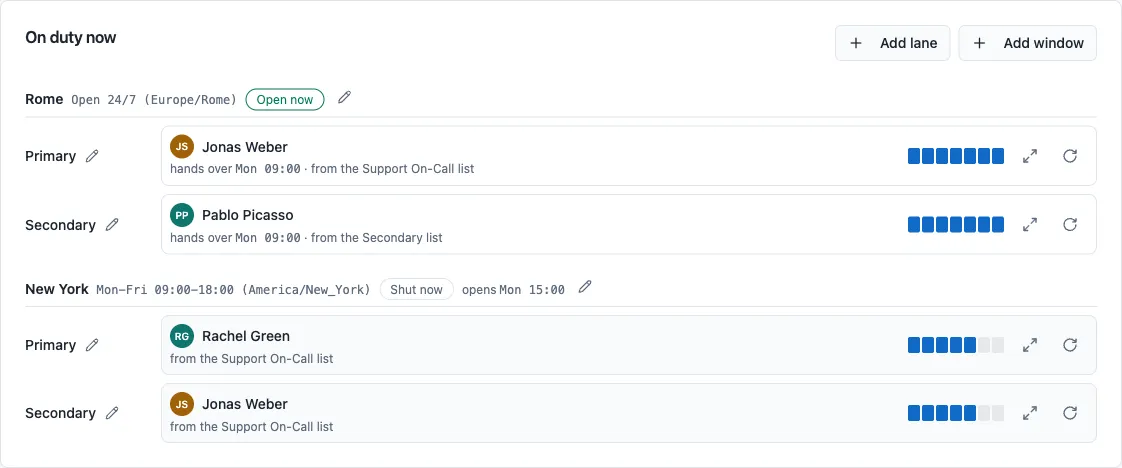
Everything on the tab opens the thing it names. The pencil in a band head opens that window, the pencil on a lane label opens the lane, and a list’s name opens the list. Add window and Add lane are on the card header.
A row with nobody in it because its window is shut is not marked. A row with nobody in it while its window is open is drawn as an empty amber track: a page arriving now reaches nobody.
A band states when its window is open, which is a different question from whether anybody is on duty in it. A window can be open around the clock and still have nobody on it, and when that happens the band says both.
Each row has two buttons of its own: rotate it, and change who is on duty in it. Hover a button for its name, such as Rotate Primary (EMEA) or Change assignment on Primary (EMEA). Use them to move the one that is stuck without disturbing the others. A row’s rotate follows the same rules as Rotate now: see Who a rotate puts on duty.
A lane is one person on duty at a time. Most rotations have one.
A second lane means two people on duty at once, each from a list of their own: a frontend engineer and a backend engineer, or a primary and a secondary. Each lane says which list it deals from, and on a rotation with more than one coverage window it can deal from a different list in each. A second lane is on Pro; one lane is free on every plan.
A lane’s page also shows where it appears: every window it crosses, the list it deals from in each, and who holds it there now.
Coverage windows
Section titled “Coverage windows”A coverage window is a stretch of hours in one time zone, with its own cadence. Most rotations have one, and every plan covers it: setting its hours is part of the window and costs nothing.
A second window is how follow-the-sun works: an EMEA morning and an APAC evening on the same rotation, each covered by its own people, each handing over on its own clock. A second window is on Pro.
A rotation linked to PagerDuty or Jira Service Management has no coverage windows to edit. Its hours are set at the provider: see Set the hours it covers.
Edit on the Hands over card opens the window whose cadence it draws, which is where the handover is changed. On a rotation with more than one window it names them, because a cadence belongs to a window.
Windows that hand over on the same terms share one Hands over panel, named for the windows it speaks for. Two windows written in different names for the same clock, such as Europe/Amsterdam and Europe/Berlin, hand over at the same moments. They share a panel, and the panel says both names are the same clock. Windows that differ, including two that agree on the day and time but skip different countries’ holidays, keep a panel each.
When it is covered
Section titled “When it is covered”A window is covered one of two ways, and the window’s page asks which:
- All the time. Round the clock, every day. Nobody holding the window is ever off duty for want of hours. This is what a new window starts as, and what most rotations stay as.
- Only at certain hours. You paint the week, and outside those hours the window is shut and nobody is on duty from it.
The week under the answer always shows the one you picked: covered all the time, it is drawn full.
Setting the hours
Section titled “Setting the hours”Choose Only at certain hours and the window’s page draws the week as seven days. Drag across a day to add a stretch of cover. Drag again inside a stretch to take those hours back off it, which is how you make one shorter or split it around lunch, and the × on a stretch removes the whole thing.
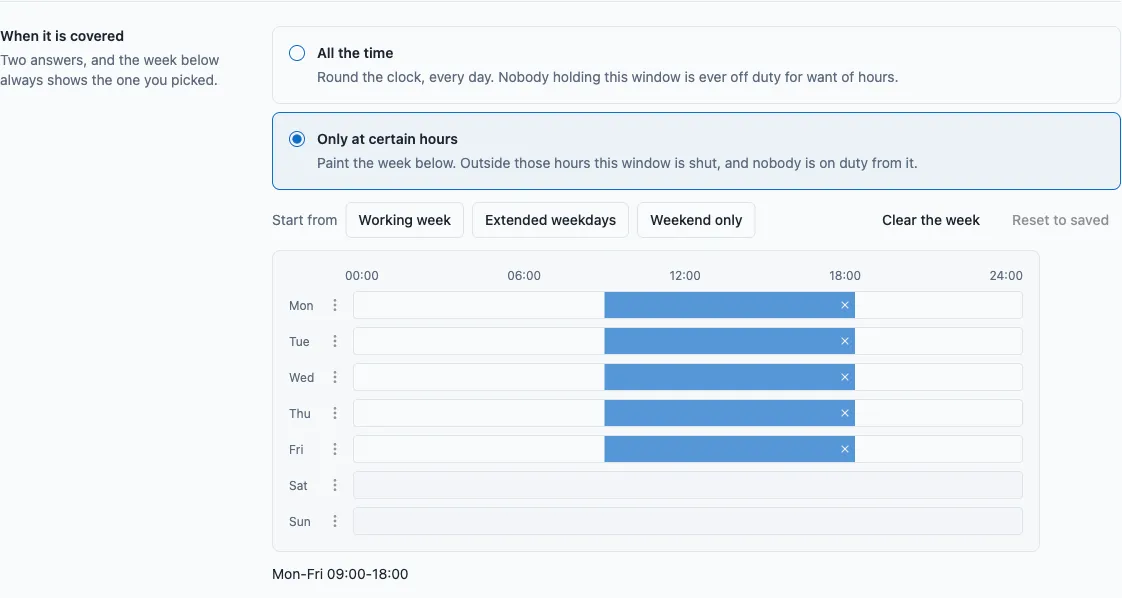
Stretches that touch or overlap join into one, including across midnight and around the end of the week, so a Friday evening to Monday morning shift is a single stretch.
Hours are read in the window’s time zone, which is filled in with your own clock as soon as a window states any hours. Change it before saving if the hours belong to a different one. The picker offers the same list as the schedule: one entry per city, plus UTC. A fixed offset such as Etc/GMT+2 is not on the list, and the API refuses it.
Under the week is the same set of stretches as rows, in 15-minute steps. Use those to type times rather than paint them, to say several days at once, and to work without a pointer: the rows and the week are one set of hours, shown twice.
Each day carries a menu, next to its name, for the things that are tedious to drag: copy that day’s hours to the working week, to every day, or to one day you pick, and clear the day.
Start from offers three weeks to begin with: Working week, Extended weekdays and Weekend only. Clear the week empties it; Reset to saved puts the whole page back to what is saved, so a starting point is safe to try. Nothing is written until you press Save.
A window set to certain hours has to cover some. With an empty week the page says so, and does not save until you paint some hours or choose All the time.
Coverage periods
Section titled “Coverage periods”Each period is a stretch of the week: a start day and time, and an end day and time. The end is exclusive, so a period ending at 12:00 and one starting at 12:00 are one continuous stretch of cover, not a clash.
- A working day: Monday 09:00 to Monday 18:00.
- A lunch break: two periods on the same day, 09:00 to 13:00 and 14:00 to 18:00. The gap is off-time.
- A night shift: Monday 22:00 to Tuesday 06:00. A period may cross midnight.
- A weekend shift: Friday 18:00 to Monday 09:00. A period may cross the week boundary too.
Periods cannot overlap, and a period cannot start and end at the same point of the week, which would cover nothing. Both are caught before you save.
When a window opens and shuts
Section titled “When a window opens and shuts”A window that states hours says both halves of where it is in its week: while it is open, the hour it closes; while it is shut, the hour it opens again. Both are read in the window’s own clock.
A person’s duty lasts until the earlier of two hours: when their window closes, and when their shift hands over. A window covering Monday to Friday 09:00 to 18:00 with a weekly handover puts the same person on all week, and each evening they are on duty until 18:00, not until Monday.
On a Pro rotation with more than one window, each window keeps its own hours and its own handover. Two people in two windows can be on duty until two different hours, and each is told their own. Reminders work the same way: each window reminds its own people before its own handover, opening or closing. See Remind people before a shift.
Somebody who is waiting for a shut window keeps their turn. When that window opens they come back on duty, at their own window’s opening. A rotation with one window shut and another open has somebody on duty in the open one and somebody waiting in the shut one, and says so.
Two things give the turn to somebody else:
- A handover falls due while the window is shut, or at the moment it opens. The turn goes to the next person, chosen the same way as at any other handover. That person waits for the window and goes on duty when it opens.
- The person waiting is taken off the list that lane and window deal from. When the window opens, the turn goes to somebody still on that list.
The channel hears about each opening and closing:
| Event | Channel message |
|---|---|
| A window closes | Off duty (coverage closes) |
| A window opens and the person who went off duty when it closed is back | On duty (coverage opens) |
| A window opens and somebody else goes on duty | On duty |
| A handover falls due while the window is shut | Nothing until the window opens, then On duty |
Somebody else going on duty is a change of person, so the channel gets the ordinary On duty message, with its template and its switch. See Which on-duty message the channel gets when a window opens.
Rotating while a window is shut
Section titled “Rotating while a window is shut”Rotate now works while a window is shut. The turn goes to the next person who is free, who waits for the window like anybody else and goes on duty when it opens. Nobody goes on duty early.
When the rotation is Paused, with every window shut, the channel gets the closed-hours message. It names who returns on duty and when:
Rotation name is outside its coverage windows. people will return on duty day and time.
The day and time are shown in each reader’s own Slack clock.
That message is the Off duty (coverage closes) template, so a custom version or a silenced one applies here too. See Customize rotation messages.
Two switches that go with coverage hours
Section titled “Two switches that go with coverage hours”Two more switches change what coverage hours do. Both apply to the whole rotation, not to one window, and live in the Skips and hand-overs card under Settings → Behavior:
| Option | Effect |
|---|---|
| Skipped days count as time off duty | When a window’s schedule skips a day, that window’s coverage on that day is dropped: nobody goes on duty in it, even though its week says the day is covered. The skips come from the schedule, so this is how a holiday becomes off-time: the week is fixed, and public holidays move. It has no effect unless a skip option on the schedule is on. |
| Stay quiet when the same person carries on | When a window closes and the same people are back later the same day (a lunch break), the channel gets neither the Off duty (coverage closes) nor the On duty (coverage opens) message. A new day is always announced. A different person going on duty is always announced. |
The first option changes when duty runs. The second changes only what is posted to channels: the people going on and off duty still get their direct messages either way.
Skipped days are read window by window. Each window drops the days its own schedule skips, in its own time zone, so a London window that skips UK holidays and a window that skips none have different days off under the same switch.
To silence a coverage message every time, not only within a day, use its template in Settings → Messages & Slack.
Worked examples
Section titled “Worked examples”Three things decide what happens: the schedule (how often duty changes hands), the window’s coverage week (when duty runs at all), and the two options above.
- Office hours, weekly handover. Schedule weekly on Monday 09:00, coverage Mon-Fri 09:00-18:00, both options off. The same person holds the rotation all week: on duty each morning at 09:00, off each evening at 18:00, closed Saturday and Sunday. The channel hears about it ten times. Monday morning hands over to the next person, so it gets On duty. Tuesday to Friday mornings bring the same person back and get On duty (coverage opens). Each evening gets Off duty (coverage closes).
- The same, with Stay quiet when the same person carries on. Nothing changes. The switch works within one day, and every evening here is followed by a new day.
- A lunch break. Coverage Mon-Fri 09:00-13:00 and 14:00-18:00, Stay quiet when the same person carries on turned on. The channel hears nothing at 13:00 or 14:00, so the day reads as a single 09:00 to 18:00 shift. With the switch off, the channel gets all four messages.
- Daily handover inside the day. Schedule daily at 12:00, coverage Mon-Fri 09:00-18:00, Stay quiet when the same person carries on turned on. The midday handover is an ordinary handover and gets On duty as usual: the coverage hours have nothing to do with it. The evening and morning messages are both posted, because the window reopens on a new day. The morning one is On duty (coverage opens), because the person who went off at 18:00 holds the turn until noon.
- A weekend shift. Schedule weekly on Friday 18:00, coverage Fri 18:00 to Mon 09:00. Duty runs from Friday evening to Monday morning with no gap, so there are no evening or morning messages. The window is then shut all week until the next Friday.
- Working days, with holidays off. Schedule working days (weekends and a country’s public holidays skipped), coverage Mon-Fri 09:00-18:00, skipped days counting as time off duty. On an ordinary week nothing changes, because the schedule and the coverage already agree about Monday to Friday. On a public holiday the schedule skips the day, so the coverage on that day is dropped too and nobody is on duty. With the option off, the holiday is a working day as far as duty is concerned.
- Certain hours with nothing covered. A window set to certain hours must cover some, so the dashboard refuses to save an empty week. To stop a rotation altogether, disable it. To close a window outside working hours, give it a coverage week instead.
What gets announced
Section titled “What gets announced”For a rotation with Stay quiet when the same person carries on turned on:
| Event | Channel message |
|---|---|
| A window closes and the same people are back later the same day | Nothing |
| A window closes and the same people are back on a later day | Off duty (coverage closes) |
| A window closes and somebody else has the next opening | Off duty (coverage closes) |
| A window opens later the same day on the same people | Nothing |
| A window opens on a new day on the same people | On duty (coverage opens) |
| A window opens on a different person | On duty. The switch never applies to a change of person. |
| The schedule hands over while a window is open | On duty: an ordinary handover |
| The schedule hands over while a window is shut | Nothing until the window opens, then On duty |
With the option off, every row is posted. Direct messages to the people involved are sent either way, and the coverage messages can be edited or switched off individually. Who receives each one is listed under Coverage hours.
Saving, and deleting
Section titled “Saving, and deleting”Every one of these pages holds its edits until you press Save, at the top right. Cancel discards them. Deleting the object you are editing is in the menu beside Save, and a deletion that would take somebody off duty names who first.
People
Section titled “People”People & groups holds the rotation’s lists. Most rotations have one list; a lane deals from a list, and two lanes can share one or have their own.
Open a list to change who is on it, the order they come round in, and the Slack user groups it draws on. Adding a group adds everybody in it, and Round Robin keeps that in step with Slack.
Used by on the list’s page names every lane and window it deals into. A list that several of them share is dealt in one order, so changing that order moves all of them.
Two windows that deal from the same list take turns from it in the order their handovers happen. If an EMEA window hands over at 08:00 and an APAC window at 16:00, APAC gets the person who comes after EMEA’s. Next handover and the plan show the same order.
Channels
Section titled “Channels”Channels lists every channel the rotation uses and what Round Robin does in each. One row per channel:
| Column | Shows |
|---|---|
| Duty messages | Posted here when handovers, reminders and mentions of the rotation are posted in the channel, Topic only when they are not. |
| Channel topic | Kept in sync when the topic is rewritten with whoever is on duty, Not updated when it is not, and Needs an invite when the topic is on but Round Robin is not in the channel. Hidden when the rotation has its topic switched off. |
| Round Robin | In the channel, Not in the channel, or Can’t check. |
Not in the channel and Needs an invite have the same fix: run /invite @Round Robin in that channel. Until then, Round Robin cannot post there or set the topic. A channel the rotation posts in but cannot reach also shows as a delivery problem.
Click a row to open its settings. There you switch Post duty messages here and Keep the channel topic in sync, keep the channel’s members in step with the rotation, or remove the channel. Changes apply as you make them, so there is nothing to save. Add channel, above the table, adds one.
A channel does not have to do both. A topic-only channel is a normal arrangement: a busy channel that should show who is on duty without being posted in. See Topic management for the topic itself.
Removing a channel stops the messages and the topic updates. Nothing already posted is deleted, and the topic keeps whatever it last said.
History, Changes and Activity
Section titled “History, Changes and Activity”| Tab | What to find |
|---|---|
| History | Duty served and running now, gaps and daily coverage totals. |
| Changes | Assignment changes, cover and swap requests, and their recorded decisions. |
| Activity | Rotation settings, membership, manual handovers and other activity. |
Open Review duty changes for History filters and the Changes feed. See Rotation activity for settings and workspace records.
Rotation notes
Section titled “Rotation notes”Rotation notes are free text the people on a rotation leave each other: a runbook link, a handover, a caveat for whoever is on duty next. Open them from Rotation notes in the page header.
Current note shows the note and who last updated it. Each time somebody saves a new one, the previous version moves to Note history, with its author and the date it was archived.
To use the note in a rotation’s messages, put %ROTATION_NOTES% in a template: see Templating.
Who can read and write notes
Section titled “Who can read and write notes”| Plan | Who can read notes | Who can write notes |
|---|---|---|
| Free | Everyone in the workspace | Everyone in the workspace |
| Pro, public rotation | Everyone in the workspace | People on the rotation, its owners and workspace admins |
| Pro, private rotation | People on the rotation, its owners and workspace admins | The same people |
Writing covers Add note, Edit note, Delete note and Clear history in the dashboard, and Set notes… in Slack. The same rule applies on both.
Somebody who can read but not write sees the note and its history without those buttons. In Slack, Set notes… shows in a rotation’s More actions… menu on the App Home only for people who can write.
On a disabled rotation nobody can write notes. The page says This rotation is disabled. Enable it to edit notes.
Settings
Section titled “Settings”Everything with a default you can leave alone lives under Settings, reached from the rotation’s header. It has five sections: the rotation’s details, alerts and mentions, messages and Slack, behaviour, and integrations.
Link a PagerDuty or Jira Service Management schedule under Settings → Integrations → External schedule. The provider then decides the rotation’s participants, shifts and hours, and its lanes and coverage windows cannot be edited here. See External rotations.
Next steps
Section titled “Next steps”- Create or edit a schedule: how often a window hands over, and to whom
- Customize rotation messages: the dedicated on- and off-duty coverage messages
- External rotations: a rotation whose duty comes from PagerDuty or Jira Service Management
- Rotation activity: who changed the rotation, and when