Skip to content

See who changed what

Every rotation keeps a record of what was changed on it, when, and by whom: “Robert changed the schedule to weekly”, “Mike rotated manually”, “CI Bot added two members”. It answers the question you ask when a rotation is not behaving the way you remember setting it up.

There are two ways in:

  • A rotation’s own Activity tab. Anybody who can see the rotation can read it. Free and Pro.
  • Workspace activity, in Settings. Every change to every rotation, and to the workspace itself, in one feed. Administrators, on Pro.
  1. Sign in at app.roundrobinbot.eu and open the rotation.
  2. Open the Activity tab.

Entries are grouped by day, newest first, and written as sentences: who did it, what they did, and what it changed from and to. People appear by name, never as a Slack id.

A change with more in it than one sentence can carry says the rest on a quieter second line: which channels or owners were added and which were dropped, both by name, and which parts of a setting moved when one setting holds several, such as a schedule or the hours it covers.

Narrow it down with the filters above the feed:

  • Any change is every kind of change on offer, grouped by the area it belongs to: Duty, People, Schedule, Channels & messages, Notes, External schedules, Rotation settings. All beside a heading takes the whole area in one click; tick the lines under it to ask for one kind on its own. There is a search box at the top for when you know what you are after.
  • All time limits the feed to a named window, or to a range of days you set yourself.

Each button says what it is set to: the name when you have picked one thing, a count when you have picked several, and a tick beside every choice when you open it again.

Load more brings back the next page.

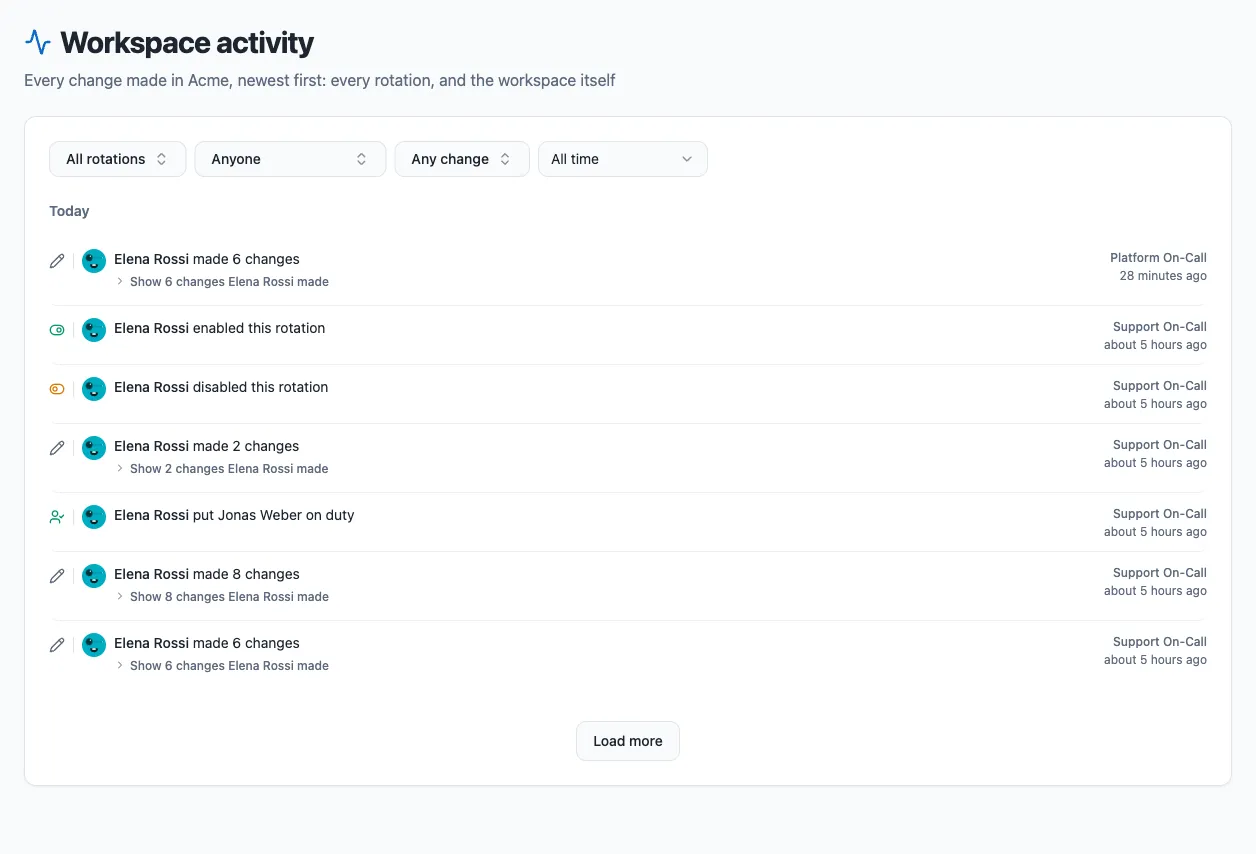
Settings has an Activity page that shows the same records for every rotation in the workspace, plus the changes made to the workspace itself. It is the page to open when the question is “what has been going on?” rather than “what happened to this rotation?”.

  1. Open Settings and choose Workspace activity.
  2. Narrow the feed down with the filters above it.

The Workspace activity page, with the four filters on one line above a day of changes, each row naming the rotation it belongs to

Each day is one list in time order, and every row names what it is about: the rotation, as a link to that rotation’s own Activity tab, or Workspace for a change to the workspace itself, such as the plan or who administers it.

On top of the kind-of-change and date filters a rotation’s tab offers, this page has two of its own:

  • All rotations picks one rotation, or several. Start typing to search by name. Choosing a rotation leaves the workspace’s own rows out, since they belong to no rotation.

    The list offers the rotations the feed actually has changes for, which is not the same as the rotations that exist today. A rotation that has since been deleted is on it, marked Deleted and under the name it had at the time, so its entries can be read on their own. A rotation nobody has ever changed is not, because asking for it would only empty the feed.

  • Anyone picks who made the change, by name, so “what has Robert been changing?” is one question rather than a read of the whole feed.

The four filters sit on one line, and Clear filters puts the whole feed back.

Both are answered by the server, so Load more keeps walking the whole workspace’s matching changes rather than sifting the page you are already looking at.

You need: the Pro plan, and Admin or Owner in the workspace. Each rotation’s own Activity tab stays open to everybody on every plan.

A rotation that has since been deleted still appears here, under the name it had at the time. It can be filtered down to like any other.

Anything a person or a program does to a rotation:

  • Lifecycle: created, deleted, enabled, disabled, mode changed.
  • Details: name, description, code, visibility, duty size, owners.
  • Members: one entry per person added or removed, so “when did Carol leave?” has a single answer. Reordering the list is recorded too.
  • Schedule: schedule set, changed or removed, time zone, business hours.
  • Slack: notification channels, the on-duty group, the channel topic, message templates, no-duty keywords.
  • Notes: a note set, cleared, or the note history cleared.
  • Duty: a manual rotation, somebody put on duty explicitly, duty cleared.
  • External schedules: connected and disconnected.

Workspace activity adds what was done to the workspace itself, under a Workspace filter of its own:

  • The app itself: Round Robin added to the workspace, or put back after having been removed, and removed from it. A removal says why it happened: somebody uninstalled the app, Slack revoked our access, the workspace went over its plan limits, or it left a Slack organisation.
  • Plan: moved to Pro, moved back to Free.
  • Administrators: a role granted or taken away, and an ownership claim.
  • Handover settings: clearing the on-duty group before each handover, and whether the group may be left empty.
  • Email: that Round Robin sent one, and what its subject was.

Each entry says who acted:

  • A person, by their Slack display name, whether they made the change in the dashboard, in Slack, or through an AI assistant.
  • An API key, by the name you gave the key, so an integration is recognisable as itself.
  • Round Robin, when the change followed automatically from something else, such as a member dropped because they left the Slack workspace.

Somebody who has since left the workspace has no name left to show, so their entries are written without one: “the schedule was changed to weekly”.

Scheduled duty changes. A rotation that advances on its own, at the time its schedule says, does not write an activity entry. It would fill the feed with the one thing that is not news, and the rotation already keeps that in full: open the History tab, which lists every shift with its start, its end, and why duty changed hands.

Anything that is not a change. Reading a rotation, listing it, or being shown it in Slack leaves no entry.

Personal data. An entry stores identifiers and the values that changed, not IP addresses and not message bodies. Names you see in the feed are looked up when the page is drawn, from the workspace directory, rather than copied into the record. The one exception is the record that an email was sent, and it keeps only the domain: mail to [email protected] is recorded as sent to a***@example.com, so a “did that go to the right company?” question has an answer without the record naming anybody. The feed shows neither, only the subject line.

A rotation’s history lives as long as the rotation does. Nothing is trimmed while the rotation exists, so a change made two years ago is still there.

When a rotation is deleted its history is kept for 13 months from the deletion, including the record of the deletion itself, and then removed.