Create a rotation
Works on the Free plan. Options marked Pro below need a Pro plan.
A rotation is a pool of people who take turns being on duty. Create it in the dashboard, then choose its members, channels and schedule.
You need: a Round Robin account with room for another rotation under your workspace’s limits.
Create a rotation from the dashboard
Section titled “Create a rotation from the dashboard”-
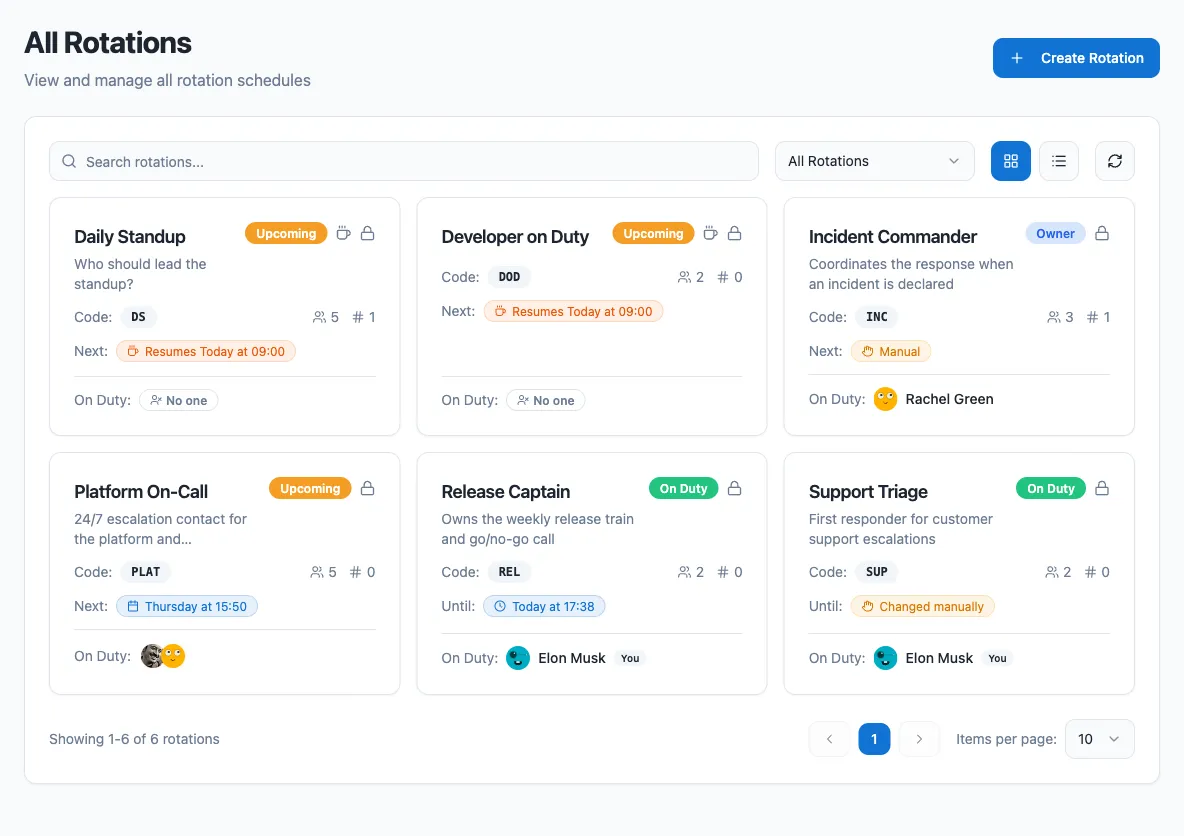
Sign in at app.roundrobinbot.eu and open Rotations. This page lists all rotations you can see, with search and filters.
-
Click Create Rotation.
-
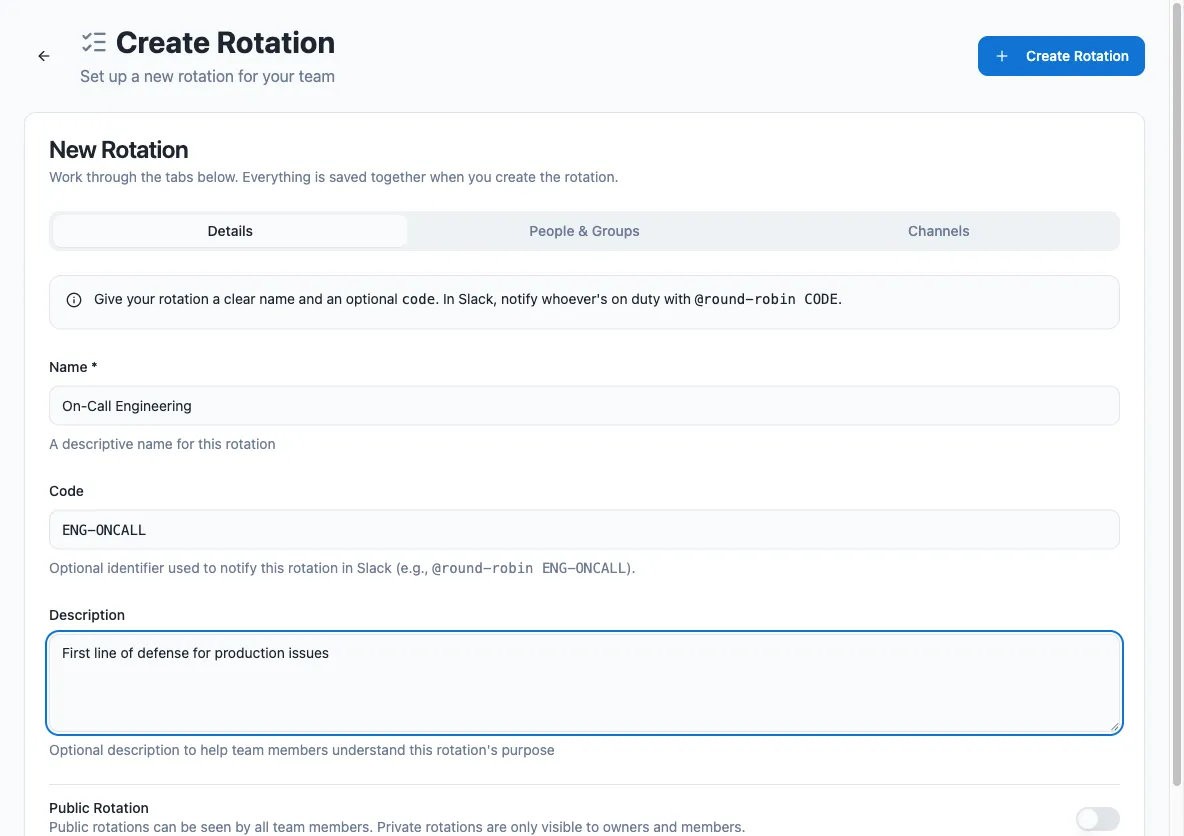
Work through the three tabs: Details (name, code, description, public/private), People & Groups (owners, members, member user groups), and Channels. Everything is saved together.
-
Click Create. You land on the new rotation’s page, where you can continue with schedules, templates, and integrations.
Before saving:
- The Code field accepts only letters, numbers, and hyphens, and is stored uppercase.
- You are pre-filled as an owner and cannot remove yourself.
- You can leave members, groups, and channels empty and configure them later from the rotation page.
Rotation fields
Section titled “Rotation fields”| Field | Required | Plan | What it does |
|---|---|---|---|
| Name | Yes | All | Identifies the rotation everywhere. |
| Description | No | All | Helps members understand what the rotation is for. |
| Code | No | All | A short, memorable identifier (no spaces) other users can use to notify whoever is on duty by mentioning the bot, e.g. @Round Robin ENG-ONCALL. See Mentions. |
| Owners | Yes | Pro | Owners manage the rotation and are the only ones who can edit it. Being an owner does not make you a member. You must always be in the owners list yourself: the form is rejected otherwise, so you cannot lock yourself out. On the free plan the field is hidden and you become the owner automatically. |
| Visibility | No | Pro | Mark the rotation as private to make it visible only to owners and members. Admins and owners can still see every rotation, private ones included: pick Everyone’s rotations on the Rotations page. By default a rotation is public. On the free plan there is nothing to hide from anybody, so every rotation is public. |
| Channels | No | All | Channels notified on rotation events, such as a change of duty. The bot cannot post to private channels it is not a member of. A rotation can also keep a channel’s membership equal to whoever is on call (see Sync a channel’s membership). |
| Members | No | All | Users in the on-call pool who take duty turns. |
| Groups | No | All | Slack user groups whose members join the pool. If the group’s membership changes later, the rotation updates automatically: somebody who joins the group joins the end of the turn order, and somebody who leaves it drops out of it. |
The rotation page
Section titled “The rotation page”Open the new rotation to review its current duty and configure its coverage. See The rotation page for its tabs, settings and actions.
Members from other workspaces and organizations
Section titled “Members from other workspaces and organizations”Rotations aren’t limited to full members of your workspace:
- Guests (single- or multi-channel) can be rotation members like anyone else. They are marked (guest) in the pickers. Note a Slack platform limitation: guests can’t mention user groups, so they can’t use an on-duty group handle to reach whoever is on duty. Mentioning the bot with the rotation’s code (
@Round Robin CODE) works for them in channels the bot is in. - Slack Enterprise Grid: the people and user-group pickers search your whole organization, not just the current workspace. Results from another workspace show a badge with that workspace’s name, and cross-workspace members work in rotations like local ones.
- External people (from another organization, connected through a Slack Connect shared channel) can take duty turns, and are marked with an external badge in pickers and member lists. Because Round Robin isn’t installed in their organization, some things can’t work for them: the bot can’t send them direct messages, can’t add them to on-duty user groups, and won’t sync them into channels. Reach them by notifying a shared channel the rotation posts to.
Edit a rotation
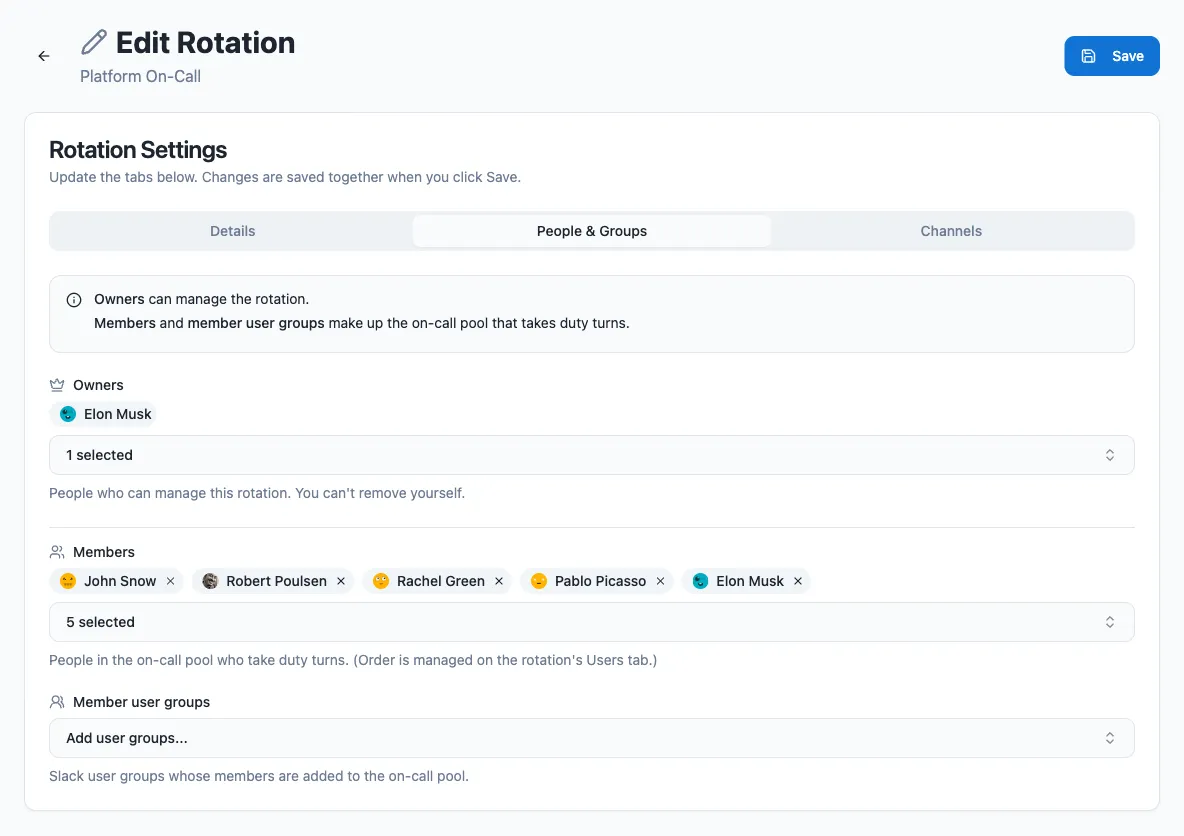
Section titled “Edit a rotation”Open the rotation from the Rotations list and edit it. People & Groups manages owners, members and member user groups.
Channels are not edited here. The rotation’s own Channels tab is where you add a channel, say what Round Robin does in it, and remove it. See Channels.
How many people are on duty at the same time is set on the rotation’s Coverage grid, not here: each lane holds one person, so a rotation with two lanes has two people on call at once. See Lanes.
Switch a rotation off
Section titled “Switch a rotation off”Clear Enabled on the rotation to switch it off. A disabled rotation announces nothing, rotates nobody, and keeps its members, schedule and settings, so switching it back on picks up where it left off. Disabled rotations do not count towards your plan’s rotation limit.
While it is off nobody is on duty, and the rotation says so: the On duty column and the Current duty card both read No one. The duty is not lost. Whoever was holding it is still on the Coverage tab, and gets it back the moment you switch the rotation on again.
On the Free plan, a rotation left switched off for more than 60 days is deleted, along with its duty history. Switch it back on at any point before then and the clock starts again the next time it is switched off. On paid plans a disabled rotation is kept for as long as you want it.
From Slack
Section titled “From Slack”Open the bot’s Home tab and select New rotation to open the dashboard form.
In Slack, you can see who is on call, advance a rotation with Rotate, respond to cover and swap requests, and contact the on-call person. Use the dashboard to change assignments, request cover or propose swaps. See Round Robin in Slack.
You can also create a rotation through an AI assistant connected to the MCP server.
Next steps
Section titled “Next steps”- Create or edit a schedule: rotate duty automatically.
- Customize messages: choose what the bot posts on duty changes.