Out-of-office and availability
Works on the Free plan. Options marked Pro below need a Pro plan.
Availability settings record when you cannot serve on duty. For native duty, an absence can assign a temporary substitute during its covered hours.
You need: access to your workspace in the Round Robin dashboard to manage your own availability.
| Source | Plan | Where you manage it | When it applies |
|---|---|---|---|
| Availability settings | All | Dashboard, Settings → Availability | During the absence, for rotations in scope |
| Google Calendar out-of-office events | Pro | Your calendar and Google Calendar settings | When the rotation’s out-of-office consideration setting includes the event |
| No-duty keywords in your Slack status | Pro | Workspace and rotation settings | At handover, when a matching status skips your turn |
For a rotation managed by an external provider, change your availability and assignments in that provider. See external rotations.
Add an unavailability window
Section titled “Add an unavailability window”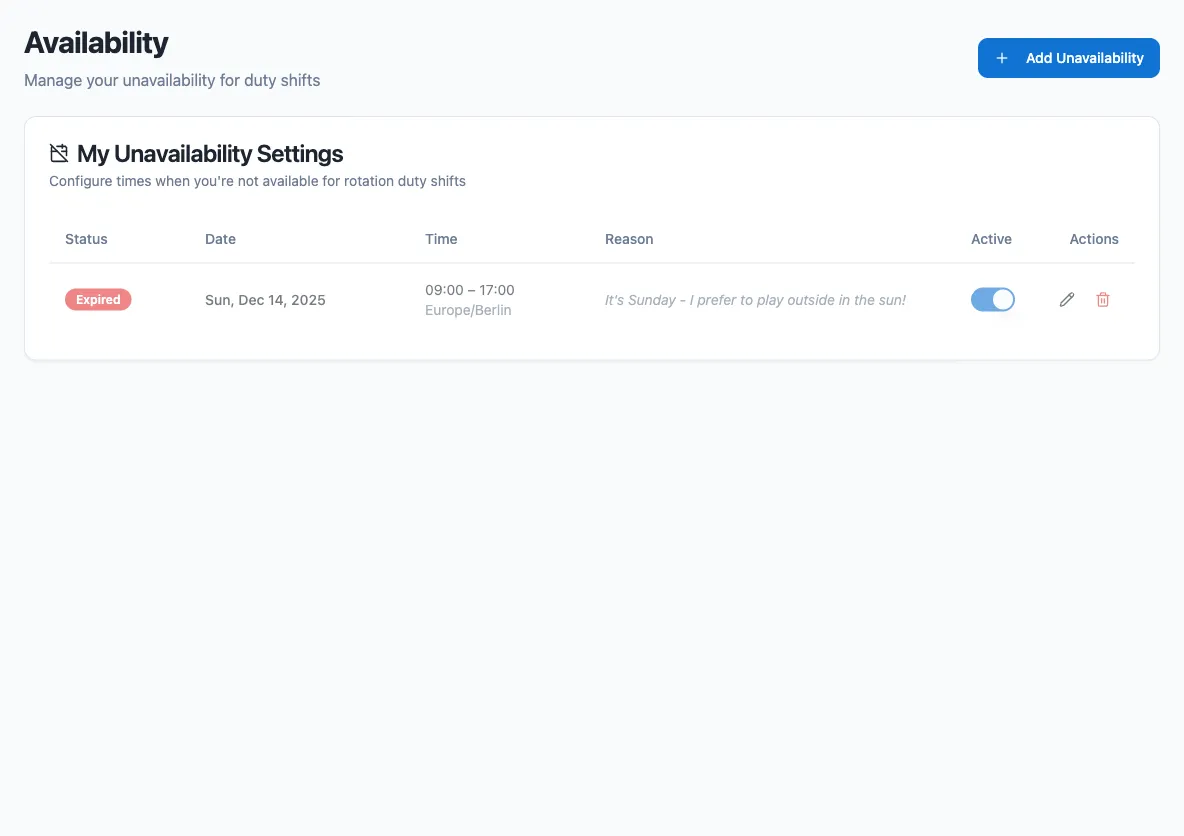
- Open Settings → Availability in the dashboard.
- Select Add Unavailability.
- Choose Time Zone, then enter Start Date and Start Time.
- Enter End Date and End Time. Enable Same day if the absence starts and ends on the same date.
- Optionally enter Reason (optional). Use a reason you are comfortable sharing with people who can view the rotation’s plan.
- Under Rotation Scope, choose All rotations or Specific rotations only. For specific rotations, select each one that should use the absence.
- Set a recurrence if the absence repeats.
- Review Availability impact, leave Active enabled and select Add Unavailability.
Edit or delete an absence from the same list. To keep its settings without applying it to duty, turn Active off. When editing, select Save Changes to save the form.
Repeat an absence
Section titled “Repeat an absence”| Rule | Behavior |
|---|---|
| Does not repeat | One absence. |
| Daily | Every N days. |
| Weekly | Every N weeks on the selected weekdays. |
| Monthly (on day) | Every N months on a selected day of the month. |
| Monthly (on weekday) | Every N months on the 1st, 2nd, 3rd, 4th or last occurrence of the selected weekday. |
Under Ends, choose After and a number of occurrences, or On date and an end date.
Check the affected duty
Section titled “Check the affected duty”The form’s Availability impact compares Before and After for the Preview interval. Expand a rotation to inspect each affected interval. Use More rotations and Previous rotations to review other pages.
| Result | Meaning |
|---|---|
| Automatic substitution | Another eligible member covers the absence. |
| Assignment restored | A person returns to the assignment after the proposed change. |
| Availability conflict | An existing assignment, accepted cover or accepted swap conflicts with the proposed absence. Inspect After to see who would hold duty. |
| Coverage needed | The proposed plan has an interval without a holder. |
| Assignment unknown | The preview cannot establish the assignment. |
Partial preview means some information is missing. No affected duty in preview applies only to the displayed range; recurring occurrences outside that interval are not included. Completed duty stays unchanged.
Saving refreshes the preview. If Impact changed. Review the updated preview before saving. appears, inspect the new result before saving again. Previewing alone does not save the absence or change duty.
Manual absences and applicable Google Calendar events can produce temporary substitutions. At the end of an absence, scheduled duty resumes subject to current availability. An absence does not cancel an existing assignment, accepted cover or accepted swap. Accepted cover and swaps retain their assignees when availability conflicts. A direct assignment with an unacknowledged conflict can leave duty unassigned; inspect After before saving.
Google Calendar’s per-rotation setting can ignore an event or require a minimum overlap. See Google Calendar sync.
Who covers a short absence
Section titled “Who covers a short absence”For a rotation managed by Round Robin, temporary cover starts with the next person after you in the duty list used by that lane and coverage window. It follows the list’s turn order, wraps at the end and selects the first eligible person who is available. People reserved for other duty are skipped when the rotation’s double-duty settings require it.
This does not advance the normal turn order or use a new random draw. The substitute covers only the absence. You return when it ends if it is still your scheduled turn and you are available. If nobody qualifies, the affected period is uncovered; arrange cover rather than assuming someone received it.
For example, your scheduled duty runs 09:00–18:00 and your Google out-of-office event runs 12:00–13:00. If that event applies to the rotation, the next eligible, available person covers 12:00–13:00. You resume 13:00–18:00, and the normal handover order stays unchanged.
Check the rotation’s Settings → Behavior → External Calendars. Always - Consider out-of-office time includes an overlapping absence. Never - Ignore out-of-office time ignores it. With Only if OOO time is more than…, the one-hour example qualifies when Minimum OOO Duration (hours) is 1, but not 4. Only the event’s overlap with covered hours of your scheduled turn counts.
On your primary Google calendar, use an out-of-office event; an ordinary meeting does not make you unavailable. A separately selected out-of-office calendar can use regular events. See calendar selection and keywords for that configuration.
Accepted cover and swaps retain their assignees when an absence conflicts. A direct assignment has its own acknowledgement rules. Review these commitments in Plan; do not assume that automatic substitution replaces them.
Skip a turn using Slack status
Section titled “Skip a turn using Slack status”No-duty keywords match your Slack status when a new turn is assigned. If your status matches, you are skipped for that whole turn.
Changing your status while you are on duty does not transfer your assignment. Clearing a matching status, or letting it expire, does not return a turn you already skipped. Your status is checked again at the next handover. An expired status does not block that selection.
For temporary cover during a turn, add an unavailability window or use an applicable Google Calendar out-of-office event. Check Plan to confirm who holds duty.
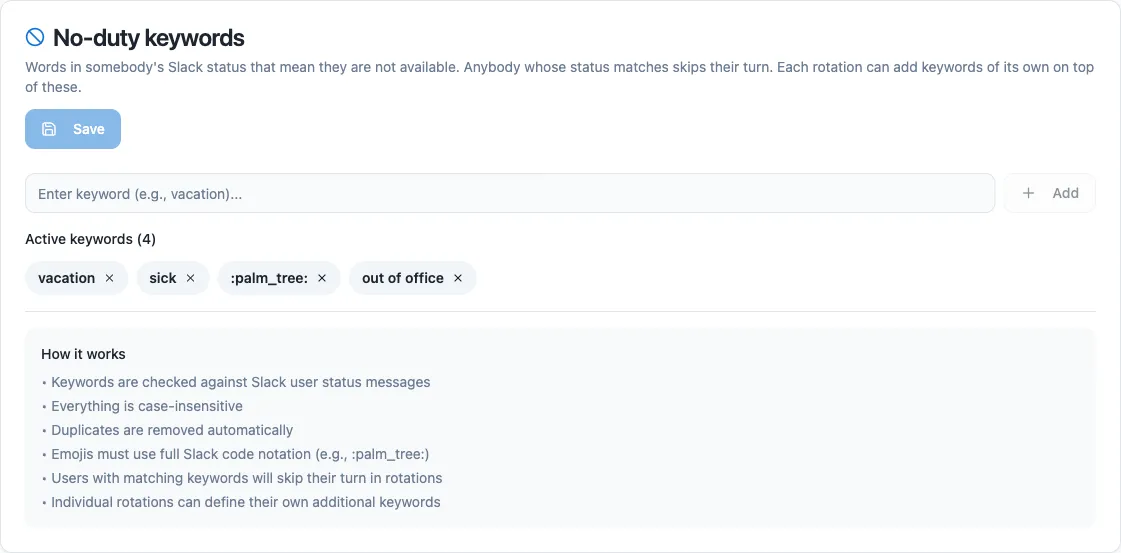
- Open Settings → Team settings and find No-duty keywords.
- Add a keyword such as
vacation, then select Save.
Matching is case-insensitive. Keywords can match the status message or the status emoji. For an emoji, use its full Slack code, such as :palm_tree:.
Each rotation inherits the workspace keywords. Under the rotation’s Settings → Behavior, add rotation-specific keywords or enable Ignore the workspace keywords for this rotation.
Resolve an unexpected assignment
Section titled “Resolve an unexpected assignment”| What you see | What to check or do |
|---|---|
| An absence has no effect on the plan | Check Active, Time Zone, dates and Rotation Scope. For Google events, also check the rotation’s out-of-office consideration setting. |
| A Slack status change has not changed current duty | Slack status applies at handover. Use an unavailability window for a temporary absence during your turn. |
| Current duty still names an unavailable person | Check for an existing assignment, accepted cover or accepted swap. Review that commitment and confirm who serves before leaving. |
| Impact unavailable | Select Retry preview. |
| Partial preview | Check the source warnings and remaining pages. Do not interpret missing information as confirmed availability. |
| Nobody is on duty after a handover | Check the other members’ availability and assignments, then arrange someone to take duty. |
| Calendar absences are missing or stale | Open Settings → Calendar and follow the connection checks. |
| Validation Error when saving | Read the message beneath the title, correct the indicated fields and save again. |
Next steps
Section titled “Next steps”- Google Calendar sync: import calendar absences and export duty periods.
- The rotation page: check the plan and manage current duty.
- Create or edit a schedule: set when the rotation hands over.