Round Robin in Slack
Round Robin sends duty notifications and shows who is on call in Slack. You can advance a rotation, answer duty requests and contact the on-call person from the conversation.
Rotation cards
Section titled “Rotation cards”When duty changes, Round Robin posts a message to the rotation’s channels, and attaches a rotation card: a compact, live summary of the rotation.
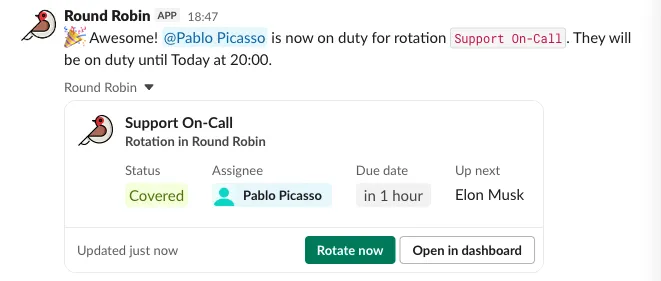
A card shows the current status, who is on duty, when their shift ends, and who is up next, with two buttons:
- Rotate now: advance the rotation to the next person immediately.
- Open in dashboard: jump to the rotation’s dashboard page.
On a rotation with coverage windows the card follows the window each seat sits in: the shift end is the hour that seat’s own window closes.
The status says which of three things is true:
- Covered: somebody is on call right now. On a rotation with several windows, one open window is enough.
- Off hours: every window is shut and somebody holds the seat behind one. The card names when cover resumes, per column, so two columns that reopen at different hours show both. A column with no upcoming hours shows none.
- Nobody on duty: the rotation is covered right now and nobody is holding it. This is the only status that is a warning.
A disabled rotation shows Disabled and none of the three.
Choose when the card appears
Section titled “Choose when the card appears”The card is attached to duty-change messages by default. Change this per rotation in the dashboard, in the Rotation Card card under Settings → Messages & Slack:
- Attach Card To On-Duty Messages: on by default; turn it off to omit the card from on-duty messages.
- Attach Card To Off-Hours Messages: off by default; also attach the card to the message announcing that a coverage window has closed. A rotation whose windows cover the whole week never posts one.
Get the rotation card anytime
Section titled “Get the rotation card anytime”You don’t have to wait for a duty change:
- Paste the rotation’s link: share
https://app.roundrobinbot.eu/rotations/…in any conversation and it unfurls into the card (the Copy link button on the rotation’s dashboard page puts it on your clipboard). This works regardless of the options above, when you can see the rotation: a link to a rotation you cannot see stays plain text. - Share it from the App Home: pick Share card to a channel… from a rotation’s More actions… menu and choose where to post it. The bot must be a member of the channel. On a rotation you cannot see, it replies Rotation not available, visible only to you, and posts nothing. See Rotation cards for who sees a card.
The flexpane
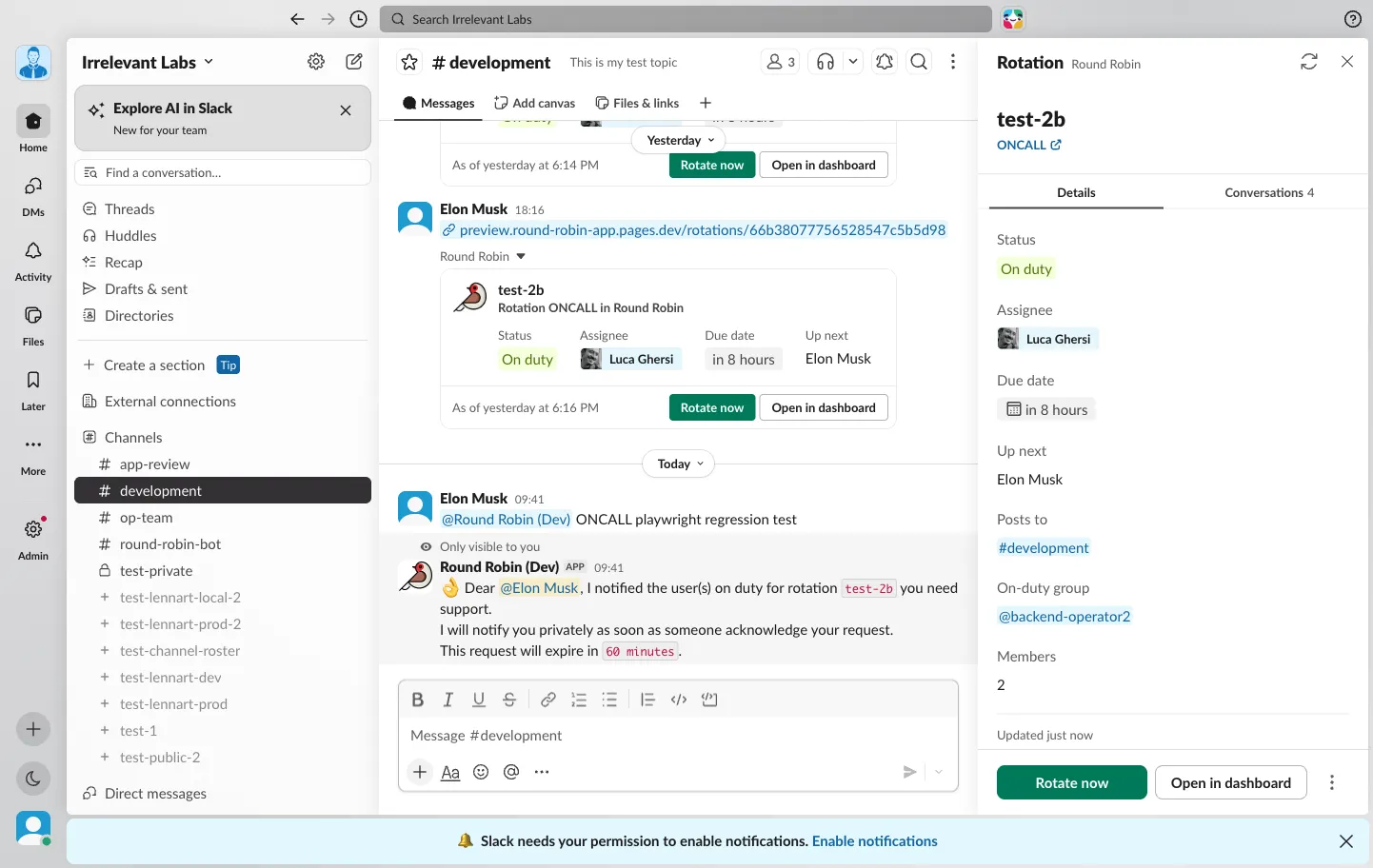
Section titled “The flexpane”Click a card to open the flexpane on the right, a fuller view of the rotation.
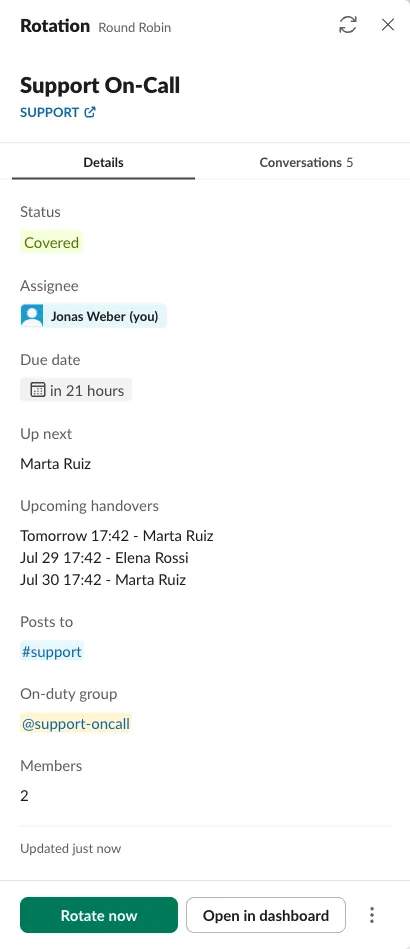
The Details tab shows the on-duty person, the next three handovers, the channels the rotation posts to, its on-duty user group, and the member count. The Conversations tab gathers every place the rotation’s card has been shared, so you can follow the discussion around it. A pinned Rotate now button sits at the bottom.
Opened on a rotation you cannot see, the flexpane shows Rotation not available and No access to this rotation.
App Home
Section titled “App Home”The bot’s Home tab shows every rotation you can see, ten per page by name, with its status, schedule, who is on duty and the next shift. Each has quick actions:
- Rotate: advance the rotation to the next person right now.
- More actions…: set the rotation’s notes or share the rotation card to a channel.
- Open in dashboard: jump to the rotation’s page for everything else, editing, scheduling, enabling or disabling, members and groups.
The New rotation button and the Open Web Dashboard button take you to the dashboard, which is where rotations are created and configured.
Respond to a duty request
Section titled “Respond to a duty request”As a recipient of a pending cover request, select Accept to take the duty. A pending swap request offers Accept and Refuse to its recipient. Select Review request to inspect the request in the dashboard. See Request cover or Swap duty for response and availability checks.
Commands
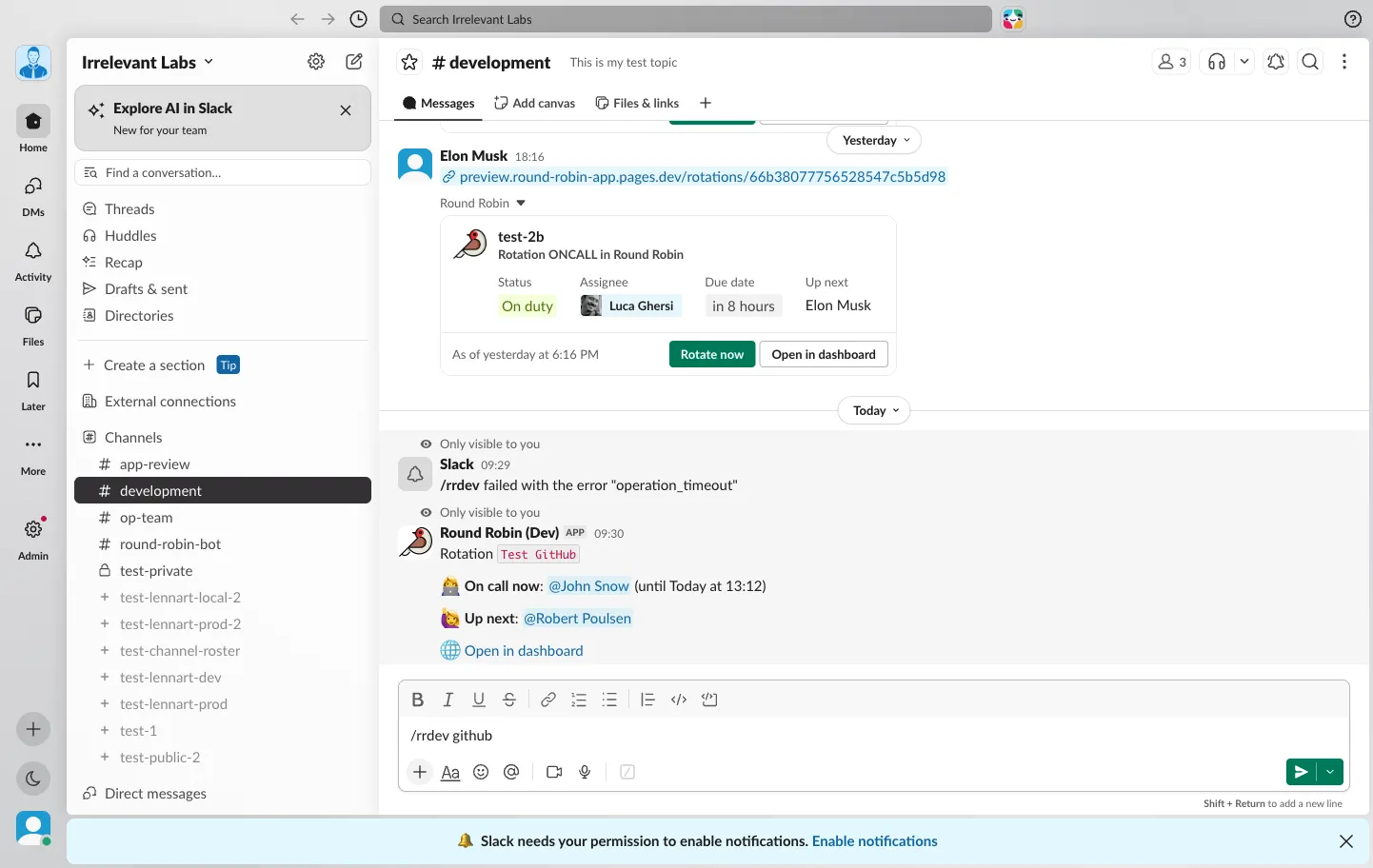
Section titled “Commands”The one Round Robin slash command is /rr (it may be named differently in your workspace, e.g. /rrdev in a test install). It always replies only to you.
| Command | What it does |
|---|---|
/rr <code> |
Shows who is on call right now for a rotation, who is up next, and a link to open it. Codes are case-insensitive. |
/rr duties |
Who is on duty in the enabled rotations you can see, the first ten by name. |
/rr or /rr help |
A short reminder of everything the bot can do. |
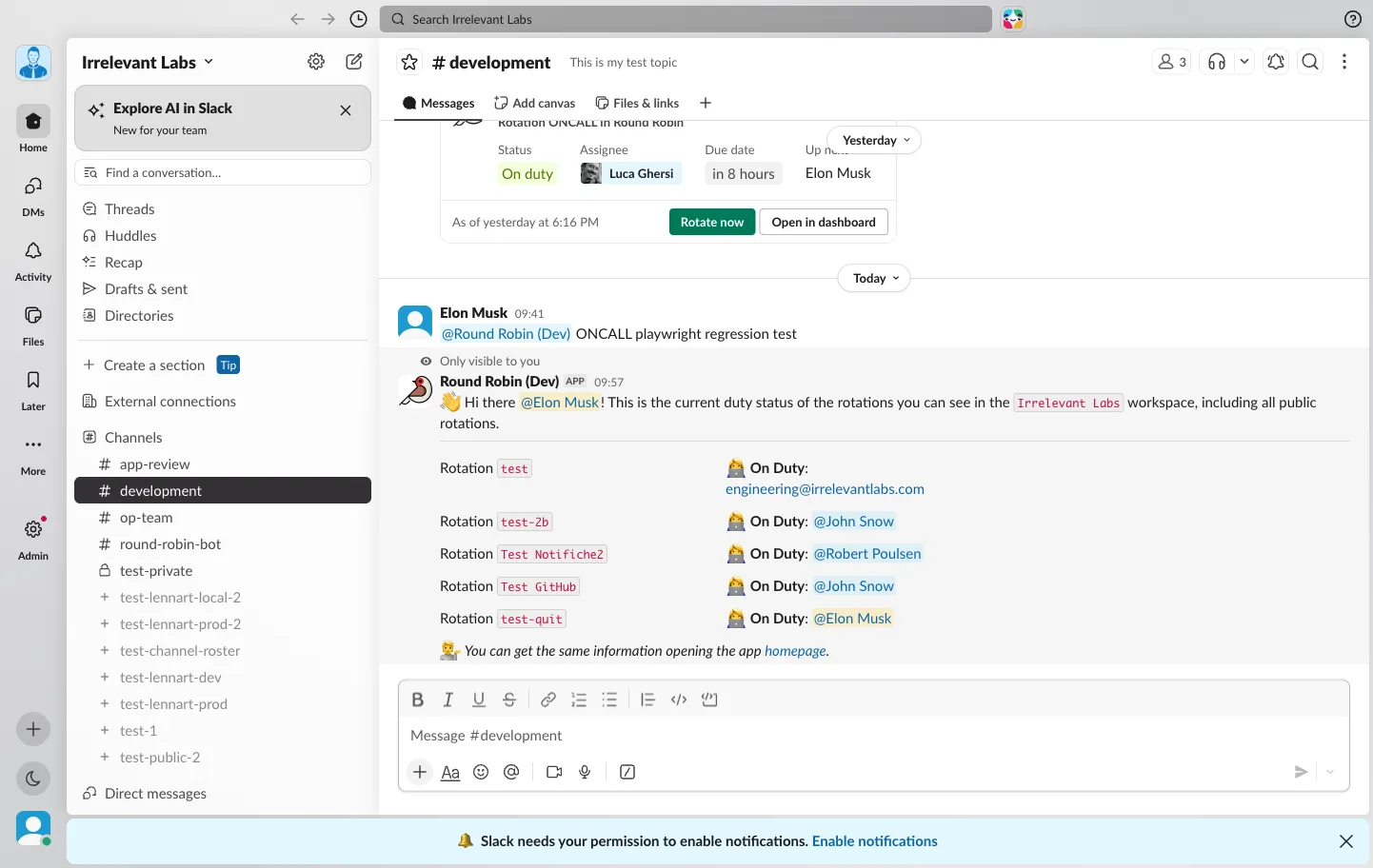
/rr <code> is the fastest way to answer “who’s on call for PAYMENTS?” without leaving the conversation:
Summoning whoever is on call
Section titled “Summoning whoever is on call”To reach the person on duty, mention the bot with the rotation code: @Round Robin PAYMENTS the checkout is down. The on-duty person gets a direct message with Ack and Pass buttons, and you get a private confirmation. This is the mention flow. See What are mentions for the full walkthrough.
Next steps
Section titled “Next steps”- Create a rotation: configure a rotation in the dashboard.
- Connect an AI assistant: manage rotations through the MCP server.
- What are mentions: the full summon/ack flow.
- What Round Robin tells people, and when: every message the bot sends, who gets it and where.