Google Calendar sync
ProThis feature needs a Pro plan. On Free the settings are visible but locked.
Google Calendar sync puts your on-duty periods in your calendar. It also reads out-of-office events to arrange temporary cover during applicable absences.
You need: a Google account and access to your workspace in the Round Robin dashboard.
Each member connects their own account. You do not need the admin role.
Connect your Google account
Section titled “Connect your Google account”- Open the dashboard at app.roundrobinbot.eu.
- Go to Settings → Calendar.
- On the Google Calendar card, click Sign in with Google and complete the Google consent flow.
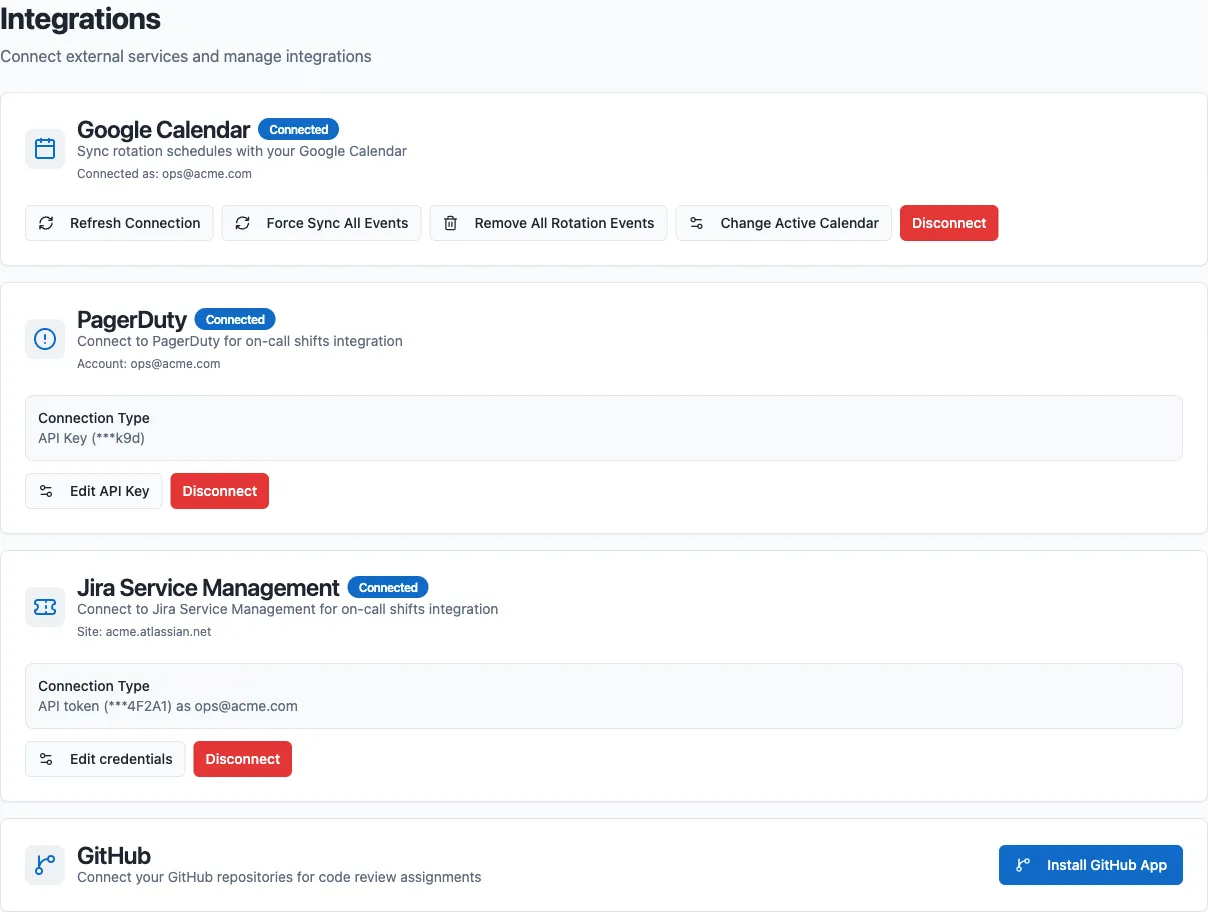
Once connected, the card shows a Connected badge and the Google email address in use. Duty periods and out-of-office events sync automatically.
Restore a connection that needs attention
Section titled “Restore a connection that needs attention”If the Google Calendar card shows Needs Reconnection, reconnect your Google account. Duty events and out-of-office changes stop syncing until access is restored.
This can happen when Google authorization expires, calendar permissions are removed, or a selected calendar becomes inaccessible.
- Open Settings → Calendar in the dashboard (open Calendar).
- Click Reconnect and sign in to the Google account you want to use.
- Grant the requested calendar permissions.
- Check that the card shows Connected. Reconnecting starts a fresh sync automatically.
- Open Change Active Calendar to restore any custom calendar selections and Out-of-Office Keywords. Reconnecting resets these settings to your primary calendar with no keywords.
Temporary Google service trouble does not require reconnection. If the card remains Connected but events are stale, try Force Sync All Events after Google recovers.
If Calendar Settings shows Cannot access calendars, close the dialog and click Refresh Connection on the Google Calendar card. After signing in, restore your calendar selections and keywords.
Find your duty events
Section titled “Find your duty events”For every rotation where you are on duty, Round Robin creates an event named Duty: <rotation name> in your Events Calendar, with a link back to the rotation in the dashboard. Events follow the duty start and end times. For a duty with no end time, the calendar event ends three months after its start.
When duties change, the calendar events are updated to match.
Apply calendar absences to duty
Section titled “Apply calendar absences to duty”Round Robin reads absences from your Out-of-Office Calendar. Whether they affect duty assignment is controlled per rotation:
- Open the rotation in the dashboard, click Settings, and open Behavior.
- In the External Calendars card, set Out-of-Office Time Consideration.
- Click Save.
| Setting | Behavior |
|---|---|
| Never - Ignore out-of-office time | Out-of-office time is ignored. |
| Always - Consider out-of-office time | An event overlapping covered duty hours makes you unavailable during the overlap. |
| Only if OOO time is more than… | An event applies if it overlaps covered hours of your scheduled turn by at least Minimum OOO Duration (hours). |
The threshold measures how much of the duty your out-of-office time covers, not how long the event itself is: a week-long holiday that overlaps only the last hour of a duty counts as one hour against the threshold. Only covered hours count. Each event is checked separately; separate events are not added together to meet the threshold.
A one-hour absence qualifies with a minimum of 1, but not 4. Despite the setting’s “more than” label, an overlap equal to the minimum qualifies.
For duty managed by Round Robin, an applicable absence can receive temporary cover for the absent period. You resume afterward if it is still your scheduled turn and you are available. The normal turn order does not advance for this temporary cover. See Who covers a short absence for the selection order and an example.
Calendar changes affect duty after synchronization. Check Plan to confirm the resulting assignments. Accepted cover, swaps and direct assignments have separate availability-conflict rules; an event does not automatically replace every existing commitment.
Choose your calendars
Section titled “Choose your calendars”By default, Round Robin uses your primary calendar (the one matching your Google email address) for both events and out-of-office data. To change this:
- On the Google Calendar card, click Change Active Calendar.
- Pick an Events Calendar (where duty events are created).
- Pick an Out-of-Office Calendar (which calendar is monitored for OOO).
- Optionally add Out-of-Office Keywords, then click Save Changes.
Keywords filter which events count as out-of-office: if you add any, only events whose title contains one of the keywords (case-insensitive) are considered. With no keywords, every eligible event counts.
Manage the connection
Section titled “Manage the connection”Once connected, the Google Calendar card offers these actions:
| Action | What it does |
|---|---|
| Refresh Connection | Runs Google sign-in again. Restore any custom calendars and keywords afterward. |
| Force Sync All Events | Repairs Round Robin duty events, including events deleted from Google Calendar, and re-imports out-of-office data. |
| Remove All Rotation Events | Deletes all Round Robin duty events from your calendar without recreating them; they are recreated the next time your duties sync (or if you run Force Sync All Events). |
| Change Active Calendar | Opens the calendar and keyword settings described above. |
| Disconnect | Stops syncing and requests removal of your Round Robin duty events. Reconnect to resume syncing. |
Next steps
Section titled “Next steps”- Out-of-office and availability: record absences directly and check affected duty.
- Create or edit a schedule: what the calendar events are generated from.
- Plans and billing: the plan this needs.