Customize rotation messages
Works on the Free plan. Options marked Pro below need a Pro plan.
Round Robin posts a message to your rotation channels, and sends a direct message to the people involved, whenever duty changes. The Message templates card lets you replace any of these messages with your own wording, or switch one off.
You need edit permission on the rotation, and the rotation must be enabled. The coverage and Before going messages need the Pro plan.
Open the Message templates card
Section titled “Open the Message templates card”- Open the dashboard at app.roundrobinbot.eu and select your rotation.
- On the rotation details page, click Settings, then open Messages & Slack.
- Scroll to the Message templates card.
The card shows two groups of messages: Channel messages and Direct messages.
Available messages
Section titled “Available messages”| Group | Message | Plan | Sent when |
|---|---|---|---|
| Channel messages | On duty | All | Somebody goes on duty, including a different person going on duty when a coverage window opens |
| Channel messages | On duty (coverage opens) | Pro | A coverage window opens and the person going on duty is the one who went off duty when it closed |
| Channel messages | Off duty | All | Somebody goes off duty |
| Channel messages | Off duty (coverage closes) | Pro | A coverage window closes |
| Direct messages | Before going on duty | Pro | Ahead of a shift, privately to the person about to go on duty |
| Direct messages | On duty | All | Privately to the person going on duty |
| Direct messages | Before going off duty | Pro | Ahead of a shift ending, privately to the person about to go off duty |
| Direct messages | Off duty | All | Privately to the person going off duty |
The two coverage messages are sent only on a rotation whose windows state hours. A window covering the whole week never opens or closes. The two Before going messages also need the matching duty notification option turned on for the rotation.
Which on-duty message the channel gets when a window opens
Section titled “Which on-duty message the channel gets when a window opens”On duty (coverage opens) means the same person is back. They went off duty when the window closed, and they are going on duty again now that it has opened.
Anybody else going on duty at an opening gets the ordinary On duty message, because the channel is hearing about a new person:
- The seat was empty, and somebody is dealt to it as the window opens.
- The person who held the seat was removed from the list, or is away, so somebody else takes it.
- The seat changed hands while the window was shut. A handover that falls due while a window is shut happens without a message, and the channel hears about it when the window opens.
This decides which template, which Enabled switch and which silencing applies. A custom or silenced On duty (coverage opens) never touches a change of person, and neither does Stay quiet when the same person carries on (see Two switches that go with covered hours). With both templates switched off, the two messages read the same.
Enable and edit a template
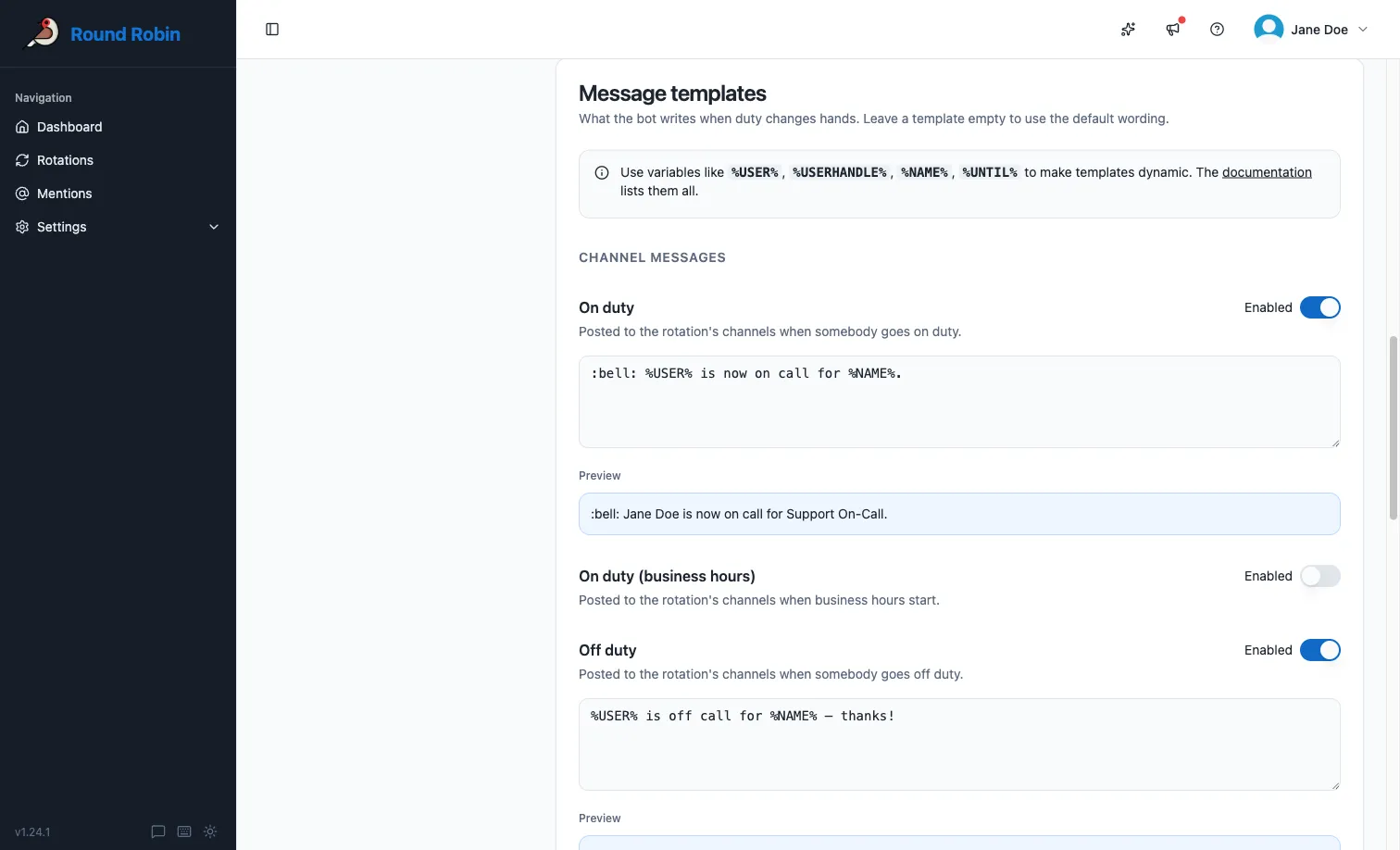
Section titled “Enable and edit a template”- Turn on the Enabled switch next to the message you want to customize.
- Type your template in the text box. Use replacement tokens such as
%USER%,%USERHANDLE%,%NAME%, and%UNTIL%to insert dynamic content. - Check the result in the blue Preview box below the text box. It updates automatically as you type, using your rotation’s real data.
- Click Save.
How the Enabled switch works
Section titled “How the Enabled switch works”Every message follows the same rules, with one exception noted below:
| Switch | Template text | Result |
|---|---|---|
| Off | Anything | Round Robin sends its default message. Your template text is kept for later. |
| On | Filled in | Round Robin sends your custom message. |
| On | Empty | That message is not sent at all. |
This gives you two useful moves:
- Pause a customization without losing it: turn the switch off. The default message comes back, and your template is still there when you re-enable it.
- Silence a message entirely: turn the switch on and leave the template empty. For example, you can silence the channel Off duty message and keep the On duty announcement.
Next steps
Section titled “Next steps”- Templating tokens: every token you can put in a message.
- Topic management: the same idea for channel topics.
- When a window opens and shuts: where the coverage messages come from.