
Business hours rotations
ProThis feature needs a Pro plan. On Free the settings are visible but locked.
Business hours mode restricts duties to the hours you cover. Outside those hours the rotation has no user on duty; when business hours start again, the same users come back on duty, unless a scheduled shift change happened in the meantime, in which case the next users in the plan take over.
Coverage is described as a week, not as a time of day: each period runs from a day and time to a day and time, so Monday to Friday 9 to 6, a late Thursday, a short Friday and a shift that runs from Friday evening to Monday morning are all sayable, and each is one entry.
Enable business hours
Section titled “Enable business hours”Business hours are part of the schedule: they live on the same page, below the cadence and the skip options, because both decide when someone is on duty. You configure them from the dashboard at app.roundrobinbot.eu.
-
Open the rotation and select Settings → Schedule & availability.
-
Scroll to the Business Hours card and turn on Enable Business Hours.
-
Build the week under Coverage. Mon-Fri 9-6 and Every day fill it in for you; Add Period adds a row you set yourself. The grid under the buttons draws the week as you go.
-
Press Save.
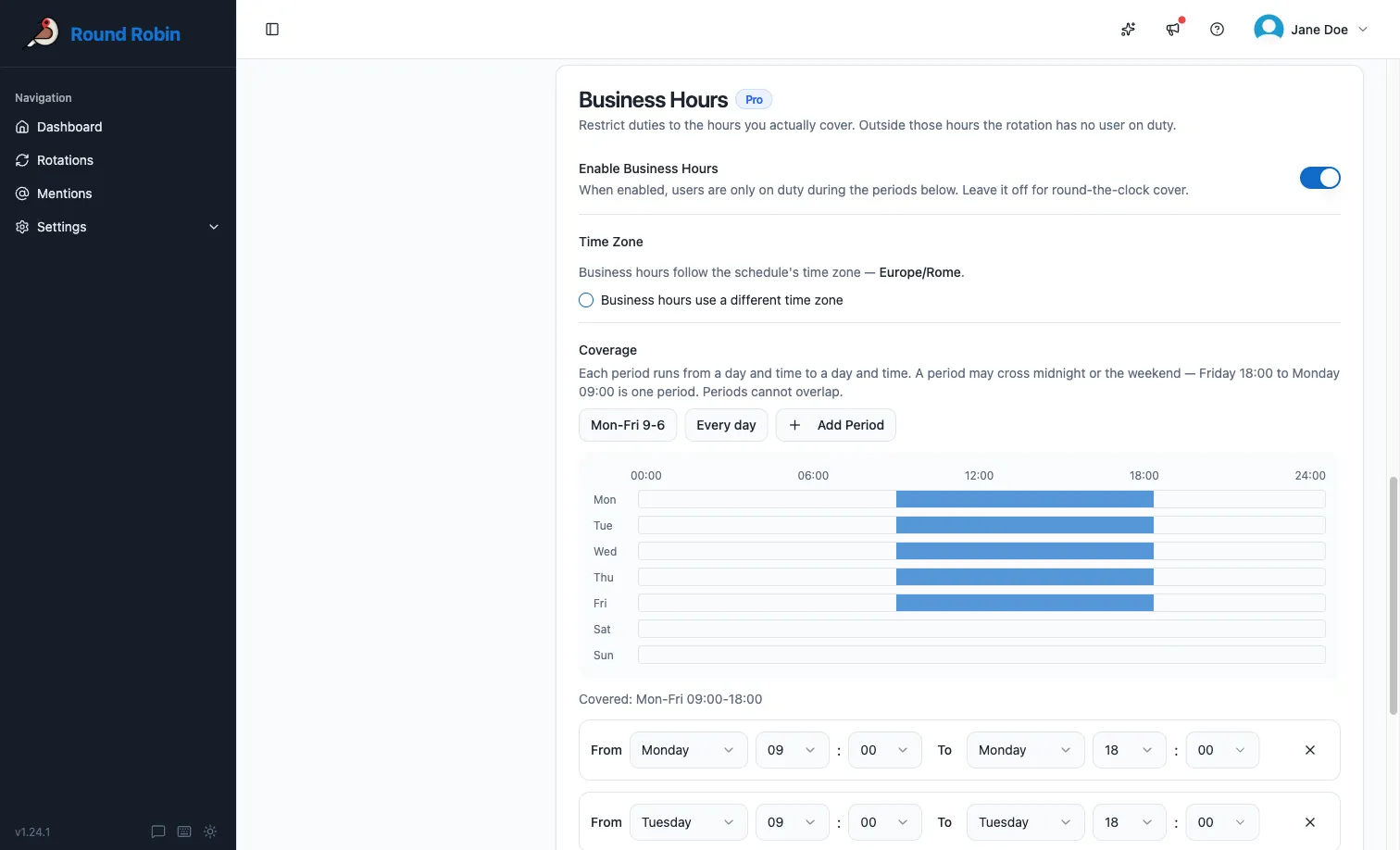
Business hours work on rotations without a schedule too: a manually rotated support rotation can still go quiet outside working hours.
Coverage periods
Section titled “Coverage periods”Each period is a stretch of the week: a start day and time, and an end day and time. The end is exclusive, so a period ending at 12:00 and one starting at 12:00 are one continuous stretch of cover, not a clash.
- A working day: Monday 09:00 to Monday 18:00.
- A lunch break: two periods on the same day, 09:00 to 13:00 and 14:00 to 18:00. The gap is off-time.
- A night shift: Monday 22:00 to Tuesday 06:00. A period may cross midnight.
- A weekend shift: Friday 18:00 to Monday 09:00. A period may cross the week boundary too.
Periods cannot overlap, and a period cannot start and end at the same point of the week, which would cover nothing. Both are caught in the dashboard before you save.
Time zone
Section titled “Time zone”Business hours follow the schedule’s time zone, so there is nothing extra to set on a scheduled rotation. If you need them to run somewhere else, or the rotation has no schedule, tick Business hours use a different time zone and pick one. The picker is searchable, and your own time zone is suggested first.
It offers the same list as the schedule: one entry per city, plus UTC. Nine to five means nine to five all year, which only a city can promise. A fixed offset such as Etc/GMT+2 does not follow daylight saving, so it is not on the list and is refused over the API.
Additional options
Section titled “Additional options”| Option | Effect |
|---|---|
| Treat days skipped by the schedule as off-time | When the rotation’s schedule skips a day, the coverage on that day is dropped: nobody goes on duty, even though the week says the day is covered. The skips come from the schedule, so this is how a holiday becomes off-time: the week is fixed, and public holidays move. It has no effect unless a skip option on the schedule is on. |
| Do not notify channels if a user has multiple business hours shifts in sequence | Keeps the channel quiet when the same people are simply carrying on. The end-of-window message is dropped whenever the same people come back for the next window; the start-of-window message is dropped when that next window falls on the same day (a lunch break). A new morning is announced. See What gets announced. |
The first option changes when duty runs. The second changes only what is posted to channels: the people going on and off duty still get their direct messages, and the rotation still reads correctly in Slack.
Worked examples
Section titled “Worked examples”Three things decide what happens: the schedule (how often duty changes hands), the coverage week (when duty runs at all), and the two options above. These examples take the same team (Ana, Ben and Chi) through the combinations.
Office hours, weekly handover
Section titled “Office hours, weekly handover”Schedule: weekly, Monday 09:00. Coverage: Mon-Fri 09:00-18:00. Both options off.
Ana goes on duty Monday morning and holds the rotation all week. Every evening at 18:00 she goes off duty and the rotation has nobody on duty until 09:00 the next morning, when she comes back. Saturday and Sunday are not in the week, so the rotation is closed from Friday 18:00 until Monday 09:00. At that Monday 09:00 the schedule hands over, so Ben comes back instead of Ana.
The channel hears about it ten times: five mornings and five evenings.
The same, with sequential notifications suppressed
Section titled “The same, with sequential notifications suppressed”As above, but Do not notify channels if a user has multiple business hours shifts in sequence is on.
The five evening messages disappear, because Ana is coming back in the morning and there is nothing to report. The five morning messages stay: a new day is announced, even though it is the same person.
A lunch break
Section titled “A lunch break”Coverage: Mon-Fri 09:00-13:00 and 14:00-18:00. Sequential notifications suppressed.
Two periods a day, so four events. With the option on, the channel hears nothing at 13:00 (Ana is back after lunch) and nothing at 14:00 (the same day, so the two windows are one duty day). The day reads as a single 09:00 to 18:00 shift. With the option off, the channel gets all four.
Daily handover inside the day
Section titled “Daily handover inside the day”Schedule: daily, 12:00. Coverage: Mon-Fri 09:00-18:00. Sequential notifications suppressed.
Ana is on duty from 09:00. At 12:00 the schedule hands over to Ben mid-window: a normal handover, announced as usual; business hours have nothing to do with it. At 18:00 Ben goes off duty; because tomorrow’s 09:00 window belongs to Ben until noon, the evening message is suppressed. Suppression only ever hides “the same people, carrying on”.
A weekend on-call shift
Section titled “A weekend on-call shift”Schedule: weekly, Friday 18:00. Coverage: Fri 18:00 - Mon 09:00.
One period, crossing the week boundary. Chi goes on duty on Friday evening and stays on duty continuously until Monday 09:00. There is no gap in the coverage, so there are no evening and morning messages at all. Then the rotation is closed all week until the next Friday.
Working days, with holidays off
Section titled “Working days, with holidays off”Schedule: working days (weekends and Italian public holidays skipped). Coverage: Mon-Fri 09:00-18:00. Treat days skipped by the schedule as off-time on.
On an ordinary week nothing changes: the schedule and the coverage already agree about Monday to Friday. On 15 August the schedule skips the day, so the coverage on that day is dropped too and nobody is on duty: the rotation closes on Thursday evening and reopens on Monday morning. With the option off, the holiday is a working day as far as duty is concerned: whoever is on duty is on duty 09:00 to 18:00 on the 15th, because the coverage week does not know about holidays.
Business hours turned on, nothing covered
Section titled “Business hours turned on, nothing covered”Coverage: empty.
This is a misconfiguration, not a way to pause a rotation: it asks for duty to be confined to hours that do not exist. Round Robin ignores it and runs the rotation around the clock, and the dashboard badges the rotation Not in effect so you can see why. To pause a rotation, disable it; to close it outside working hours, give it a coverage week.
What gets announced
Section titled “What gets announced”For a business-hours rotation with Do not notify channels if a user has multiple business hours shifts in sequence turned on:
| Event | Channel message |
|---|---|
| A window ends and the same people return for the next one | Suppressed |
| A window ends and somebody else has the next one | Posted |
| A window starts later the same day (after a break) with the same people | Suppressed |
| A window starts on a new day, same people | Posted |
| A window starts with different people | Posted |
| The schedule hands over during a window | Posted: this is a normal handover, not a business-hours event |
With the option off, every row is posted. Direct messages to the people involved are sent either way, and the business-hours messages can be edited or switched off individually.
How the rotation behaves
Section titled “How the rotation behaves”While business hours are active, the rotation works as usual. When a coverage period ends, everyone is taken off duty; when the next one begins, the users who were on duty before come back automatically.
If the rotation is scheduled and a shift change falls inside off-time, no duty switch happens immediately. Instead, the next users in the plan are recorded and go on duty when business hours resume.
Reading the status in the dashboard
Section titled “Reading the status in the dashboard”Rotation cards and the rotations table show a small status icon when business hours are enabled: a clock while business hours are active, and a coffee cup while the rotation is paused outside business hours.
From Slack
Section titled “From Slack”The rotation view in Slack shows a business-hours badge summarizing the week: Mon-Fri 09:00-18:00, or Fri 18:00 - Mon 09:00 for a period that runs across the weekend.
During business hours, the Next on Duty block shows who takes over at the next shift change, marked with a next shift label:

When the rotation is off-business, On Duty shows an off-business hours marker with a coffee icon instead of a user, and Next on Duty shows who goes back on duty when the next period starts (usually the same users as before), together with the restart time:

If a scheduled shift change occurs before the next coverage period begins, Next on Duty shows the following users in the plan instead.
Next steps
Section titled “Next steps”- Create or edit a schedule: the same page, and the weekend and holiday skips the off-time option builds on.
- Customize rotation messages: the dedicated business-hours on- and off-duty messages.
- Round Robin in Slack: how an off-hours rotation reads on a card.