This is the full developer documentation for Round Robin
# How can we help?
> Everything you need to set up and run on-call rotations, right inside Slack.
## Start here
[Section titled “Start here”](#start-here)
Install & permissions
Add Round Robin to your workspace and understand exactly which Slack scopes it asks for, and why.
[Set up Round Robin →](/setup/permission-scopes/)
How Round Robin works
Rotations, duty, schedules, codes, mentions: the handful of ideas the rest of these docs assume.
[Learn the concepts →](/start/core-concepts/)
Your first rotation
Create a rotation, add teammates, and pick who goes first. You’ll be live in a couple of minutes.
[Create a rotation →](/rotation-management/create-a-rotation/)
Put it on a schedule
Rotate daily, weekly, or on your own cadence, including business-hours-only coverage.
[Configure schedules →](/rotation-management/create-or-edit-a-schedule/)
## Ask your AI
[Section titled “Ask your AI”](#ask-your-ai)
Slack AI
Enable it once and anyone in your workspace can ask Slack’s built-in AI “who’s on call for payments?”, with no setup for members.
[Enable Slack AI →](/ai/slack-ai/)
Your own assistant (MCP)
Connect Claude, Cursor, or any MCP client to Round Robin: query on-call state, or let it create and schedule rotations for you.
[Connect an assistant →](/ai/mcp-server/)
## Go further
[Section titled “Go further”](#go-further)
Mentions
Route `@rotation` mentions in any channel to the people currently on call.
[How mentions work →](/mentions/what-are-mentions/)
Customize messages
Templating tokens, custom duty messages, and automatic channel-topic updates.
[Make it yours →](/customizations/templating/)
Integrations
Google Calendar, PagerDuty, OpsGenie, GitHub, and the public API.
[Connect your stack →](/integrations/google-calendar-sync/)
Billing
Plans, quotas, and managing your subscription.
[Billing & plans →](/billing/billing/)
## Popular articles
[Section titled “Popular articles”](#popular-articles)
[Create or edit a schedule](/rotation-management/create-or-edit-a-schedule/)Rotation cadences, start times, and how schedule changes take effect.
[Templating tokens](/customizations/templating/)Every replacement token you can use in duty messages and channel topics.
[Using the on-duty handle](/groups-management/using-on-duty-handle/)Keep @oncall pointing at the right person, automatically.
[PagerDuty & OpsGenie rotations](/integrations/pagerduty-based-rotations/)Mirror an existing PagerDuty or OpsGenie schedule into Slack.
***
Built for AI assistants too
These docs are machine-readable: point your agent at [/llms.txt](/llms.txt) for an index or [/llms-full.txt](/llms-full.txt) for the full content in one file.
# Your own AI assistant (MCP)
> Connect an AI assistant such as Claude to Round Robin over the Model Context Protocol to ask who is on call, browse schedules, and manage rotations conversationally.
Round Robin exposes a remote [Model Context Protocol](https://modelcontextprotocol.io) (MCP) server. Connect it to an AI assistant that supports remote MCP servers (Claude, for example) and the assistant can answer questions like “who is on call for PAYMENTS right now?” or “show me the upcoming schedule for the support rotation” using live data from your workspace, and even create and schedule rotations for you (with your confirmation, and only where you have permission).
All results are scoped to your own Slack workspace, which is derived from your sign-in: an assistant cannot ask for data from a workspace you don’t belong to.
Included on every plan
The MCP server is available on the Free plan as well as Pro. Your plan’s limits still apply through it: creating a rotation over your rotation limit is refused the same way it is in the dashboard.
## Endpoint
[Section titled “Endpoint”](#endpoint)
| Property | Value |
| -------------- | ------------------------------------------------------------------- |
| URL | `https://api.roundrobinbot.eu/mcp` |
| Transport | Streamable HTTP |
| Authentication | OAuth 2.1 (sign in with the same account you use for the dashboard) |
## Connect your assistant
[Section titled “Connect your assistant”](#connect-your-assistant)
The exact steps depend on your MCP client, but the flow is standard OAuth:
1. Add a remote MCP server in your client and enter the URL `https://api.roundrobinbot.eu/mcp`.
2. The client discovers the authorization server automatically (RFC 9728 protected-resource metadata) and registers itself. Dynamic client registration is supported, so no manual client ID is needed.
3. Your browser opens a Round Robin sign-in page. Sign in with the same account you use for the [dashboard](https://app.roundrobinbot.eu).
4. Once you approve, the client receives a token and the tools become available.
For example, in Claude Code:
```bash
claude mcp add --transport http round-robin https://api.roundrobinbot.eu/mcp
```
then run `/mcp` inside Claude Code to complete the sign-in.
The assistant sees exactly what you see
The connection acts as **you**: the assistant only sees rotations, users, channels, and groups that are visible in your Slack workspace.
## Available tools
[Section titled “Available tools”](#available-tools)
| Tool | Input | What it returns |
| ----------------------- | --------------------------------------- | ------------------------------------------------------------------------------------------------------------------------------------------------------------------------- |
| `who_is_on_call` | Rotation code (e.g. `PAYMENTS`) | Who is on call now and up next (names, Slack IDs, shift end times), the rotation’s channels, its on-duty user group, whether it is enabled, and whether you are a member. |
| `list_my_rotations` | None | The rotations visible in your workspace, each with name, code, enabled state, who is on call now, its on-duty group, and a `youAreMember` flag. |
| `get_rotation_schedule` | Rotation code, entry count (default 10) | The upcoming duty roster: each entry has the user (ID and name), turn index, and on-duty since/until timestamps (UTC). |
| `list_my_teams` | Count (default 50) | The Slack workspaces you belong to. |
| `get_user_info` | Slack user ID | Display name, real name, handle, email (if visible), and whether it is a bot. |
| `get_group_info` | Slack user group ID | The group’s @handle, name, and description. |
| `get_channel_info` | Slack channel ID | The channel’s name and whether it is private. |
Rotation and schedule results always include human-readable names alongside the raw Slack IDs, so the assistant rarely needs the lookup tools. When it does receive an unknown ID, the lookup tools return a `Found: false` result instead of an error.
The read tools are declared read-only and idempotent (standard MCP tool annotations), so assistants that honor annotations (Slack AI, Claude) run them without confirmation prompts.
### Management tools
[Section titled “Management tools”](#management-tools)
Rotations can also be created and managed conversationally. These tools are available to any connected client, including your personal Claude, Cursor, or other MCP client, as long as you grant the `write:rotation` scope when connecting (see [Permissions](#permissions)). If you’d rather your assistant only look and never change anything, connect it with read access alone and it won’t even see these tools. Because they change data, assistants always summarize the change and ask for your confirmation before running them:
| Tool | Input | What it does |
| ----------------------- | ------------------------------------------------------------------------------------------------------------------------------------ | ----------------------------------------------------------------------------------------------------------------------------------------------------------------------------------------------------------------------------------------------------------------------------------------------------------------------- |
| `create_rotation` | Name; optional code, description, members (in rotation order), channels, duty size | Creates an enabled rotation with you as owner. It starts without an automatic schedule: set one with `set_rotation_schedule` or in the dashboard. |
| `update_rotation` | Rotation code; any of: new name, new code, description, members, channels, duty size, enabled | Partially updates a rotation you own: only the fields you provide change. |
| `set_rotation_schedule` | Rotation code; schedule type (`weekly`, `daysOfWeek`, `daily`, `workdays`), time zone, first handover, period; type-specific options | Sets or replaces the rotation’s automatic schedule for the common cases. The time zone must be a city (`Europe/Rome`, `America/New_York`) or `UTC`; a fixed offset such as `Etc/GMT+2` is refused, because it never follows daylight saving. Advanced options (business hours, custom calendars) live in the dashboard. |
The same rules as the dashboard apply: you must be an owner of the rotation you change, plan limits are enforced, and rotation codes must be unique. Deleting rotations is deliberately not available through assistants: use the dashboard.
## Permissions
[Section titled “Permissions”](#permissions)
Access to the tools is governed by OAuth scopes, which you grant on the consent screen when connecting a client:
| Scope | Grants | Required by |
| ---------------- | ------------------------------------------------------------------ | -------------------- |
| `read:oncall` | Reading rotations, schedules, on-call state, and directory lookups | All read tools |
| `write:rotation` | Creating and updating rotations and their schedules | The management tools |
A connected client can only use the tools covered by the scopes you approved, and it only *sees* the tools it can use: a client granted `read:oncall` alone gets a tool list with the read tools only, while a client you also grant `write:rotation` sees the management tools too. You choose at connect time: grant read only for a look-but-don’t-touch assistant, or add write to let it create and edit rotations. Granting write is not an escalation: the connection acts as **you**, so an assistant can only change what you could change yourself in the dashboard, and it always asks for confirmation first.
## Use it from Slack AI
[Section titled “Use it from Slack AI”](#use-it-from-slack-ai)
Besides direct MCP clients, the server powers [**Slack AI**](/ai/slack-ai/), Slack’s built-in assistant, so people can ask “who is on call for PAYMENTS?” right inside Slack, with no client setup at all. It’s an optional per-workspace permission; see the [Slack AI page](/ai/slack-ai/) for how to enable it and what it changes.
## Good to know
[Section titled “Good to know”](#good-to-know)
* **Rotation codes.** The rotation tools identify rotations by their short code (like `PAYMENTS`), the same code you use with slash commands in Slack. `list_my_rotations` is the easiest way for an assistant to discover the codes in your workspace.
* **Changes are owner-gated and confirmed.** The management tools follow the same permission rules as the dashboard, and assistants confirm every change with you first. There is no tool to delete a rotation or advance who is on duty: use the Slack bot or the dashboard for those.
* **Workspace scoping.** The workspace is always taken from your authenticated identity, never from a tool parameter, so a prompt cannot redirect the assistant to another workspace’s data.
## Next steps
[Section titled “Next steps”](#next-steps)
* [Slack AI](/ai/slack-ai/): the zero-setup option for everybody else in the workspace.
* [How Round Robin works](/start/core-concepts/): the vocabulary your assistant uses.
* [Create a rotation](/rotation-management/create-a-rotation/), or just ask your assistant to.
# Slack AI
> Enable Slack's built-in AI assistant to answer on-call questions and manage rotations with Round Robin, right inside Slack.
Round Robin plugs into **Slack AI**, Slack’s built-in assistant (Slackbot). Once enabled for your workspace, anyone can ask it things like *“who is on call for PAYMENTS?”* or *“show me the support rotation’s upcoming schedule”* directly in Slack, and get answers backed by live Round Robin data. No extra apps, no separate sign-in.
Under the hood, Slack AI talks to the same [Round Robin MCP server](/ai/mcp-server/) your own assistants can use. The difference is that Slack hosts the assistant and handles identity for you.
Included on every plan
AI is free on Round Robin, on the Free plan as well as Pro. Your plan’s limits still apply through it: creating a rotation over your rotation limit is refused the same way it is in the dashboard.
## Enable it for your workspace
[Section titled “Enable it for your workspace”](#enable-it-for-your-workspace)
The connection is powered by an **optional** Slack permission called `mcp:connect`. You choose whether to grant it when installing Round Robin, and a workspace that skipped it can grant it later from the dashboard:
1. Open the [dashboard](https://app.roundrobinbot.eu) and select the **AI assistants** (sparkles) button in the top bar.
2. On the **Slack AI** card, select **Enable**.
3. You are redirected to Slack to approve the `mcp:connect` permission for your workspace (this re-approves the app with the extra permission, and your rotations and settings are untouched). Once approved, the card shows **Enabled**.
## What it changes, and what it doesn’t
[Section titled “What it changes, and what it doesn’t”](#what-it-changes-and-what-it-doesnt)
* **It only enables the connection.** `mcp:connect` lets Slack AI reach Round Robin’s MCP server for your workspace. It grants no access to messages or any other Slack data.
* **Every request acts as the person asking.** Slack AI sees only the rotations, users, channels, and groups that person could see in the dashboard, and changes follow the same rules as everywhere else: owner-gated, plan limits enforced, and confirmed before running. The full permission model is described on the [MCP server page](/ai/mcp-server/#permissions).
* **Members who don’t use AI assistants are unaffected.** If you never opt in, Round Robin works exactly as before, because the permission is not required for any other feature, including [connecting Claude or another MCP client directly](/ai/mcp-server/).
* **The grant is sticky.** Reinstalling the app keeps the permission (Slack permissions are additive). To remove it, uninstall Round Robin from your workspace and install it again without granting the optional permission.
## What you can ask
[Section titled “What you can ask”](#what-you-can-ask)
Everything the MCP server offers is available: who is on call and up next, rotation lists and schedules, and (for rotation owners) creating rotations, editing them, and setting schedules conversationally. See the [available tools](/ai/mcp-server/#available-tools) for the complete list.
## Next steps
[Section titled “Next steps”](#next-steps)
* [Connect your own assistant](/ai/mcp-server/): Claude, Cursor, or any MCP client, with write access.
* [Round Robin in Slack](/rotation-management/round-robin-in-slack/): `/rr` and the rest of the Slack surface.
* [How Round Robin works](/start/core-concepts/): what a rotation, duty and code are.
# The Round Robin API
> An HTTP API for your rotations, schedules and on-call state: read who is on call, advance the rotation, set who holds the shift, and create or configure rotations, with a team API key.
The Round Robin API is an HTTP interface to the same data the dashboard and the Slack bot work with: your rotations, their schedules, and who is on call right now. It exists for the things Slack cannot do for you: putting the on-call person on a status page, paging them from your own incident tooling, driving a deployment gate, or feeding a dashboard that already shows everything else about your service.
It is a separate surface from the one the dashboard uses, and it is the only one covered by a promise: what is documented here keeps working. Anything you find by watching the dashboard’s network tab is not part of it and will change without notice.
**You need:** a team API key. Create one in the dashboard under **Settings → API keys**: choose what it may do and which rotations it may reach, and copy the secret, which is shown once. See [Creating and managing API keys](/api/keys/).
## Make your first call
[Section titled “Make your first call”](#make-your-first-call)
Everything lives under one host, and the team is implicit: a key belongs to exactly one Slack workspace, so no workspace id ever appears in a path.
```bash
curl https://api.roundrobinbot.eu/v1/keys/self \
-H "Authorization: Bearer rr_live_..."
```
`GET /v1/keys/self` is the call to start with, and the one to come back to when something is refused: it answers with the key’s name, its scopes, and the rotations it may reach.
```json
{
"id": "6a2f…",
"name": "Status page",
"teamId": "T0123ABCD",
"scopes": ["read:oncall"],
"selector": "Rotations",
"rotationIds": ["664f…"],
"apiVersion": "2026-08-01",
"createdAt": "2026-08-14T09:12:44+00:00"
}
```
## Ask who is on call
[Section titled “Ask who is on call”](#ask-who-is-on-call)
The question most integrations exist to answer takes one request:
```bash
curl "https://api.roundrobinbot.eu/v1/rotations/{rotationId}/on-call?expand=users" \
-H "Authorization: Bearer rr_live_..."
```
`?expand=users` side-loads the full directory record for every person the answer names, so you get Slack ids *and* display names without a second round trip. Leave it off and you get ids alone, plus an `ETag` you can use to make the next poll free (see [Conventions](/api/conventions/)).
## What you can read
[Section titled “What you can read”](#what-you-can-read)
| What | Endpoint |
| ---------------------------------------------------- | ------------------------------------------------------------ |
| Your rotations, a page at a time | `GET /v1/rotations` |
| One rotation, with its schedule and business hours | `GET /v1/rotations/{rotationId}` |
| Who is on call right now | `GET /v1/rotations/{rotationId}/on-call` |
| Projected shifts in a window you name | `GET /v1/rotations/{rotationId}/schedule?from&to` |
| A person, group or channel from the synced directory | `GET /v1/users/{id}`, `/v1/groups/{id}`, `/v1/channels/{id}` |
| The key’s own workspace | `GET /v1/team` |
| The key itself | `GET /v1/keys/self` |
## What you can change
[Section titled “What you can change”](#what-you-can-change)
Every write against something that already exists requires an `If-Match` carrying the `ETag` from your last read. A write without one is refused: see [Conditional writes](/api/conventions/#conditional-writes).
| What | Endpoint | Scope |
| --------------------------------- | ----------------------------------------- | ---------------- |
| Hand the shift to the next person | `POST /v1/rotations/{rotationId}/rotate` | `write:duty` |
| Put named people on duty | `PUT /v1/rotations/{rotationId}/on-call` | `write:duty` |
| Change a rotation’s configuration | `PATCH /v1/rotations/{rotationId}` | `write:rotation` |
| Replace a rotation’s schedule | `PUT /v1/rotations/{rotationId}/schedule` | `write:rotation` |
| Create a rotation | `POST /v1/rotations` | `write:rotation` |
The two duty writes answer with the rotation’s new on-call state and a fresh `ETag`, so a deployment gate that rotates and then reports who now holds the shift needs one request, not two. The other three answer with the whole rotation.
`PATCH` changes only the fields you send, so renaming a rotation means sending the name and nothing else. The schedule is a replacement rather than a patch, because the schedule kinds do not share a field set and a field left out of one kind means nothing in another.
Creating takes an `Idempotency-Key` instead of an `If-Match`: there is no version to match on yet, and rotation names are not unique, so nothing else could tell a retry from a second rotation. See [Creating things](/api/conventions/#creating-things).
The roster is read-only over `/v1`: who is *in* a rotation is changed from the dashboard or from Slack.
The full request and response shapes are in the [API reference](/api/reference/), which is generated from the same OpenAPI document the service publishes at `https://api.roundrobinbot.eu/openapi/public.json`. Point an SDK generator or Postman at that URL directly.
## Versions
[Section titled “Versions”](#versions)
A key is pinned to a dated contract version (`2026-08-01` for every key issued today), and `GET /v1/keys/self` reports it. Fields get added to responses within a version, so parse leniently and ignore what you do not recognise. Nothing is removed or renamed within a version; that needs a new one, and your key keeps answering on the old one until you move it.
`/v1` is the path, not the version. It changes only if the shape of the API changes so fundamentally that a dated version cannot carry it.
## Next steps
[Section titled “Next steps”](#next-steps)
* [Authentication](/api/authentication/): how to present a key, and what each refusal means
* [Scopes and access](/api/scopes/): what a key may do, and which rotations it may reach
* [Conventions](/api/conventions/): paging, sorting, timestamps, conditional reads and conditional writes
* [Errors](/api/errors/): the codes to branch on
# Authenticating with an API key
> Present a team API key as a bearer token, keep it out of your source, and read the refusal your key gets back when it stops working.
A team API key is a long-lived credential that belongs to a Slack workspace rather than to a person. It carries only what it was granted at creation, and it does not inherit the access of whoever is signed in.
**You need:** a key. Create one in the dashboard under **Settings → API keys**, and see [Creating and managing API keys](/api/keys/) for what each choice means.
## Send the key
[Section titled “Send the key”](#send-the-key)
Every `/v1` request carries the key as a bearer token:
```bash
curl https://api.roundrobinbot.eu/v1/rotations \
-H "Authorization: Bearer rr_live_..."
```
There is no other way in. Keys are not accepted in a query string, where they would land in every access log and browser history between you and us.
A key looks like `rr_live_` followed by 32 characters. The prefix is there so a key that escapes into a repository, a log or a support thread is recognisable as a Round Robin credential at a glance, by us and by secret scanners. Keys issued against our development environment start with `rr_dev_` and will not authenticate against `api.roundrobinbot.eu`.
## Keep it secret
[Section titled “Keep it secret”](#keep-it-secret)
The token is shown to you exactly once, when the key is created. We store only a hash of it, so nobody at Round Robin can read it back to you: a lost key is replaced, not recovered.
* Put it in your platform’s secret store or CI secret, never in source control.
* Give each integration its own key. Then a key can be switched off without taking the others down, and the last-used timestamp tells you what is still running.
* Scope it to the rotations it actually needs, so a leak is bounded. See [Scopes and access](/api/scopes/).
## When a key stops working
[Section titled “When a key stops working”](#when-a-key-stops-working)
A refused request answers `401` with a JSON body that says which of several very different things went wrong, and names the key where we know which one it is. That id is the handle you can quote to us and read back in the dashboard; the secret never appears, in either direction.
```json
{
"status": 401,
"title": "This API key is disabled",
"detail": "The key exists but is switched off, which a workspace admin can undo. A key is also disabled automatically when the person who owns it leaves the workspace.",
"code": "disabled",
"keyId": "6a2f…"
}
```
| `code` | What happened | What to do |
| -------------------- | --------------------------------------------------------------------------------------------------------------------------------------------------- | ------------------------------------------------------------------------------------------------------------------- |
| `missing_credential` | No key was presented: no `Authorization` header, or one carrying something that is not a Round Robin key | Send the header. A dashboard session token is not accepted here. |
| `unknown` | No key matches the token. A revoked key answers this too: revocation destroys the key’s secrets, so there is nothing left to recognise the token by | Check the whole token was copied, and that it belongs to this environment. If the key was revoked, create a new one |
| `disabled` | The key exists and is switched off | Recoverable: a workspace admin can switch it back on |
| `expired_secret` | The key works, but this is its previous secret and the grace period after a rotation is over | Use the secret the rotation issued |
`401` responses also carry a `WWW-Authenticate: Bearer` challenge, so generic HTTP clients behave sensibly.
A key is disabled when its owner leaves
Every key has an owner. When that person leaves the workspace, their keys are switched off automatically, so the integration stops rather than continuing to act with the authority of somebody who is gone. It is recoverable: the key can be given a new owner and switched back on, keeping its id and its scopes.
## Replacing a secret
[Section titled “Replacing a secret”](#replacing-a-secret)
A key can hold two secrets at once, so replacing one needs no maintenance window: the new secret works immediately while the outgoing one keeps working for a grace period, and the key keeps its id, its scopes and its history throughout. `expired_secret` refers to an outgoing secret whose grace period has ended, on a key that otherwise works.
Rotate a key from the dashboard, under **Settings → API keys**. If a secret has leaked, rotate it with the option that kills the old one immediately, and do it without waiting for a reply from anyone else. See [Creating and managing API keys](/api/keys/).
## Next steps
[Section titled “Next steps”](#next-steps)
* [Scopes and access](/api/scopes/): what a key may do, and which rotations it may reach
* [Errors](/api/errors/): the full vocabulary of refusals, not just the ones about credentials
* [The Round Robin API](/api/): the endpoints a key can reach
# Conventions
> The rules every /v1 endpoint follows: paging and sorting, timestamps and time zones, conditional reads with ETags, and caching.
Everything on `/v1` behaves the same way, so a client writes the paging loop, the timestamp parsing and the caching once. This page is the whole of it; the [API reference](/api/reference/) covers what each endpoint returns.
## Collections come in pages
[Section titled “Collections come in pages”](#collections-come-in-pages)
Every collection answers with the same envelope, and the counts describe the whole result set rather than the page, so you can size the loop before running it.
```json
{
"data": [],
"page": 1,
"pageSize": 25,
"totalItems": 63,
"totalPages": 3
}
```
| Parameter | Default | Notes |
| ---------- | ------------ | ------------------------------------------------------------ |
| `page` | `1` | Starts at 1 |
| `pageSize` | `25` | Maximum 100 |
| `sort` | Per endpoint | `field\|asc` or `field\|desc`, for example `sort=name\|desc` |
Filtering, sorting and paging all happen on our side. There is no “return everything and filter it yourself” mode, and no endpoint that hands you the whole workspace.
Bad input is refused rather than quietly corrected: an unknown sort field, a `pageSize` of 500 or a malformed `sort` all answer `400` naming what is wrong and what the valid values are.
## Timestamps and time zones
[Section titled “Timestamps and time zones”](#timestamps-and-time-zones)
Timestamps are RFC 3339 with an offset: `2026-08-14T09:12:44+00:00`. Field names carry no `Utc` suffix, because the format already says it.
Time zones are returned as the identifier the rotation was configured with (`Europe/Rome`, `America/New_York`), never collapsed onto some other name that happens to share the same rules today.
The `schedule` endpoint asks you to name the window you want, with `from` and `to`, both required and no more than 90 days apart. A projection has no natural end, so there is no default.
## Conditional reads
[Section titled “Conditional reads”](#conditional-reads)
Reads that are a pure function of one rotation carry a strong `ETag`:
```http
GET /v1/rotations/664f… HTTP/1.1
Authorization: Bearer rr_live_...
HTTP/1.1 200 OK
ETag: "7:2026-08-14T17:00:00.0000000Z"
```
Send it back on the next poll and an unchanged resource costs you a `304` with no body:
```http
GET /v1/rotations/664f… HTTP/1.1
Authorization: Bearer rr_live_...
If-None-Match: "7:2026-08-14T17:00:00.0000000Z"
HTTP/1.1 304 Not Modified
```
Treat the value as opaque and send back exactly what you were given, quotes included. The `304` carries the validator too, so keep replacing the one you hold.
Not every read has one
A validator is only emitted where it can be trusted. Collections have none, because a page is assembled from many rotations and no single version stands behind it. The projected schedule has none, because it is computed forward from the rules and the clock. And `on-call?expand=users` drops the one it would otherwise have, because the directory records it side-loads are not covered by the rotation’s version. Where there is no `ETag`, poll normally.
## Conditional writes
[Section titled “Conditional writes”](#conditional-writes)
Every write against a rotation that already exists requires an `If-Match` header. It is not optional: a write without one is refused `428`, never carried out unconditionally.
Read first, send back the validator you were given, and the write happens only if nothing moved in between:
```http
POST /v1/rotations/664f…/rotate HTTP/1.1
Authorization: Bearer rr_live_...
If-Match: "7:2026-08-14T17:00:00.0000000Z"
HTTP/1.1 200 OK
ETag: "9:2026-08-21T17:00:00.0000000Z"
```
The response carries the new validator, so a client that writes twice in a row does not have to read in between.
| What you send | What comes back |
| ------------------------------------- | --------------------------------------------------------------- |
| The current validator | `200` with the new state and a fresh `ETag` |
| A validator that is no longer current | `412 Precondition Failed`, and nothing changed |
| No `If-Match` at all | `428 Precondition Required`, and nothing changed |
| `If-Match: *` | `200`. The write goes ahead against whatever version is current |
Send the validator back exactly as you received it, quotes included. A weak validator (`W/"7"`) never matches, so it reads as `412`.
### When you have not read first
[Section titled “When you have not read first”](#when-you-have-not-read-first)
`If-Match: *` is the way out, and it is a real one. In HTTP it means “any current representation”, so sending it says: write this against whatever is there now, I accept that somebody may have changed it since.
```http
POST /v1/rotations/664f…/rotate HTTP/1.1
Authorization: Bearer rr_live_...
If-Match: *
HTTP/1.1 200 OK
ETag: "9:2026-08-21T17:00:00.0000000Z"
```
That is a genuine last-write-wins write, with everything that implies: two callers sending `*` a second apart both succeed, and the shift lands two people along. Reach for it when the write is the whole intent and there is nothing to compare against, for example a deploy script that puts a named person on duty and does not care who held it before. Avoid it for `rotate`, where “advance by one” applied twice is a mistake nobody can see.
The opt-out is per request. Sending `*` once changes nothing about the next write, which is checked normally if it carries a real validator.
A 412 is normal, not a failure
Rotations move on their own: the schedule advances, somebody rotates from Slack, a teammate edits from the dashboard. If that happens between your read and your write, you get a `412` because the state you decided against is no longer the state you would be writing over. The fix is always the same, and it is one line: read again, decide again, write again. Treat a steady trickle of them as the contract working. Treat a client that never stops getting them as a client that is not re-reading.
Reads never ask for `If-Match`. Only writes do.
## Creating things
[Section titled “Creating things”](#creating-things)
`POST /v1/rotations` requires an `Idempotency-Key` header instead of an `If-Match`. There is no version to match on before the rotation exists, and rotation names are not unique, so nothing else could tell your retry apart from a second rotation you meant to create.
Send any value you can reproduce on a retry, up to 255 characters. A UUID per attempt is the usual choice; a run id from your pipeline works just as well, as long as retrying the same attempt sends the same key.
```http
POST /v1/rotations HTTP/1.1
Authorization: Bearer rr_live_...
Idempotency-Key: 8f0b2f5a-3f2d-4a1e-9a94-0c2f7f1a5b33
Content-Type: application/json
{"name": "Platform on-call", "owners": ["U0123456789"]}
HTTP/1.1 201 Created
Location: /v1/rotations/664f…
ETag: "1:2026-08-16T09:00:00.0000000Z"
```
Retry that request within 24 hours and you get `200` with the rotation you already created, and nothing new is made. A timeout is therefore safe to retry: either the first attempt never landed and the retry creates the rotation, or it did and the retry shows you what it created.
| What you send | What comes back |
| -------------------------------------------- | ------------------------------------------------------------------ |
| A key not seen before | `201` with the new rotation, a `Location` and an `ETag` |
| The same key again, within 24 hours | `200` with the rotation it created the first time, and nothing new |
| The same key again, more than 24 hours later | `409 Conflict`, and nothing created |
| No `Idempotency-Key` at all | `428 Precondition Required`, and nothing created |
The replay answers `200` rather than `201`, so a client counting creates by status is not told the same rotation was made twice. It carries the `ETag` either way, because the answer to a create is the precondition for the next write to it.
The window is 24 hours, measured from when the rotation was created. Past that the key is refused rather than replayed, so generate a fresh key per attempt rather than holding a fixed one.
Creating needs the `write:rotation` scope, and a key restricted to particular rotations cannot create: a new rotation is not one of the rotations it names.
## Caching
[Section titled “Caching”](#caching)
Every `/v1` response carries `Cache-Control: private`. Answers are scoped to one key’s workspace, so they may be cached by your own client and never by a shared proxy in between.
## Polling
[Section titled “Polling”](#polling)
Every key has a [rate limit](/api/limits/), and it is generous. Poll no faster than you need an answer and use the `ETag` where there is one: a conditional poll that returns `304` barely touches your allowance.
If you are polling to find out who is on call, one request is enough: `GET /v1/rotations/{rotationId}/on-call?expand=users` returns the people and their names in a single call.
## Next steps
[Section titled “Next steps”](#next-steps)
* [Errors](/api/errors/): what a `400`, `403` or `404` body looks like and how to branch on it
* [API reference](/api/reference/): per-endpoint parameters and response shapes
* [Scopes and access](/api/scopes/): why a collection may be shorter than you expect
# Errors
> Every /v1 refusal is a problem-details document with a stable machine-readable code, so a client branches on one vocabulary of strings.
When `/v1` refuses a request it answers with an [RFC 9457](https://www.rfc-editor.org/rfc/rfc9457) problem document (`Content-Type: application/problem+json`) carrying a stable `code` your client can branch on, and a `detail` written for the person reading it.
```json
{
"status": 403,
"title": "This key does not hold the required scope",
"detail": "The key authenticated, but it was not granted the scope this endpoint needs. GET /v1/keys/self lists the scopes it does hold.",
"code": "scope_denied"
}
```
Branch on `code`, never on `title` or `detail`. Those are prose: they get clearer over time. The `code` is a promise.
## The codes
[Section titled “The codes”](#the-codes)
| `code` | Status | What it means |
| ----------------------- | ------ | --------------------------------------------------------------------------------------------------------------------------------------------------------------------------------------------------------------------------------------------------------------------------------------------------------- |
| `missing_credential` | 401 | No Round Robin key was presented. A dashboard session token does not count |
| `unknown` | 401 | No key matches the token presented. A revoked key reads this way too, because revocation destroys its secrets and nothing is left to match |
| `disabled` | 401 | The key exists and is switched off. Recoverable |
| `expired_secret` | 401 | The key works, but this secret was replaced and its grace period is over |
| `scope_denied` | 403 | The key authenticated but does not hold the scope this endpoint needs |
| `resource_denied` | 403 | The key holds the scope but was restricted to specific rotations, and this is not one. A restricted key gets this on `POST /v1/rotations` too, because a new rotation is not one of the rotations it names |
| `invalid_request` | 400 | Something in the request is malformed: an unknown sort field, a page size out of range, a missing `from`/`to`, an `expand` value that does not exist |
| `precondition_required` | 428 | A write arrived without its precondition: an `If-Match` on a write to something that exists, an `Idempotency-Key` on a create. Read the resource and send back the `ETag` it gave you, or send `If-Match: *` to write unconditionally on purpose; see [Conventions](/api/conventions/#conditional-writes) |
| `precondition_failed` | 412 | The validator you sent is no longer current, so somebody changed the rotation between your read and your write. Nothing was changed. Read again and retry |
| `rate_limited` | 429 | The key is over its requests-per-minute allowance. Comes with `Retry-After` and the `RateLimit-*` headers; see [Rate limits](/api/limits/) |
The `401` bodies also carry a `keyId` when we could tell which key it was: the only handle you and our support both have, since the secret is not one.
## Statuses without a code
[Section titled “Statuses without a code”](#statuses-without-a-code)
| Status | When |
| ------------------ | ------------------------------------------------------------------------------------------------------------------------------------------------------------------------------------------------------------------------------------------ |
| `304 Not Modified` | Your `If-None-Match` matched. Not an error; see [Conventions](/api/conventions/) |
| `404 Not Found` | No such rotation, user, group or channel *in this workspace*. An id belonging to another workspace is indistinguishable from one that does not exist, deliberately |
| `409 Conflict` | The `Idempotency-Key` on a create made a rotation more than 24 hours ago, which is longer than a retry. Nothing was created; retry with a new key if you meant a second rotation. See [Creating things](/api/conventions/#creating-things) |
| `500` | Ours. Nothing about the internals reaches the body; if one is reproducible, [tell us](mailto:support@irrelevantlabs.com) |
## Two refusals worth telling apart
[Section titled “Two refusals worth telling apart”](#two-refusals-worth-telling-apart)
**`403` is not `404`.** A rotation outside your key’s selector answers `403 resource_denied`, not “no such rotation”, so the refusal points you at the key rather than at the id. `GET /v1/keys/self` shows you the selector.
**`412` is not a failure.** It means the rotation moved between your read and your write, which happens on its own: the schedule advances, somebody rotates from Slack. Nothing was changed, and the fix is to read again and write again. A client that retries with the same stale validator gets `412` forever.
**`401 unknown` is not `401 missing_credential`.** The first means we do not recognise the token you sent; the second means you sent no Round Robin token at all, most often because a dashboard session token was used instead.
## Bad input is refused, not corrected
[Section titled “Bad input is refused, not corrected”](#bad-input-is-refused-not-corrected)
An unknown sort field or an unrecognised `?expand=` value comes back `400` rather than being ignored, so a parameter that did not take is never mistaken for one that matched nothing.
## Next steps
[Section titled “Next steps”](#next-steps)
* [Authenticating with an API key](/api/authentication/): the `401` codes in context
* [Scopes and access](/api/scopes/): what produces a `403`
* [Conventions](/api/conventions/): paging and sorting, where most `400`s come from
* [Rate limits](/api/limits/): the allowance behind `rate_limited`, and the headers that stop you reaching it
# Creating and managing API keys
> Mint a key from the dashboard, choose what it may do and reach, replace its secret without a maintenance window, and retire it when the integration goes.
An API key is the credential your own tools present to the [Round Robin API](/api/). It belongs to the person who created it, carries only what they granted it, and lives in the dashboard under **Settings → API keys**.
**You need:** nothing beyond a Round Robin account. Anybody in the workspace can create a key, because a key can never do more than the person who created it. Admin rights only matter for a key covering every rotation, and for switching a disabled key back on.
## Create a key
[Section titled “Create a key”](#create-a-key)
Choose **New key** and answer three questions.
**A name.** How you will recognise this key in a year. Name the thing that uses it (“Nightly on-call report”, “Status page”) rather than yourself, because the owner is recorded separately and the point of the name is to tell two keys apart.
**What it can do.** The [scopes](/api/scopes/) it holds. Reading is always included. Add a write scope only when the integration actually writes.
**What it can reach.** Either every rotation in the workspace, including ones created later, or a list you pick. A key limited to named rotations answers as though the others do not exist, which keeps a leak bounded to the rotations you chose.
A key can never reach further than the person who created it. Only a workspace administrator can create one covering every rotation; anybody else picks from the rotations they are allowed to change, which is exactly what the dashboard offers them.
Then the secret appears, once.
## The secret is shown once
[Section titled “The secret is shown once”](#the-secret-is-shown-once)
We store a hash of the secret, not the secret, so nobody at Round Robin can read it back to you. If you lose it, you rotate the key and get a new one, which is quick but means redeploying whatever was using the old one.
Copy it into your platform’s secret store or CI secret before you close the dialog. The dialog will not let you dismiss it until you confirm you have, for exactly this reason.
## What each key tells you
[Section titled “What each key tells you”](#what-each-key-tells-you)
The list gives you a row per key: its name, its owner, how far it reaches and when it was last used. Opening one shows the rest.
* **Who owns it** and when it was created.
* **What it can do and reach**, as granted at creation, with the rotations named rather than counted. Neither can be widened afterwards: a key that needs more is a new key.
* **When it was last used**, or that it never has been. This is the field to read before retiring one: a key nothing has touched in months is a key nobody will miss.
## Replace a secret without downtime
[Section titled “Replace a secret without downtime”](#replace-a-secret-without-downtime)
**Rotate secret** issues a new secret and leaves the old one working for seven days. Both are accepted during that week, so you deploy the new one on your own schedule and nothing breaks in between. The key keeps its id, its scopes and its history throughout, so anything you wrote down about it stays true.
While a rotation is in flight, the key says so, and it says whether anything is still arriving on the old secret. That is the one number worth watching: traffic on the outgoing secret is a deployment that has not picked up the new one yet, and it will start failing when the week is up with an [`expired_secret`](/api/authentication/) refusal.
If a secret has leaked, choose **Kill the old secret now** instead. The old one stops being accepted immediately, and whatever is using it is down until you deploy the new one.
## Switch a key off, or retire it for good
[Section titled “Switch a key off, or retire it for good”](#switch-a-key-off-or-retire-it-for-good)
**Disable** stops the key answering and keeps its secret. Reach for it when a key is behaving oddly and you want it stopped while you work out why, because it can be switched back on.
**Revoke** destroys the key’s secrets. There is no way back: a revoked key answers `unknown`, as though it had never existed, and replacing it means creating a new key and deploying a new secret. Reach for it when the integration is gone for good.
Only a workspace administrator can switch a disabled key back on, and doing so gives the key a new owner and a new secret.
A revoked key stays on the page for 90 days, behind a **Show revoked** toggle under the list and with nothing left to act on, so a key that stopped working still has an explanation months later. After that the record is deleted, and the page says the date it will happen. The secret is gone from the moment you revoke, not from the moment the record is.
## Keys stop when their owner leaves
[Section titled “Keys stop when their owner leaves”](#keys-stop-when-their-owner-leaves)
Every key belongs to the person who created it. When that person leaves the Slack workspace, their keys are switched off automatically and the workspace’s administrators are told which ones, by name. The integration stops rather than carrying on with the authority of somebody who is gone.
Nothing is lost: an administrator can switch the key back on, which makes it theirs and issues a new secret. Only the secret needs redeploying.
So an integration that matters to the whole team is better owned by somebody who is not about to change role, and giving each integration its own key means one person’s departure does not take everything down at once.
## Limits
[Section titled “Limits”](#limits)
A workspace can hold 25 keys at a time. Disabled keys count towards that, because they can be switched back on; revoked ones do not, because they cannot.
Give each integration its own key rather than sharing one. Then a single key can be switched off without taking the others down, and the last-used timestamp tells you what is actually still running.
## Next steps
[Section titled “Next steps”](#next-steps)
* [Authenticating with an API key](/api/authentication/): how to send the secret, and what each refusal means
* [Scopes and access](/api/scopes/): what the three scopes cover, and how the selector bounds a leak
* [Rate limits](/api/limits/): how many requests a key may make, and what a `429` asks you to do
# Rate limits
> How many requests a key may make, how every response tells you what is left, and what a 429 asks you to do.
Every API key has a ceiling on how many requests it may make per minute, set well above what normal use looks like: a polling job that checks who is on call every minute uses under 2% of the smallest allowance.
You do not have to guess where you stand. Every response tells you.
## The allowance
[Section titled “The allowance”](#the-allowance)
| Plan | Requests per minute, per key |
| ---- | ---------------------------- |
| Free | 60 |
| Pro | 600 |
The ceiling is **per key**, not per workspace. Two integrations in the same workspace each get their own allowance, so a script stuck in a loop does not slow down the one running next to it. Give each integration its own key and this stays true.
The plan gates throughput, never access. Every `/v1` endpoint your scopes allow works on Free; Pro simply lets you call it more often.
## Every response says what is left
[Section titled “Every response says what is left”](#every-response-says-what-is-left)
Three headers ride on **every** `/v1` response authenticated with an API key, not just the refusals:
```http
RateLimit-Limit: 60
RateLimit-Remaining: 58
RateLimit-Reset: 41
```
| Header | Meaning |
| --------------------- | ------------------------------------ |
| `RateLimit-Limit` | Your ceiling for this minute |
| `RateLimit-Remaining` | Requests left before you are refused |
| `RateLimit-Reset` | Seconds until the allowance refills |
Because they are on successful responses too, you can slow down *before* being refused: read `RateLimit-Remaining`, and when it gets low, wait `RateLimit-Reset` seconds.
The window is a fixed minute, not a rolling one: `RateLimit-Reset` counts down to the next boundary, at which point the full allowance returns at once.
## When you go over
[Section titled “When you go over”](#when-you-go-over)
You get `429 Too Many Requests`, in the same [problem document](/api/errors/) shape as every other refusal:
```json
{
"status": 429,
"title": "Too many requests",
"detail": "This key is over its limit of 60 requests per minute. Retry in 12 seconds, or spread the calls out: the RateLimit-Remaining header on every response says how much of the current window is left.",
"code": "rate_limited"
}
```
The response carries `Retry-After` in seconds alongside the `RateLimit-*` headers. They agree with each other, so honour whichever your HTTP client already understands. Both are the real number of seconds and never zero.
Retry, do not hammer
Retrying immediately after a `429` just spends another request on another `429`. Wait out `Retry-After`. If you retry on a schedule of your own, add jitter, because a fleet of clients that all wait exactly 60 seconds becomes a fleet of clients that all retry in the same instant.
## The limit is approximate
[Section titled “The limit is approximate”](#the-limit-is-approximate)
Round Robin runs several API instances behind a load balancer, and each counts independently. In practice this means the effective ceiling is somewhat **higher** than the number above, and which instance answers a given request is not something you can predict.
So treat the allowance as a floor you can rely on rather than an exact quota. You will never be refused below it. You may occasionally get a little more.
## A separate flood limit at the edge
[Section titled “A separate flood limit at the edge”](#a-separate-flood-limit-at-the-edge)
Ahead of the API sits a network-level rule that blocks any single network address sending an extreme volume of traffic, thousands of requests a minute, far above any per-key allowance. It counts by address rather than by key, so it is not a per-customer quota and normal integrations never meet it.
It matters for one reason: if you ever see a `429` whose body has **no** `RateLimit-*` headers, that is the edge rule rather than your key’s allowance, and it means something is looping. Fix the loop rather than raising the retry interval.
## Ask for a higher ceiling
[Section titled “Ask for a higher ceiling”](#ask-for-a-higher-ceiling)
If a legitimate integration genuinely needs more than 600 requests a minute, [tell us what it does](mailto:support@irrelevantlabs.com). Very often the answer is a cheaper request pattern rather than a bigger number: conditional reads with `If-None-Match` do not spend an extra request when nothing changed, and a wide page beats twenty narrow ones.
## Next steps
[Section titled “Next steps”](#next-steps)
* [Conventions](/api/conventions/): paging, and the `ETag` reads that cut your request count
* [Errors](/api/errors/): the full `code` vocabulary a `429` belongs to
* [Authenticating with an API key](/api/authentication/): where the per-key ceiling comes from
# Scopes and access
> What an API key is allowed to do is fixed when it is created: a set of scopes, and the rotations it may reach.
A key’s authority is two independent choices, both made once when the key is created and never widened afterwards: **what it may do** (its scopes) and **what it may touch** (its resource selector). A status page needs to read one rotation; a deployment gate needs to advance one; neither needs to be able to rewrite a schedule. Splitting the two means a key can be exactly as small as its job.
## Scopes
[Section titled “Scopes”](#scopes)
| Scope | Covers |
| ---------------- | --------------------------------------------------------------------------------------------------------------------------------------------------- |
| `read:oncall` | The whole read surface: rotations, schedules, on-call state, and the directory lookups behind them. Always granted, whether or not you asked for it |
| `write:duty` | Advancing the rotation, and setting who is on duty |
| `write:rotation` | Creating and updating rotations and their configuration |
Reading is one scope rather than several, and every key holds it: asking for `write:duty` alone gives you a key holding `read:oncall` and `write:duty`. Writes are guarded by `If-Match` and the validator it takes comes from a read, so a write-only key could not perform a write in the first place.
`write:duty` covers `POST /v1/rotations/{rotationId}/rotate` and `PUT /v1/rotations/{rotationId}/on-call`: the two calls that change who holds the shift, and nothing about how the rotation is set up.
`write:rotation` covers `PATCH /v1/rotations/{rotationId}`, `PUT /v1/rotations/{rotationId}/schedule` and `POST /v1/rotations`. It is the wider of the two by some distance: a key holding it can rename a rotation, change who owns it, replace its schedule and create new rotations. A key that only needs to advance a shift should not hold it.
The roster is the exception in both directions: who is *in* a rotation cannot be changed over `/v1` at all, whatever scopes a key holds.
A request that needs a scope the key does not hold is refused `403` with `code: "scope_denied"`, not `404`, so the refusal points you at the key rather than at a suspected typo in the path.
## Which rotations a key may reach
[Section titled “Which rotations a key may reach”](#which-rotations-a-key-may-reach)
Every key carries one of two selectors:
| Selector | The key reaches | Who can create one |
| -------------- | ------------------------------------------------------------- | ------------------------------------------------------- |
| `AllRotations` | Every rotation in the workspace, including ones created later | A workspace admin |
| `Rotations` | Only the rotations named at creation | Anybody who already administers each of those rotations |
The second is the one to reach for by default, and it needs no admin in the loop: a rotation’s owner can mint a key for their own rotation, and that key can never reach further than the person who created it could.
A request for a rotation outside the selector is refused `403` with `code: "resource_denied"`, and so is `POST /v1/rotations` from a `Rotations` key: a new rotation is not one of the rotations it names. Collections respect the selector too: `GET /v1/rotations` returns only the rotations the key may see, and the page counts describe that same set, so paging never walks past the edge of what the key is allowed to know about.
## Check what a key holds
[Section titled “Check what a key holds”](#check-what-a-key-holds)
`GET /v1/keys/self` answers with the key’s own scopes and selector, which is why it is worth calling from your integration’s startup or health check: a `403` in production and a `keys/self` response side by side tell you immediately whether the key was minted wrong or the request was.
```json
{
"scopes": ["read:oncall"],
"selector": "Rotations",
"rotationIds": ["664f…"]
}
```
`rotationIds` is empty when the selector is `AllRotations`: there is no list, because the answer is “all of them, including the ones that do not exist yet”.
## One workspace, always
[Section titled “One workspace, always”](#one-workspace-always)
A key belongs to exactly one Slack workspace, and the workspace is read from the key rather than from the request. No endpoint takes a workspace id, so there is no parameter to substitute and no way for a key to reach another workspace’s data. On Enterprise Grid a key sees its own workspace, the same way the dashboard does.
## Next steps
[Section titled “Next steps”](#next-steps)
* [Authenticating with an API key](/api/authentication/): presenting the key, and what each `401` means
* [Errors](/api/errors/): the full code vocabulary, including the two refusals above
* [API reference](/api/reference/): which scope each endpoint requires
# Plans and billing
> Free and Pro plan limits, how users are counted for billing, and how to manage your subscription.
Round Robin has a Free plan and paid Pro plans (monthly or yearly). This page explains the plan limits, how billed users are counted, and where you manage your subscription.
## Plans at a glance
[Section titled “Plans at a glance”](#plans-at-a-glance)
| Plan | Rotations | Users | Price |
| ------------- | --------- | ------------------------------- | -------------------------- |
| Free | 2 | 8 | Free |
| Pro (monthly) | Unlimited | Pay per user in rotation | 2.5 EUR per user per month |
| Pro (yearly) | Unlimited | Fixed number of purchased seats | 27 EUR per user per year |
All features are included in every paid plan; the two Pro plans differ only in billing period and in how users are counted.
## What the Free plan includes
[Section titled “What the Free plan includes”](#what-the-free-plan-includes)
The Free plan is a working product, not a trial. Two rotations and eight people in them, with no time limit, and inside those limits everything that makes a rotation work is there:
* Rotations, schedules, and automatic rotation on a cadence you choose.
* The Slack bot: duty cards, `/rr `, the [on-duty user group](/groups-management/using-on-duty-handle/), rotation links that unfurl, and the basic [mention](/mentions/what-are-mentions/) flow.
* [Availability windows](/rotation-management/out-of-office/), so somebody away is skipped when duty changes hands.
* Rotation notes, and each rotation’s own history.
* **AI, on every plan.** Ask [Slack’s own AI](/ai/slack-ai/) who is on call, or connect your own assistant to Round Robin over [MCP](/ai/mcp-server/).
**There are no roles on Free.** No members, no admins, no owners: everybody in the workspace can do everything, including editing rotations they are not in. See [People and roles](/setup/people-and-roles/).
### What Pro adds
[Section titled “What Pro adds”](#what-pro-adds)
* **No limits.** Unlimited rotations, and as many people as you need.
* **Roles.** Admins and owners, and the **People & roles** page to manage them.
* **The team activity timeline**, and the **Usage history** tab on this page. Every change in the workspace, filterable, with who made it. Each rotation’s own history stays free.
* **Integrations.** PagerDuty, OpsGenie, Google Calendar, and GitHub, plus [external rotations](/rotation-management/external-rotations/) synced from PagerDuty or OpsGenie.
* **[Business hours](/rotation-management/business-hours-rotations/)**, so a rotation is only on duty during the hours you work.
* **No-duty keywords**, so a Slack status can take somebody off duty automatically.
* **More than one person on duty at a time**, and rotation owners.
* **[Channel membership sync](/rotation-management/channel-membership-sync/)**, so a channel contains exactly whoever is on call.
* **Everything the mention options let you configure** beyond the basic flow, and out-of-office read from [Google Calendar](/integrations/google-calendar-sync/).
On a free workspace, the Pro pages are visible but locked, so you can see what upgrading gives you before you pay for it.
## Manage your subscription in the dashboard
[Section titled “Manage your subscription in the dashboard”](#manage-your-subscription-in-the-dashboard)
Billing lives in the dashboard at [app.roundrobinbot.eu](https://app.roundrobinbot.eu), under **Settings → Plan & billing**.
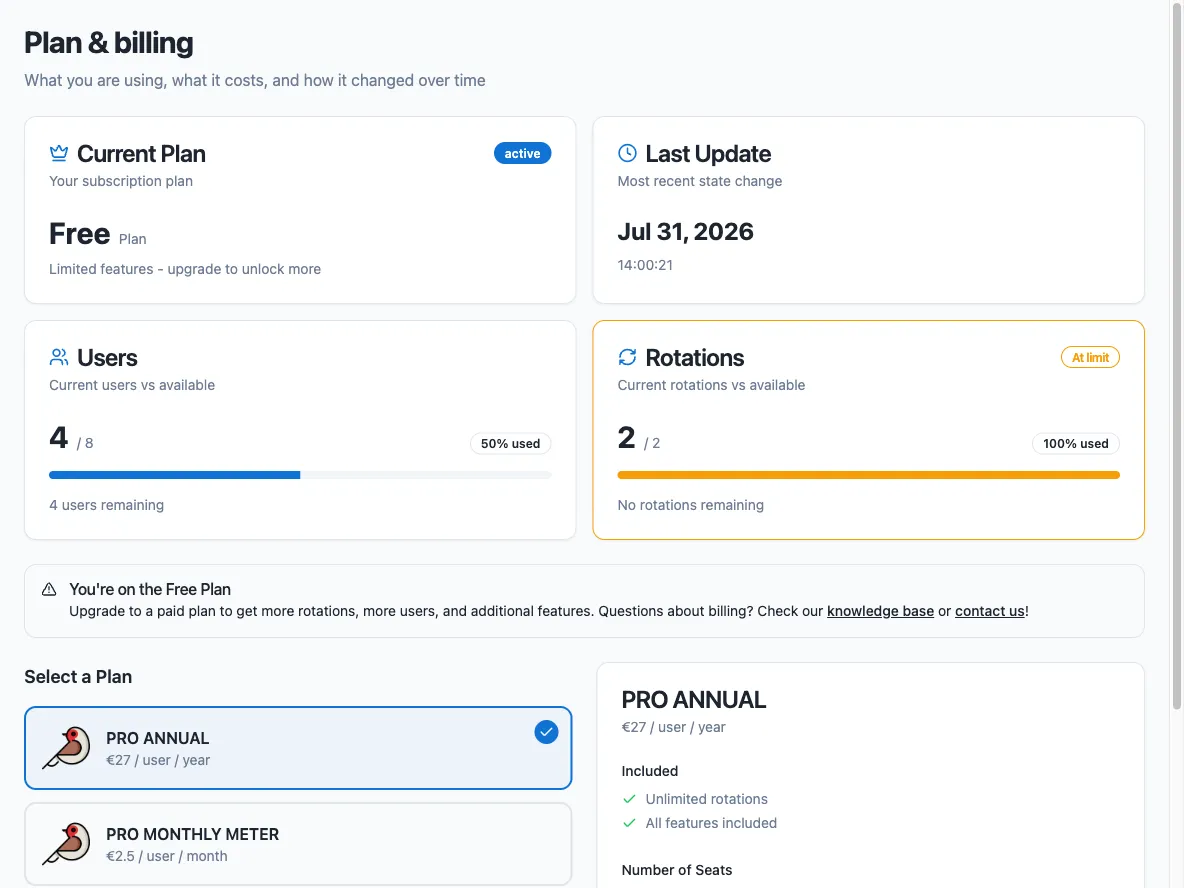
1. Open **Settings → Plan & billing**.
2. On the Free plan, select a Pro plan (and, for the yearly plan, the number of seats), then complete checkout through Stripe.
3. On a paid plan, use the **Stripe Customer Portal** button to update your payment method, download invoices, or cancel the subscription. The page also shows your subscription status, next billing date, and current and previous invoices, and a **Usage history** tab with every change to your rotation and user counts. Usage history is a Pro feature, and only admins and owners see the tab.
Who can upgrade, and who can change the plan
On a **free** workspace anybody can start the upgrade: there are no roles to check. Whoever completes the checkout becomes the first owner, and can add others afterwards.
On a **Pro** workspace, admins can open the Plan & billing page, see what the workspace is being charged, and download invoices. Changing the plan, the payment method, or canceling the subscription is reserved to an [owner](/setup/people-and-roles/).
## What happens when you exceed your limits
[Section titled “What happens when you exceed your limits”](#what-happens-when-you-exceed-your-limits)
If your workspace goes above its plan limits (for example, more than 2 rotations or 8 users in rotation on the Free plan):
* Scheduled rotations are suspended: nobody rotates automatically until you are back within the limits.
* Manual rotation is blocked as well.
* You cannot create new rotations while at or above the rotation limit.
You also cannot go over the user limit in the first place: adding somebody to a rotation (from the dashboard, from Slack, or through the MCP server) is refused once your plan’s people are all in a rotation, and nothing is saved. Adding somebody who is **already** in another rotation is always allowed, because they are already counted. You can still swap or remove members while over the limit, so a workspace that has come back to Free can get itself back under.
The dashboard shows a warning banner when your team is at or above quota, and the same warning next to the member pickers when you edit a rotation. To resolve it, remove rotations or users, or upgrade your plan.
## How users are counted
[Section titled “How users are counted”](#how-users-are-counted)
You pay only for users who are members of a rotation. The total number of people in your Slack workspace is irrelevant: if 20 users are in rotation in a workspace of a thousand, you pay for 20.
### Monthly plan
[Section titled “Monthly plan”](#monthly-plan)
On the monthly plan you are billed for the **maximum** number of users in rotation at any point during the billing cycle:
| Start of cycle | Peak during cycle | End of cycle | Billed users |
| -------------- | ----------------- | ------------ | ------------ |
| 10 users | 20 users | 20 users | 20 users |
| 10 users | 10 users | 5 users | 10 users |
The cycle starts the day you upgrade
The billing cycle starts on the day you upgrade to Pro, not on the first day of the calendar month.
### Yearly plan
[Section titled “Yearly plan”](#yearly-plan)
On the yearly plan you purchase a fixed number of seats and are charged at the start of the yearly cycle. The number of seats becomes your user limit: if you put more users in rotation than you purchased, the over-quota rules above apply until you reduce usage or buy more seats.
## Failed payments
[Section titled “Failed payments”](#failed-payments)
If a payment fails, the owners receive an email with a link to fix the payment method, and the dashboard shows a warning. If the payment fails more than once, your workspace is blocked (limits drop to zero) until the invoice is paid.
## Canceling your plan
[Section titled “Canceling your plan”](#canceling-your-plan)
You can cancel your subscription at any time from the Stripe Customer Portal. If you cancel, the subscription stays active until the end of the current billing cycle (you pay for the remaining cycle under the normal Pro rules), and then your workspace returns to the Free plan and its limits. Until the end date you can restore the subscription from the Stripe Customer Portal.
## Next steps
[Section titled “Next steps”](#next-steps)
* [People and roles](/setup/people-and-roles/): who can change the plan once you are on Pro.
* [Create a rotation](/rotation-management/create-a-rotation/): what the rotation limit applies to.
* [How Round Robin works](/start/core-concepts/): the concepts behind the limits.
# Customize rotation messages
> Replace the default channel and direct messages Round Robin sends with your own per-rotation templates, or turn individual messages off.
Round Robin posts messages to your rotation channels and sends direct messages to your users whenever duty changes. On the **Message Templates** page you can replace any of these messages with your own template, and you can enable or disable each template individually.
## Open the Message Templates page
[Section titled “Open the Message Templates page”](#open-the-message-templates-page)
1. Open the dashboard at [app.roundrobinbot.eu](https://app.roundrobinbot.eu) and select your rotation.
2. On the rotation details page, click **Settings**, then open **Messages & Slack**.
3. Scroll to the **Message templates** card.
The page shows two groups of messages: **Channel Messages** and **User Messages**.
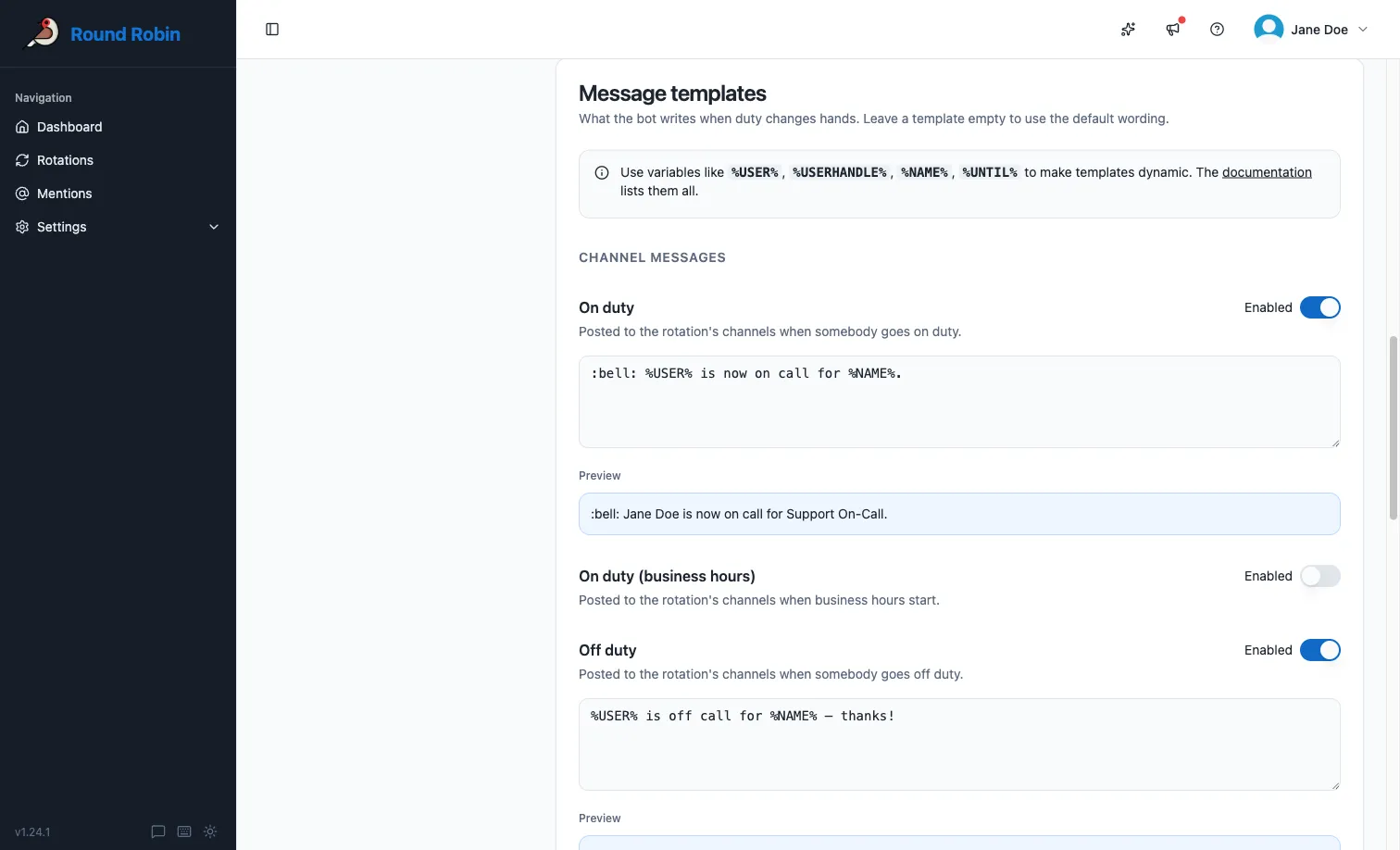
## Available messages
[Section titled “Available messages”](#available-messages)
| Group | Message | Plan | Sent when |
| ---------------- | --------------------------------- | ---- | ----------------------------------------------------- |
| Channel Messages | On Duty Message | All | A user goes on duty (posted to the rotation channels) |
| Channel Messages | On Duty Message (Business Hours) | Pro | Business hours start |
| Channel Messages | Off Duty Message | All | A user goes off duty |
| Channel Messages | Off Duty Message (Business Hours) | Pro | Business hours end |
| User Messages | Incoming Duty Message | Pro | Sent privately to a user before they go on duty |
| User Messages | On Duty Message | All | Sent privately to a user when they go on duty |
| User Messages | Incoming Off Duty Message | Pro | Sent privately to a user before they go off duty |
| User Messages | Off Duty Message | All | Sent privately to a user when they go off duty |
The two *Business Hours* messages only fire on [business hours rotations](/rotation-management/business-hours-rotations/), and the two *Incoming* messages also need the corresponding duty notification option turned on for the rotation.
## Enable and edit a template
[Section titled “Enable and edit a template”](#enable-and-edit-a-template)
1. Turn on the **Enabled** switch next to the message you want to customize.
2. Type your template in the text box. Use [replacement tokens](/customizations/templating/) such as `%USER%`, `%USERHANDLE%`, `%NAME%`, and `%UNTIL%` to insert dynamic content.
3. Check the result in the blue **Preview** box below the text box. It updates automatically as you type, using your rotation’s real data.
4. Click **Save Templates**.
## How the Enabled switch works
[Section titled “How the Enabled switch works”](#how-the-enabled-switch-works)
Each message follows the same rules, with one exception noted below:
| Switch | Template text | Result |
| ------ | ------------- | ---------------------------------------------------------------------------- |
| Off | Anything | Round Robin sends its default message. Your template text is kept for later. |
| On | Filled in | Round Robin sends your custom message. |
| On | Empty | That message is not sent at all. |
This gives you two useful moves:
* **Pause a customization without losing it:** turn the switch off. The default message comes back, and your template is still there when you re-enable it.
* **Silence a message entirely:** turn the switch on and leave the template empty. For example, you can suppress the channel off-duty message while keeping the on-duty announcement.
Incoming messages cannot be silenced
The two *Incoming* messages cannot be silenced this way: if their template is enabled but empty, Round Robin sends the default incoming-duty message instead. To stop them, turn off the corresponding duty notification option for the rotation.
Who can edit templates
Templates can only be edited while the rotation is enabled, and only by users with edit permission on the rotation.
## Next steps
[Section titled “Next steps”](#next-steps)
* [Templating tokens](/customizations/templating/): every token you can put in a message.
* [Topic management](/customizations/topic-management/): the same idea for channel topics.
* [Business hours rotations](/rotation-management/business-hours-rotations/): where the *Business Hours* messages come from.
# Templating tokens
> Reference of the replacement tokens you can use in custom duty messages and channel topics.
Wherever Round Robin lets you write a custom text (duty messages or channel topics, for example), you can insert replacement tokens. Round Robin replaces each token with live rotation data when it sends the message or updates the topic.
## Where to write templates
[Section titled “Where to write templates”](#where-to-write-templates)
Templates are edited in the [web dashboard](https://app.roundrobinbot.eu):
1. Open [app.roundrobinbot.eu](https://app.roundrobinbot.eu) and select your rotation.
2. Click **Settings** and open **Messages & Slack**: the **Message templates** card customizes duty messages, the **Channel topic** card customizes the topic.
3. Type your template using the tokens below, check the live preview under the text box, and save.

See [Message management](/customizations/message-management/) and [Topic management](/customizations/topic-management/) for the full details of each page.
## Token rules
[Section titled “Token rules”](#token-rules)
A few rules apply everywhere:
* Where Slack markdown is supported, you can format your text freely. See the [Slack formatting guidelines](https://api.slack.com/reference/surfaces/formatting). Slack markdown does **not** work in channel topics.
* Where Slack markdown is not supported (again: topics), use the `TEXTONLY` variant of a token where available. It renders the handle as plain text instead of a clickable mention.
* To write a multiline message, press Return and keep typing. Do not type a literal `\n`.
* If a token has no value in the current context, Round Robin replaces it with `N/A`.
## Rotation properties
[Section titled “Rotation properties”](#rotation-properties)
| Token | Description |
| ------------------ | ------------------------------------------------------------------- |
| `%NAME%` | The rotation name (for example “Standup”). |
| `%DESCRIPTION%` | The rotation description, if set. |
| `%DUTY_SIZE%` | The number of people on duty at the same time (usually 1). |
| `%ROTATION_NOTES%` | The rotation notes. Replaced with empty text if there are no notes. |
## Users on duty
[Section titled “Users on duty”](#users-on-duty)
| Token | Description |
| ----------------------- | ------------------------------------------------------------------------------------ |
| `%USER%` | The real name of the user on duty (for example “Robert Redford”). |
| `%USERHANDLE%` | The handle of the user on duty (for example “@robert”) as a clickable Slack mention. |
| `%USERHANDLE_TEXTONLY%` | The handle of the user on duty as plain text. |
| `%USERID%` | The Slack ID of the user on duty. |
### Multi-user rotations and numbered tokens
[Section titled “Multi-user rotations and numbered tokens”](#multi-user-rotations-and-numbered-tokens)
If more than one user is on duty, the tokens above expand to the whole group: `%USER%` becomes “A and B”.
To target a single user, append their position (1-based) to the token name. For example, with users A and B on duty, `%USER1%` produces “A”. If the position exceeds the number of users on duty, the token produces `N/A`.
Numbered forms work for all the on-duty and next-on-duty user tokens, for example `%USERHANDLE1%`, `%USERID2%`, or `%NEXT_USERHANDLE_TEXTONLY3%`.
## Users next on duty
[Section titled “Users next on duty”](#users-next-on-duty)
| Token | Description |
| ---------------------------- | -------------------------------------------------------------------- |
| `%NEXT_USER%` | The real name of the user who will be on duty after the current one. |
| `%NEXT_USERHANDLE%` | The handle of the next user on duty as a clickable Slack mention. |
| `%NEXT_USERHANDLE_TEXTONLY%` | The handle of the next user on duty as plain text. |
| `%NEXT_USERID%` | The Slack ID of the next user on duty. |
## Rotation events
[Section titled “Rotation events”](#rotation-events)
| Token | Description |
| ------------------ | ----------------------------------------------------------------------------------------------------------------------------------------------------------------------- |
| `%UNTIL%` | When the current duty ends, in the rotation’s local time (for example “Monday, 24 April 2023 14:00:00”). |
| `%UNTIL_UTC%` | When the current duty ends, in UTC (for example “Mon, 24 Apr 2023 12:00:00 GMT”). |
| `%NEXT_UNTIL%` | When the next duty ends, in the rotation’s local time. |
| `%NEXT_UNTIL_UTC%` | When the next duty ends, in UTC. |
| `%TIMEZONE%` | The rotation schedule’s timezone identifier (for example “Europe/Amsterdam”; see the [tz database list](https://en.wikipedia.org/wiki/List_of_tz_database_time_zones)). |
| `%TZ_OFFSET%` | The rotation schedule’s base offset from UTC, not counting daylight saving time (for example “+01:00” for Europe/Amsterdam). |
Schedule tokens need a schedule
Schedule tokens only produce values for rotations that follow a schedule (automatic or external rotations). For manual rotations they produce `N/A`.
## On-duty group
[Section titled “On-duty group”](#on-duty-group)
| Token | Description |
| ----------------------- | ------------------------------------------------------------------------------------------------------------------------------ |
| `%DUTYHANDLE%` | If the rotation uses an on-duty user group, the group’s handle (for example “@standup-operator”) as a clickable Slack mention. |
| `%DUTYHANDLE_TEXTONLY%` | If the rotation uses an on-duty user group, the group’s handle as plain text. |
## Acting user
[Section titled “Acting user”](#acting-user)
These tokens refer to the person performing a manual action, so they only have a value during manual actions. For example, if you (user Y) manually set user X on duty, the `ME` tokens point to you, not to user X.
| Token | Description |
| ---------------------- | ----------------------------------------------------------- |
| `%ME%` | The real name of the acting user. |
| `%MY_HANDLE%` | The handle of the acting user as a clickable Slack mention. |
| `%MY_HANDLE_TEXTONLY%` | The handle of the acting user as plain text. |
| `%MY_ID%` | The Slack ID of the acting user. |
## Next steps
[Section titled “Next steps”](#next-steps)
* [Customize rotation messages](/customizations/message-management/): where you put these tokens to work.
* [Topic management](/customizations/topic-management/): the same tokens in channel topics.
* [Round Robin in Slack](/rotation-management/round-robin-in-slack/): where the replaced tokens end up.
# Topic management
> Keep Slack channel topics updated automatically with who is currently on duty.
Round Robin can announce your rotation status by setting the topic of one or more Slack channels. Whenever the on-duty person changes, the app rewrites the topic in the channels you selected, so anyone glancing at the channel knows who to ping.
## Enable topic management
[Section titled “Enable topic management”](#enable-topic-management)
1. Open your rotation in the [web dashboard](https://app.roundrobinbot.eu), click **Settings**, and open **Messages & Slack**.
2. In the **Channel topic** card, turn on **Update the channel topic**, then save.
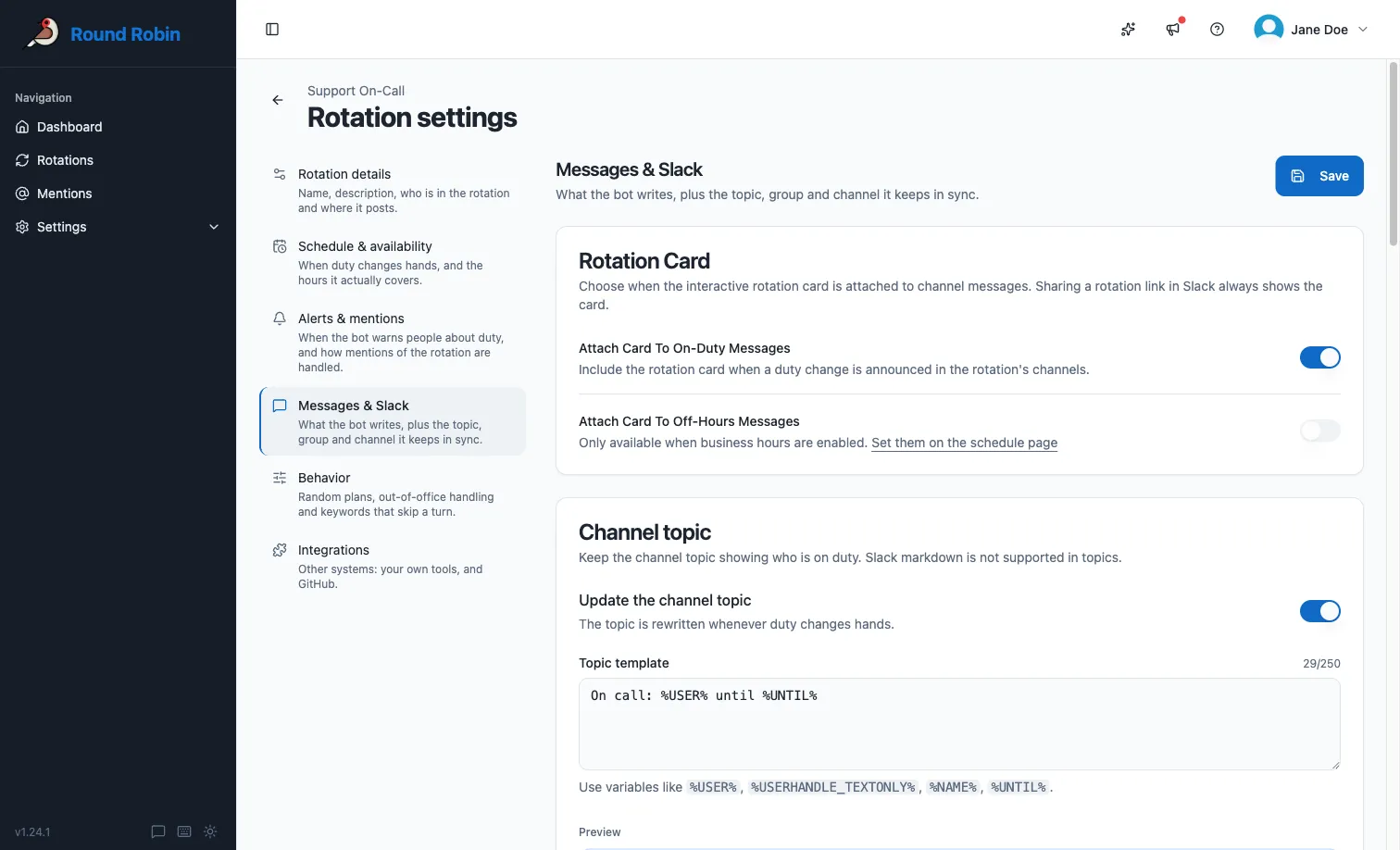
If you do not select any topic channels, the app uses the rotation’s message channels, which is the default.
The bot must be in the channel
The bot cannot set the topic of a private channel it is not a member of. Invite the bot to the channel first. If you do not see the topic options at all, your workspace’s installation of the app is missing the Slack permissions needed to manage topics; update or reinstall the app to grant them.
## Choose topic channels
[Section titled “Choose topic channels”](#choose-topic-channels)
The **Channel topic** card gives you fine-grained control over where the topic is set:
1. By default, the topic is set in all of the rotation’s message channels. Switch off any message channel where you don’t want the topic updated.
2. Add **topic-only channels**: channels that don’t receive rotation messages but should still get the topic.
3. A channel can be both a message channel and a topic channel.
## Default topic
[Section titled “Default topic”](#default-topic)
If you don’t provide a custom template, the app builds the topic for you:
> Round Robin says: @user is on duty for rotation *name*.
Two variations apply automatically:
* For automatic and external rotations (and for rotations with business-hours support enabled), the app appends the end of the current shift: “… on duty for rotation *name* until *date*.”
* If the rotation has an on-duty user group, the app appends: “You can also ask for help using @duty-group.”
If more than one person is on duty, the wording adjusts (“are on duty” instead of “is on duty”).
## Customize the topic template
[Section titled “Customize the topic template”](#customize-the-topic-template)
You can replace the default with your own template in the dashboard:
1. Open the rotation’s **Settings → Messages & Slack** and find the **Channel topic** card.
2. Type your template in the **Topic template** field, using replacement tokens such as `%USER%`, `%USERHANDLE%`, `%NAME%`, and `%UNTIL%`. See [templating](/customizations/templating/) for the full token list.
3. Check the live preview below the field, then save.
Keep these limits in mind:
| Constraint | Detail |
| -------------- | -------------------------------------------------------- |
| Length | Templates are limited to 250 characters. |
| Formatting | Slack markdown is **not** supported in channel topics. |
| Empty template | Leave the field empty to fall back to the default topic. |
## Clearing the topic
[Section titled “Clearing the topic”](#clearing-the-topic)
If you disable topic management on a rotation, or delete a rotation that has it enabled, the app automatically clears the topics it set.
Round Robin never overwrites somebody else’s edit
The app only clears a topic it was the last to set. If someone edited the channel topic in the meantime, Round Robin leaves it alone to avoid overwriting their changes.
## Next steps
[Section titled “Next steps”](#next-steps)
* [Templating](/customizations/templating/): every token you can put in a topic.
* [Customize rotation messages](/customizations/message-management/): the same treatment for the messages the bot posts.
* [Round Robin in Slack](/rotation-management/round-robin-in-slack/): in Slack you view rotations and take quick actions; topics are configured in the dashboard.
# Use an on-duty group
> Connect a Slack user group to a rotation so its members always match whoever is on duty.
An on-duty group is a Slack user group that Round Robin keeps in sync with your rotation: whenever duty changes, the group’s members are updated to the current on-duty users. Anyone can then mention a stable handle (for example `@support-operator`) without knowing who is on call right now. You can also reference the group in messages and topics with the `%DUTYHANDLE%` template token (see [Templating](/customizations/templating/)).
## Prerequisites
[Section titled “Prerequisites”](#prerequisites)
The feature depends on Slack user groups, so it requires:
* A Slack plan where [user groups are available](https://slack.com/help/articles/212906697-Create-a-user-group).
* [Workspace permissions](https://slack.com/help/articles/115004952926-Manage-permissions-for-user-groups) that let the app work with user groups.
If you are a workspace admin, open **Workspace Settings & Permissions** and set both user group permissions (“create and disable” and “modify”) to **Everyone, except guests**.
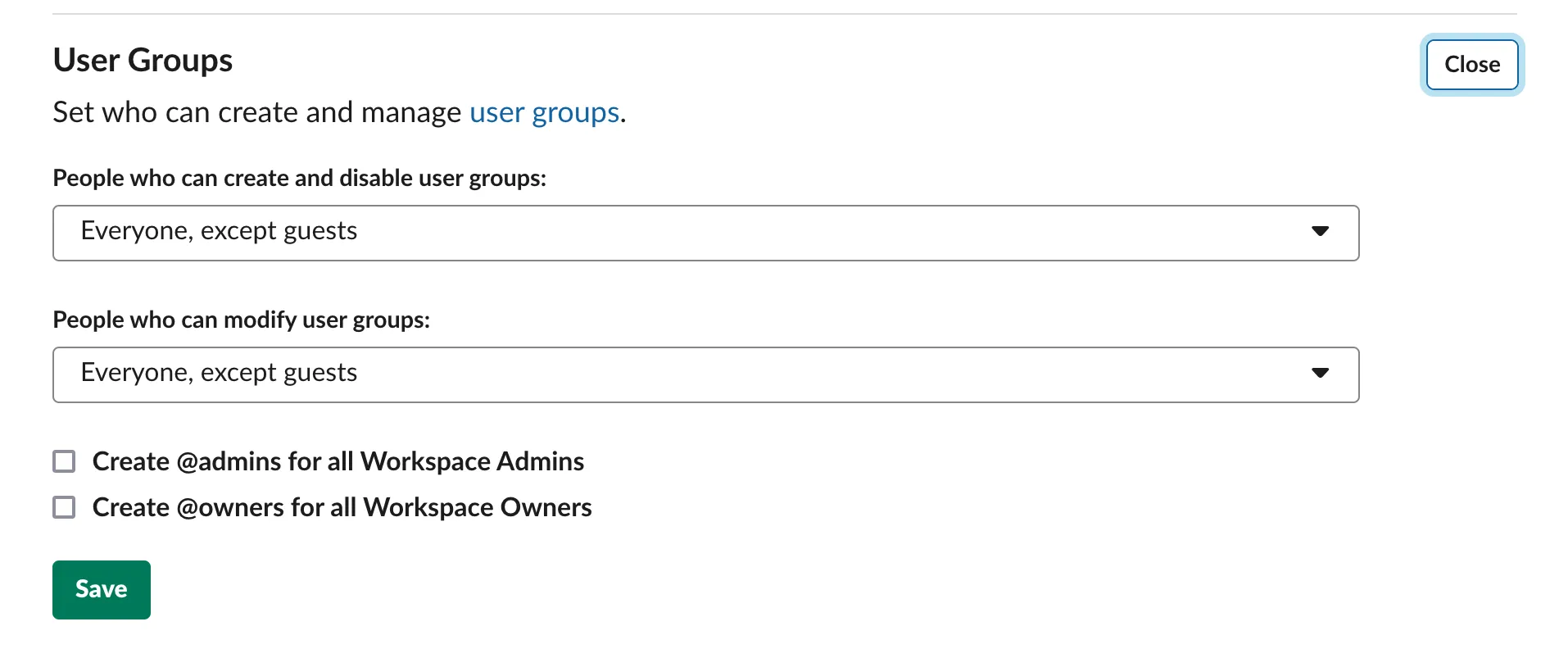
If you cannot change these settings yourself, ask an administrator. At minimum the app needs permission to **modify** user groups; in that case someone with create permission must create the group first, and you connect it as an existing group.
## Connect a group from the dashboard
[Section titled “Connect a group from the dashboard”](#connect-a-group-from-the-dashboard)
1. Sign in at [app.roundrobinbot.eu](https://app.roundrobinbot.eu) and open your rotation.
2. Click **Settings**, open **Messages & Slack**, and find the **On-duty group** card.
3. Turn **Keep a group in sync** on. Choose to create a managed group or link an existing one. If the app can create user groups in your workspace, accept the proposed handle (*rotation-name*-operator) or type your own. Handles must be lowercase with no spaces, and the usual Slack user group naming limits apply.
4. If the app cannot create groups, pick an existing group instead; you get an error on save if the app cannot edit that group either.
5. Click **Save**.
Once connected, the card shows the linked group and whether it is managed by Round Robin.
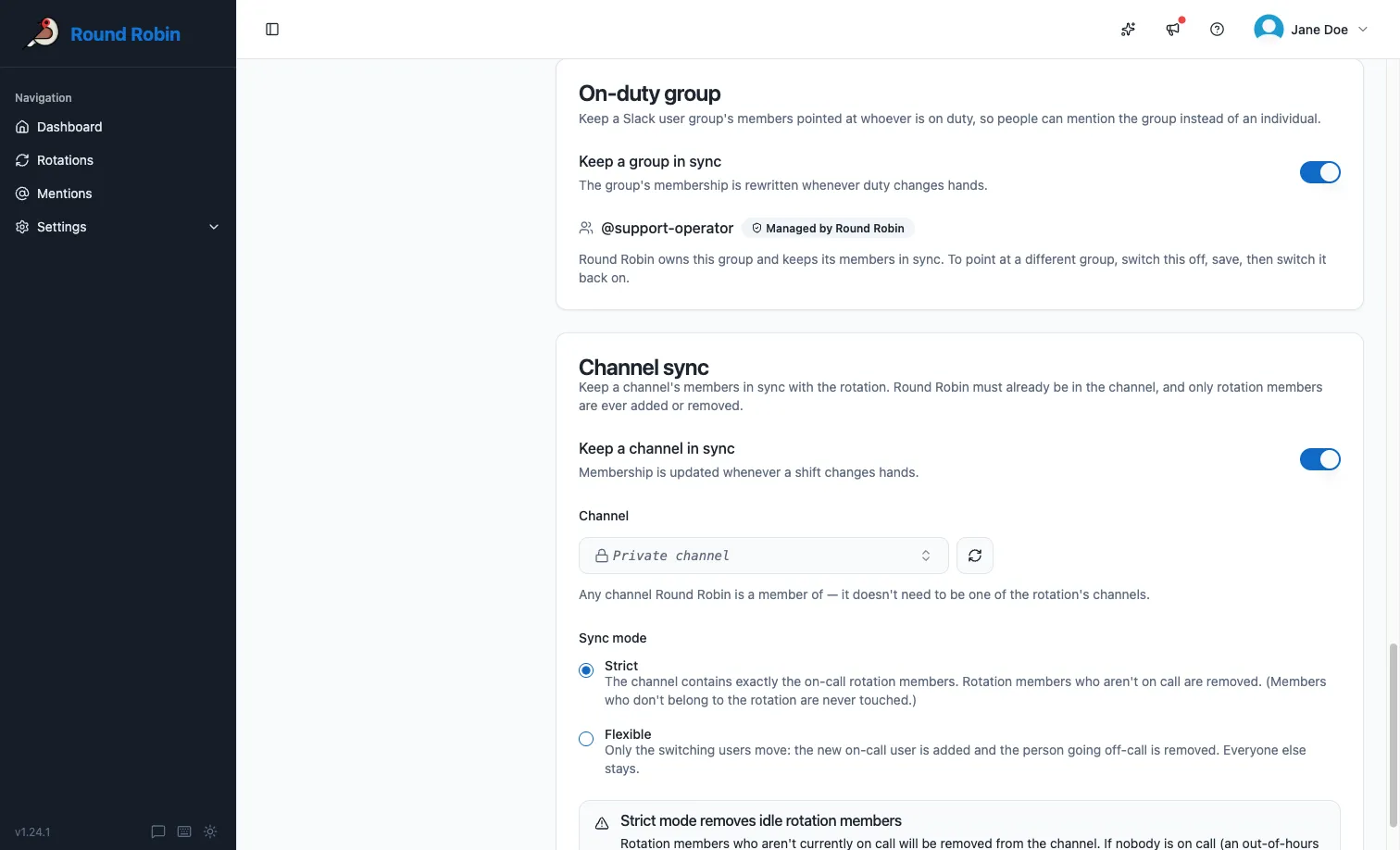
An on-duty group is optional
An on-duty group is optional: a rotation works fine without one.
If you want the people themselves moved in and out of a channel rather than a handle kept up to date, see [Sync a channel’s membership](/rotation-management/channel-membership-sync/).
## How membership is synced
[Section titled “How membership is synced”](#how-membership-is-synced)
On every duty change, Round Robin updates the group so it contains the current on-duty users (all of them, if more than one user is on duty at a time). Users that cannot be members of a Slack user group (deactivated accounts, bots, and guest users) are skipped automatically.
Two team-wide settings control the details, under **Settings → Team settings** in the dashboard:
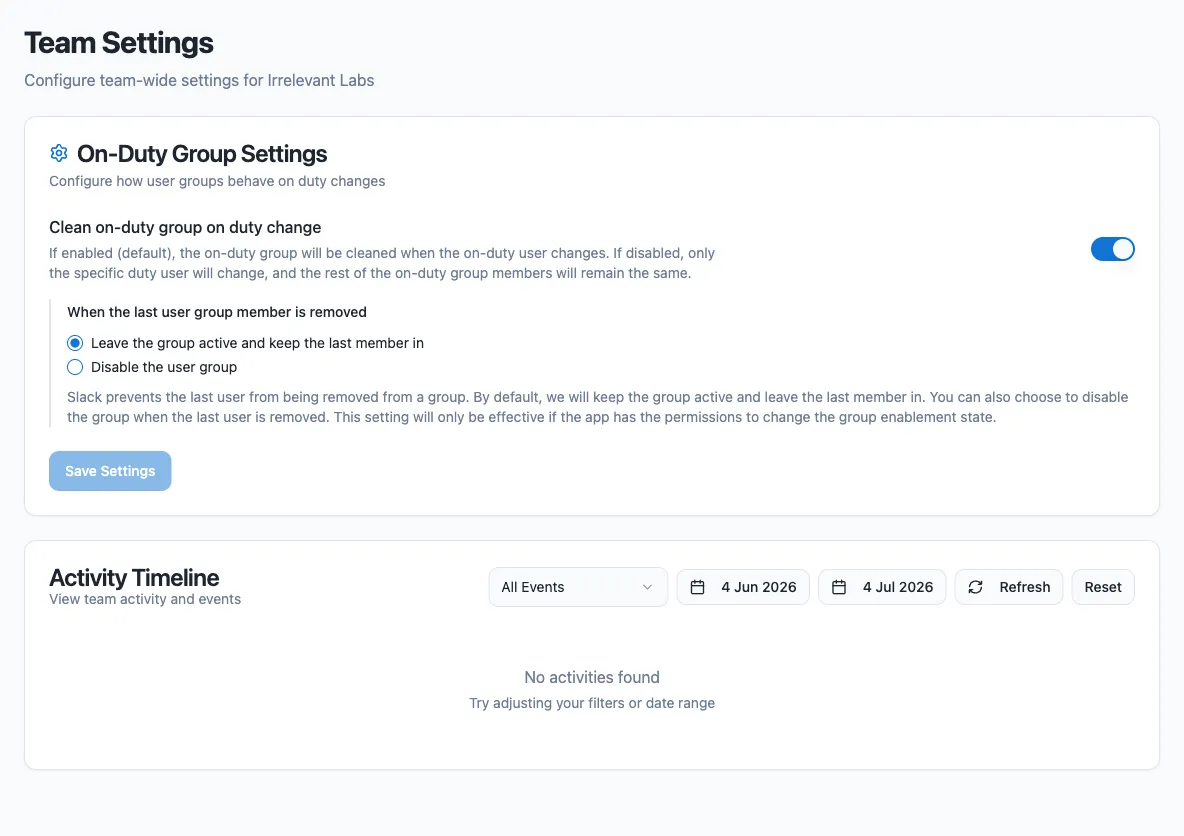
| Setting | Behavior |
| ---------------------------------------------------- | ----------------------------------------------------------------------------------------------------------------------------------------------------------------------------------- |
| **Clean on-duty group on duty change** (default: on) | The group’s membership is replaced with the new on-duty users. Turn it off to have the bot only add and remove the users going on and off duty, leaving any other members in place. |
| **When the last user group member is removed** | Slack requires a user group to have at least one member. Choose what happens when everyone goes off duty (for example with business-hours rotations): see below. |
For the last-member setting:
* **Leave the group active and keep the last member in** (default): the last on-duty user stays in the group and is removed as soon as someone else goes on duty.
* **Disable the user group**: the app disables the group and re-enables it when the next user goes on duty. This requires permission to disable user groups.
Losing access disconnects the group
If the app loses access to the group (it can no longer read it, re-enable it, or update its members), it disconnects the group from the rotation rather than leaving it out of sync. If someone deletes the group in Slack, the app first tries to restore (re-enable) it, and only disconnects it if that fails.
## Disabling the rotation
[Section titled “Disabling the rotation”](#disabling-the-rotation)
Turning off a rotation removes its on-duty group connection, and it is not restored when you re-enable the rotation. Reconnect the group manually afterward.
## Removing the group
[Section titled “Removing the group”](#removing-the-group)
Turn **Keep a group in sync** off on the **On-duty group** card and click **Save**. If Round Robin created the group, it is disabled in Slack; if you linked an existing group, syncing stops and the group itself is left untouched.
To point the rotation at a different group, switch the card off, save, then switch it back on and choose the new group.
## Next steps
[Section titled “Next steps”](#next-steps)
* [Sync a channel’s membership](/rotation-management/channel-membership-sync/): move the people themselves in and out of a channel instead of updating a handle.
* [Templating](/customizations/templating/): use `%DUTYHANDLE%` in your duty messages and channel topics.
* [Round Robin in Slack](/rotation-management/round-robin-in-slack/): what the bot does in Slack, and what lives in the dashboard.
# GitHub integration
> Connect GitHub repositories to a rotation and notify on-duty users or rotation channels about pull requests, reviews, and issues.
Connect your GitHub repositories to Round Robin and route notifications about pull requests, reviews, and issues to the people currently on duty, to the rotation’s Slack channels, or both.
Downgrading disables the connection
If your workspace goes back to the Free plan, the GitHub connection is disabled automatically.
## Install the GitHub App
[Section titled “Install the GitHub App”](#install-the-github-app)
1. In the [dashboard](https://app.roundrobinbot.eu), go to **Settings** → **Integrations**.
2. In the GitHub section, click **Install GitHub App**. You are redirected to GitHub.
3. Choose the organization or personal account to install the app on.
4. Grant access to all repositories or select specific ones.
5. Complete the installation. You are redirected back to the dashboard, and the connected GitHub account appears on the integrations page.
Private repositories work as long as the GitHub App has access to them.
## Configure a rotation
[Section titled “Configure a rotation”](#configure-a-rotation)
Once GitHub is connected, each rotation can have its own GitHub configuration:
1. Open the rotation’s detail page and click **Settings**.
2. Open **Integrations** and choose **GitHub**.
3. Choose your repositories, notification target, and events (see below).
4. Click **Save**.
Multiple rotations can watch the same repository, each with its own event selection and templates.
### Repositories
[Section titled “Repositories”](#repositories)
* **All Repositories**: the rotation is connected to every repository the GitHub App can access. Repositories added to the installation later are included automatically.
* **Select Specific Repositories**: choose individual repositories from the list.
### Notification target
[Section titled “Notification target”](#notification-target)
| Option | Behavior |
| --------------------- | --------------------------------------------- |
| On-Duty User Only | Direct message to the users currently on duty |
| Channel Only | Post to the rotation’s Slack channels |
| Both User and Channel | Both of the above |
If the target resolves to nobody (for example, “On-Duty User Only” with no one on duty), no notification is sent.
### Events
[Section titled “Events”](#events)
Pick **Default Events** or switch to **Custom Event Selection** to choose from:
| Event type | Covers | In default set |
| ----------------------------- | --------------------------------------------------------------------------------------------------------- | -------------- |
| `pull_request` | PR opened, closed, merged, reopened, new commits, ready for review, converted to draft, labeled/unlabeled | Yes |
| `pull_request_review` | Review submitted, dismissed, or edited | Yes |
| `pull_request_review_comment` | Comment on a PR diff | Yes |
| `pull_request_review_thread` | Review thread resolved or unresolved | Yes |
| `issue_comment` | Comment on an issue or PR | Yes |
| `issues` | Issue opened, closed, reopened, assigned/unassigned, labeled/unlabeled | Yes |
## Custom notification templates
[Section titled “Custom notification templates”](#custom-notification-templates)
Every event type ships with a built-in message, but you can override it per event type or per specific action. When an event arrives, Round Robin picks the first template that matches:
1. **Action-specific template**, with a key like `pull_request:merged`
2. **Event-type template**, with a key like `pull_request`
3. **Default template**, the built-in message
For example, set a celebration message for `pull_request:merged` while all other PR actions use your general `pull_request` template.
Merged pull requests report as merged
A PR that is closed by merging is reported with the action `merged`, not `closed`. Comments on PRs and issues are distinguished with actions like `created_on_pr` and `created_on_issue`.
### Placeholders
[Section titled “Placeholders”](#placeholders)
| Placeholder | Description |
| ---------------------------- | -------------------------------------------------------------------- |
| `%ROTATION_NAME%` | Name of the rotation |
| `%GITHUB_ACTOR%` | GitHub user who triggered the event |
| `%GITHUB_REPOSITORY%` | Full repository name (`owner/repo`) |
| `%GITHUB_REPOSITORY_SHORT%` | Repository name without the owner |
| `%GITHUB_EVENT_TITLE%` | Title of the PR or issue |
| `%GITHUB_EVENT_URL%` | Link to the PR, issue, or comment |
| `%GITHUB_EVENT_DESCRIPTION%` | Body text, truncated to 150 characters and rendered as a Slack quote |
| `%GITHUB_EVENT_TYPE%` | Event type, e.g. `pull_request` |
| `%GITHUB_ACTION%` | Specific action, e.g. `opened`, `merged` |
| `%GITHUB_LABEL%` | Label name (only for labeled/unlabeled actions) |
Example template for `pull_request:merged`:
```plaintext
🎉 *PR merged!* %GITHUB_EVENT_TITLE%. Great work, %GITHUB_ACTOR%! Shipped in `%GITHUB_REPOSITORY_SHORT%`
```
## Troubleshooting
[Section titled “Troubleshooting”](#troubleshooting)
**Notifications are not arriving**
1. Check **Settings** → **Integrations** and verify the GitHub connection is active.
2. Verify the GitHub App has access to the repository in question.
3. In the rotation’s GitHub configuration, confirm the event type is enabled and the repository is included.
4. If the target is “On-Duty User Only”, confirm someone is currently on duty.
**Wrong message template is used**
Templates apply in order of specificity: an action-specific template such as `pull_request:merged` always wins over the general `pull_request` template.
**GitHub shows as disconnected**
This happens when the app is uninstalled from GitHub or the installation is suspended. If the installation was suspended, unsuspending it on GitHub reactivates the connection automatically; if the app was uninstalled, reinstall the GitHub App from the integrations page.
## Next steps
[Section titled “Next steps”](#next-steps)
* [Create a rotation](/rotation-management/create-a-rotation/): the rotation the notifications route to.
* [Use an on-duty group](/groups-management/using-on-duty-handle/): a stable handle to notify instead of individuals.
* [Plans and billing](/billing/billing/): what happens to the connection if you go back to Free.
# Google Calendar sync
> Connect your Google Calendar to see your duties as calendar events and let Round Robin skip you when you are out of office.
Connecting Round Robin to Google Calendar syncs in both directions:
* **Export:** Round Robin creates an event in your calendar for each of your on-duty periods, so you can see your shifts alongside the rest of your schedule.
* **Import:** Round Robin reads out-of-office events from your calendar and can automatically skip you when a rotation would put you on duty while you are away.
**You need:** a connected Google account of your own. The connection is personal: each rotation member connects their own Google account, and events are created in their own calendar.
## Connect your Google account
[Section titled “Connect your Google account”](#connect-your-google-account)
1. Open the dashboard at [app.roundrobinbot.eu](https://app.roundrobinbot.eu).
2. Go to **Settings → Integrations**.
3. On the **Google Calendar** card, click **Sign in with Google** and complete the Google consent flow.
Once connected, the card shows a **Connected** badge and the Google email address in use. Syncing is automatic from this point on.
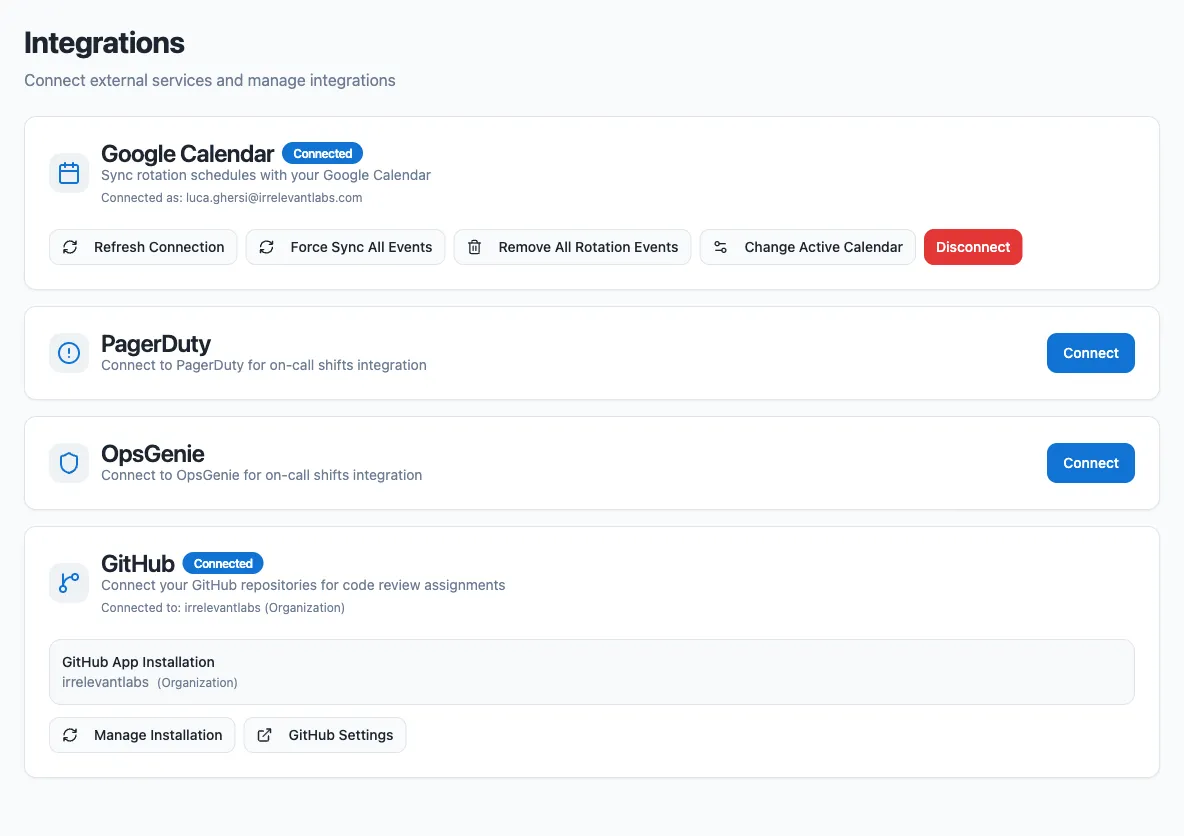
If the badge changes to **Needs Reconnection**, click **Reconnect** to run the Google sign-in again and refresh the stored token.
## What Round Robin writes to your calendar
[Section titled “What Round Robin writes to your calendar”](#what-round-robin-writes-to-your-calendar)
For every rotation where you are on duty, Round Robin creates an event named `Duty: ` in your **events calendar**, covering your on-duty period, with a link back to the rotation in the dashboard. When the duty changes, old events are removed and new ones are created.
## How out-of-office import works
[Section titled “How out-of-office import works”](#how-out-of-office-import-works)
Round Robin monitors your **out-of-office calendar** and stores your OOO periods. Whether they affect duty assignment is controlled per rotation:
1. Open the rotation in the dashboard, click **Settings**, and open **Behavior**.
2. In the **External Calendars** card, set **Out-of-Office Time Consideration**.
| Setting | Behavior |
| ------------------------------ | ------------------------------------------------------------------------------------------------------------ |
| Never | Out-of-office time is ignored. |
| Always | Any out-of-office event that overlaps the duty period makes Round Robin skip you. |
| Only if OOO time is more than… | You are skipped only when the out-of-office event lasts at least the configured number of consecutive hours. |
## Choose which calendars to use
[Section titled “Choose which calendars to use”](#choose-which-calendars-to-use)
By default, Round Robin uses your primary calendar (the one matching your Google email address) for both events and out-of-office data. To change this:
1. On the Google Calendar card, click **Change Active Calendar**.
2. Pick an **Events Calendar** (where duty events are created).
3. Pick an **Out-of-Office Calendar** (which calendar is monitored for OOO).
4. Optionally add **Out-of-Office Keywords**, then click **Save Changes**.
Keywords filter which events count as out-of-office: if you add any, only events whose title contains one of the keywords (case-insensitive) are considered. With no keywords, every eligible event counts.
Shared calendars have no out-of-office events
Shared Google calendars do not support native out-of-office events, which is a Google limitation. If you select a shared calendar (any calendar other than your primary one) as your out-of-office calendar, Round Robin treats its *regular* events as out-of-office instead. Use keywords (for example, “vacation”) to limit which events count. Only events where you or the selected calendar are the organizer or an attendee are considered.
## Manage the connection
[Section titled “Manage the connection”](#manage-the-connection)
Once connected, the Google Calendar card offers these actions:
| Action | What it does |
| -------------------------- | ------------------------------------------------------------------------------------------------------------------------------------------------------------------------ |
| Refresh Connection | Runs the Google sign-in flow again to renew the stored token. |
| Force Sync All Events | Clears and recreates all Round Robin events, and re-imports out-of-office data. |
| Remove All Rotation Events | Deletes all Round Robin duty events from your calendar without recreating them; they are recreated the next time your duties sync (or if you run Force Sync All Events). |
| Change Active Calendar | Opens the calendar and keyword settings described above. |
| Disconnect | Disables the integration; duty events stop syncing until you reconnect. |
## Next steps
[Section titled “Next steps”](#next-steps)
* [Out-of-office and availability](/rotation-management/out-of-office/): the other two ways to be skipped.
* [Create or edit a schedule](/rotation-management/create-or-edit-a-schedule/): what the calendar events are generated from.
* [Plans and billing](/billing/billing/): the plan this needs.
# Integrate OpsGenie with Round Robin
> Connect Round Robin to OpsGenie with an API key so rotations can follow your OpsGenie schedules.
Connecting OpsGenie lets Round Robin read your OpsGenie schedules, so you can create rotations whose members and on-duty user come straight from OpsGenie. You set up and manage the connection on the [Round Robin dashboard](https://app.roundrobinbot.eu), under **Settings** > **Integrations**. The connection uses an OpsGenie API key (there is no OAuth flow).

## Before you start: create an API key in OpsGenie
[Section titled “Before you start: create an API key in OpsGenie”](#before-you-start-create-an-api-key-in-opsgenie)
1. Open OpsGenie and go to **Settings** > **API key management**.
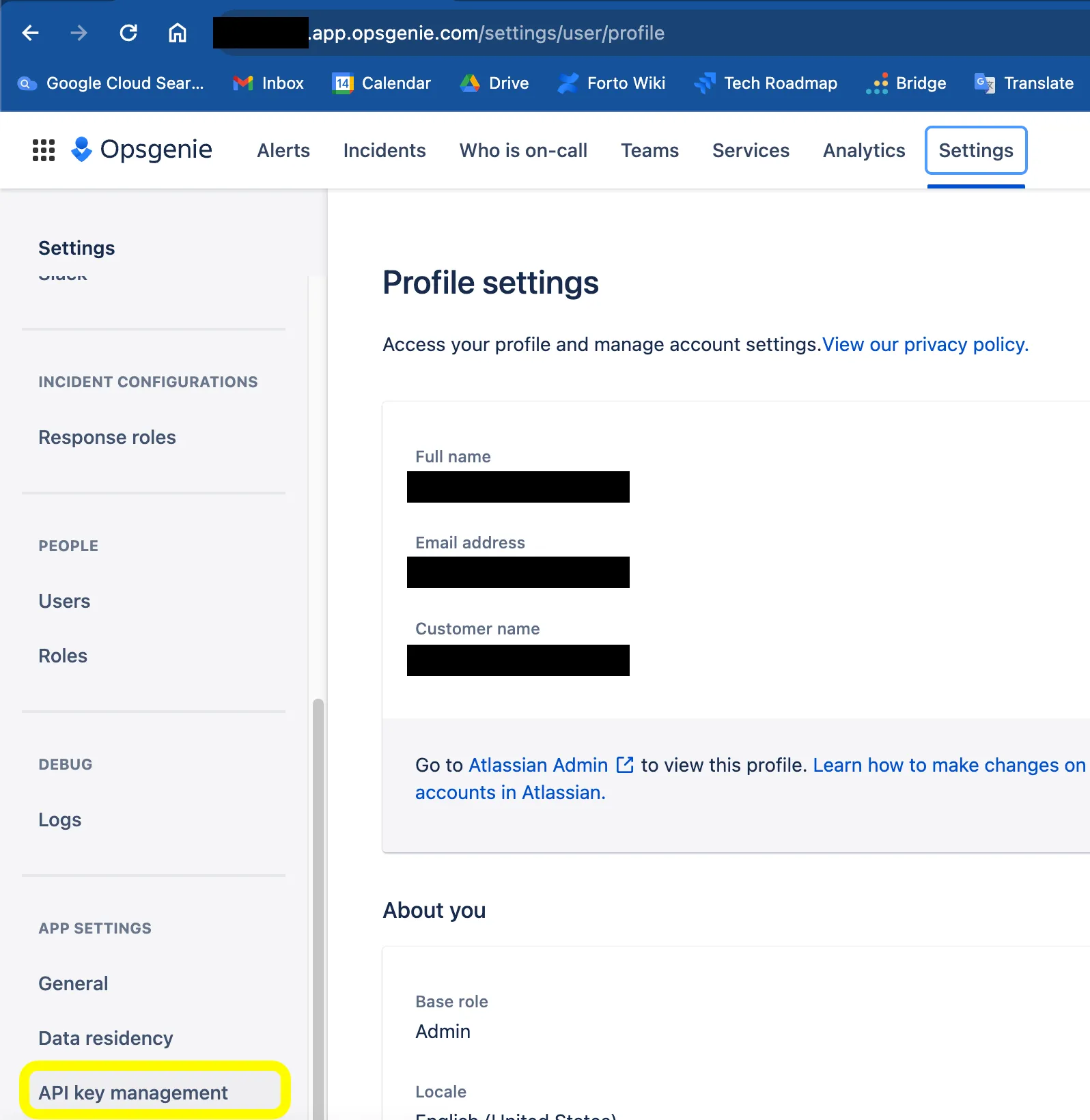
2. Click **Add new API key**.
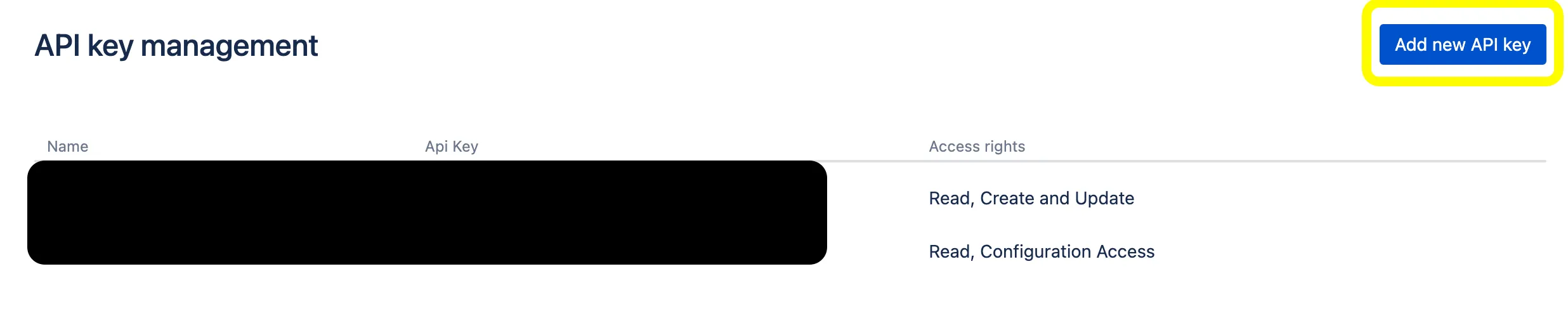
3. Grant the key the **Read** and **Configuration access** rights, then save it.
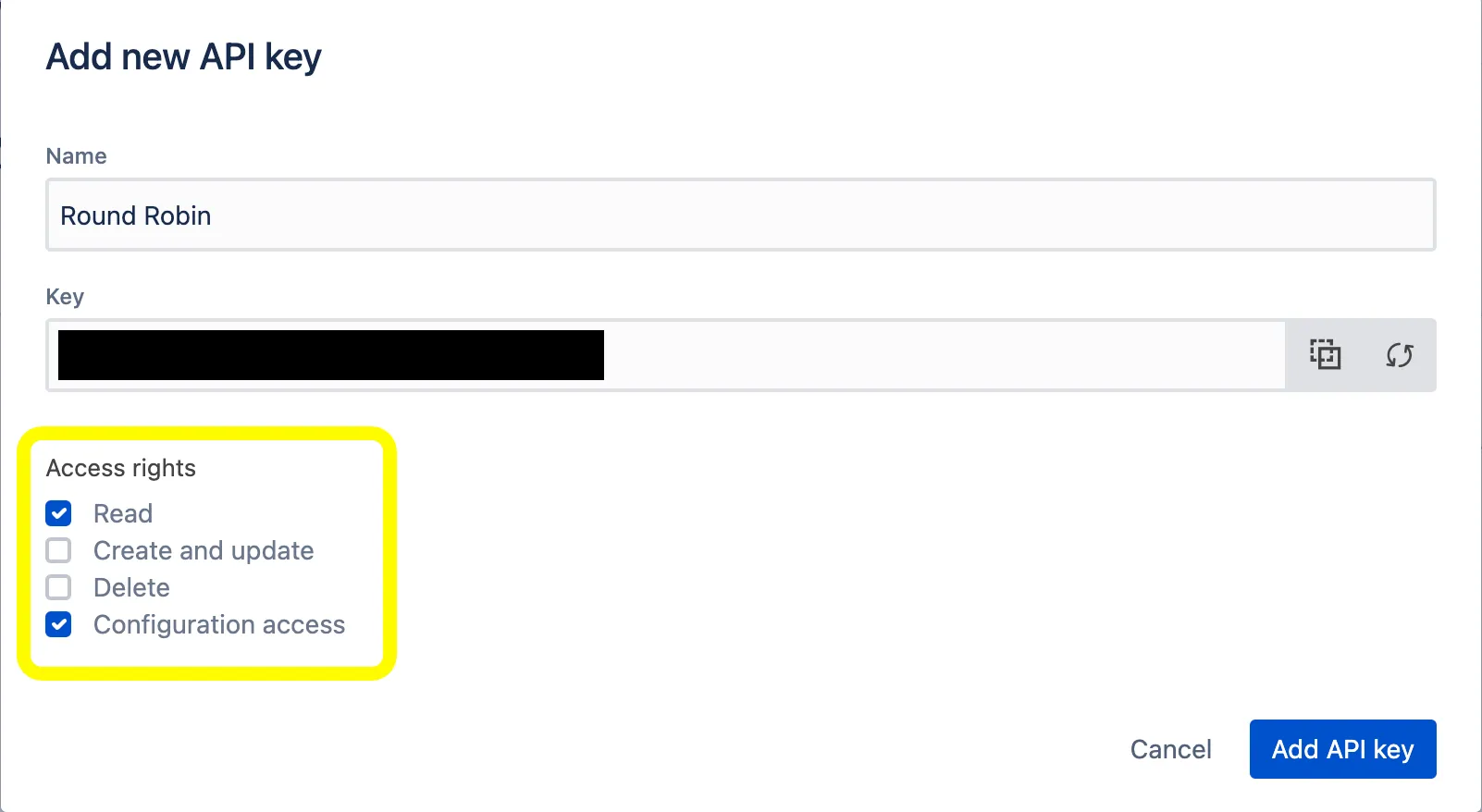
4. Copy the API key. You will paste it into Round Robin in the next section.
## Connect Round Robin to OpsGenie
[Section titled “Connect Round Robin to OpsGenie”](#connect-round-robin-to-opsgenie)
1. Open the [Round Robin dashboard](https://app.roundrobinbot.eu) and go to **Settings** > **Integrations**.
2. On the **OpsGenie** card, click **Connect**.
3. In the **Connect to OpsGenie** dialog, paste your API key. If your OpsGenie account is hosted on the EU instance, check **European Data Residency (EU instance)**: Round Robin will call `api.eu.opsgenie.com` instead of `api.opsgenie.com`.
4. Click **Connect with API Key**.
Once connected, the OpsGenie card shows a **Connected** badge and the last digits of the stored API key. From here you can also **Edit API Key** to rotate the key without disconnecting.
With the connection in place, you can bind rotations to OpsGenie schedules. See [PagerDuty or OpsGenie based rotations](/integrations/pagerduty-based-rotations/).
## Disconnect OpsGenie
[Section titled “Disconnect OpsGenie”](#disconnect-opsgenie)
1. Go to **Settings** > **Integrations** in the [Round Robin dashboard](https://app.roundrobinbot.eu).
2. On the OpsGenie card, click **Disconnect** and confirm.
Disconnecting unbinds every rotation
Disconnecting unbinds every rotation that is linked to an OpsGenie schedule. Those rotations switch to manual mode, and each rotation’s owners receive a Slack message telling them the rotation is no longer bound to OpsGenie.
## Next steps
[Section titled “Next steps”](#next-steps)
* [PagerDuty and OpsGenie based rotations](/integrations/pagerduty-based-rotations/): link a rotation to a schedule now that OpsGenie is connected.
* [External rotations](/rotation-management/external-rotations/): how the sync behaves, and what it takes over.
# Integrate PagerDuty with Round Robin
> Connect Round Robin to PagerDuty with an API key or OAuth so rotations can follow your PagerDuty schedules.
Connecting PagerDuty lets Round Robin read your PagerDuty schedules, so rotations can follow them automatically. Once connected, you can bind individual rotations to a PagerDuty schedule. See [PagerDuty-based rotations](/integrations/pagerduty-based-rotations/).
You can connect in two ways:
| Method | Pros | Trade-offs |
| --------- | ------------------------------------------------------- | -------------------------------------------------------------------------------------------------------------------------------------------------------------------------------------- |
| API key | Simpler and faster to set up; a read-only key is enough | You manage a static credential |
| OAuth 2.0 | Short-lived tokens, refreshed automatically | Requires creating an OAuth app in PagerDuty; the connection acts as the PagerDuty user who authorizes it, so that user must be able to see all the schedules and users you want to use |
The connection is managed per Slack workspace: you set it up once, and every rotation in the workspace can use it.
## Where to connect
[Section titled “Where to connect”](#where-to-connect)
Everything happens in the [Round Robin dashboard](https://app.roundrobinbot.eu): open **Settings → Integrations** to find the PagerDuty card alongside the other providers.

## Connect with an API key
[Section titled “Connect with an API key”](#connect-with-an-api-key)
1. In the dashboard, go to **Settings → Integrations** and click **Connect** on the PagerDuty card.
2. In PagerDuty, create an API key from the **Integrations** menu. A **read-only** key is sufficient: Round Robin only reads schedules and users.
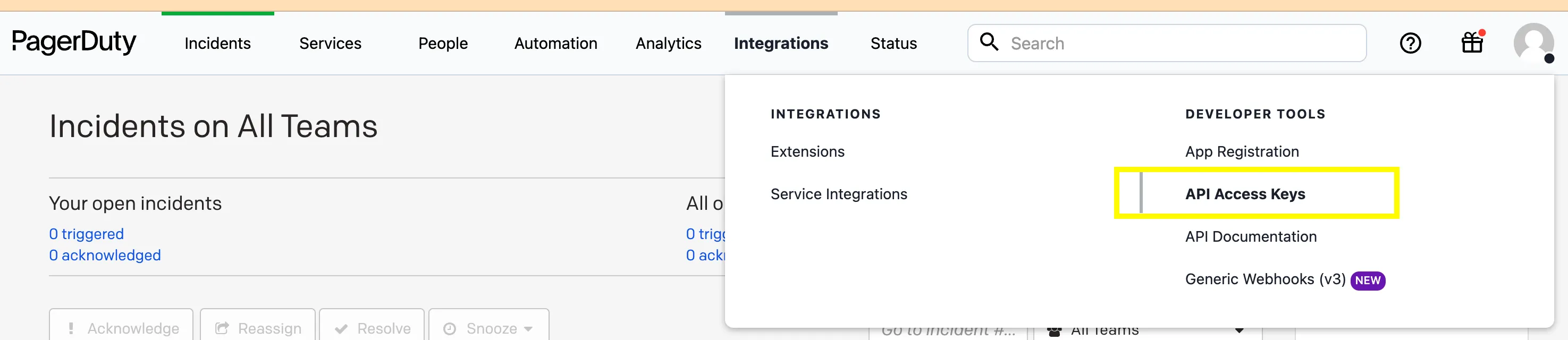
3. Back in the connect dialog, paste the API key and click **Connect with API Key**.
The PagerDuty card now shows the connection as active, with the last digits of your key. Use **Edit API Key** on the same card whenever you need to rotate the key.
## Connect with OAuth 2.0
[Section titled “Connect with OAuth 2.0”](#connect-with-oauth-20)
With OAuth, you first register an app in PagerDuty, then hand its credentials to Round Robin, which redirects you to PagerDuty to authorize the connection.
1. In PagerDuty, open the **Integrations** menu and choose **App Registration**.

2. Create a new app and enable **OAuth 2.0** functionality.
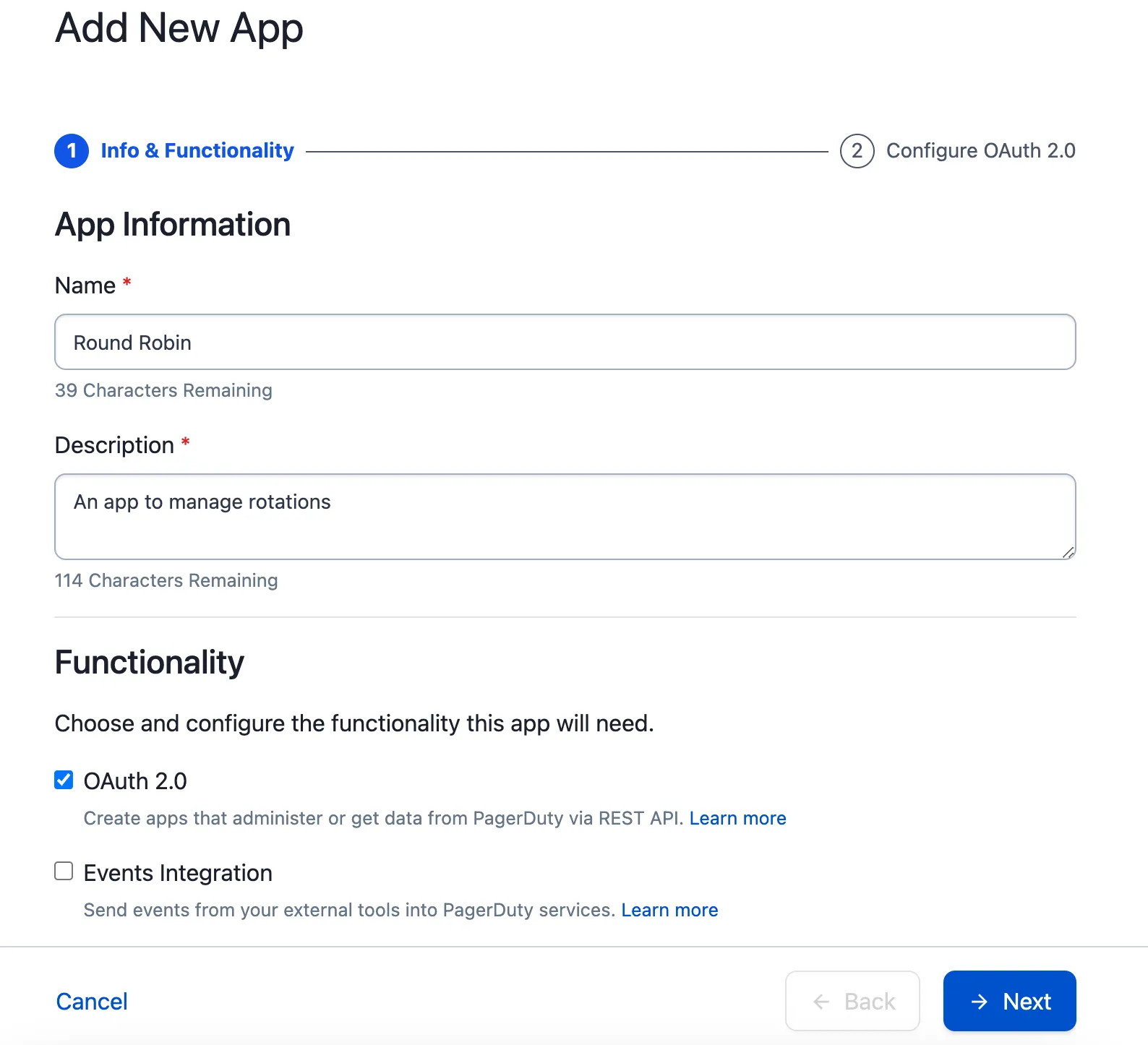
3. Choose **Scoped OAuth** and add this redirect URL:
`https://api.roundrobinbot.eu/api/integrations/pagerduty/login/callback`
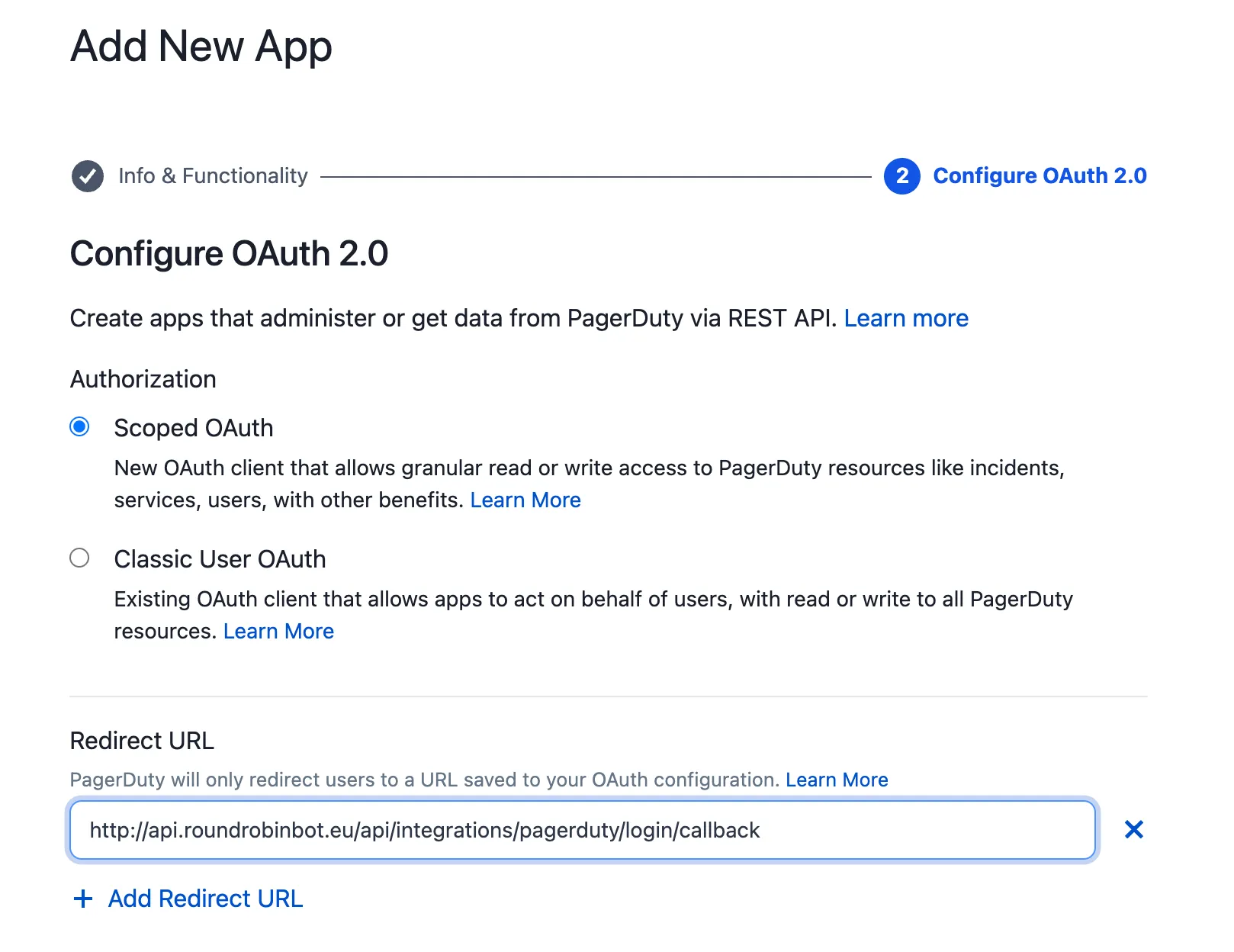
4. Grant read access to **Schedules**, **Teams**, and **Users**. Round Robin requests the `openid`, `schedules.read`, `teams.read`, and `users.read` scopes.
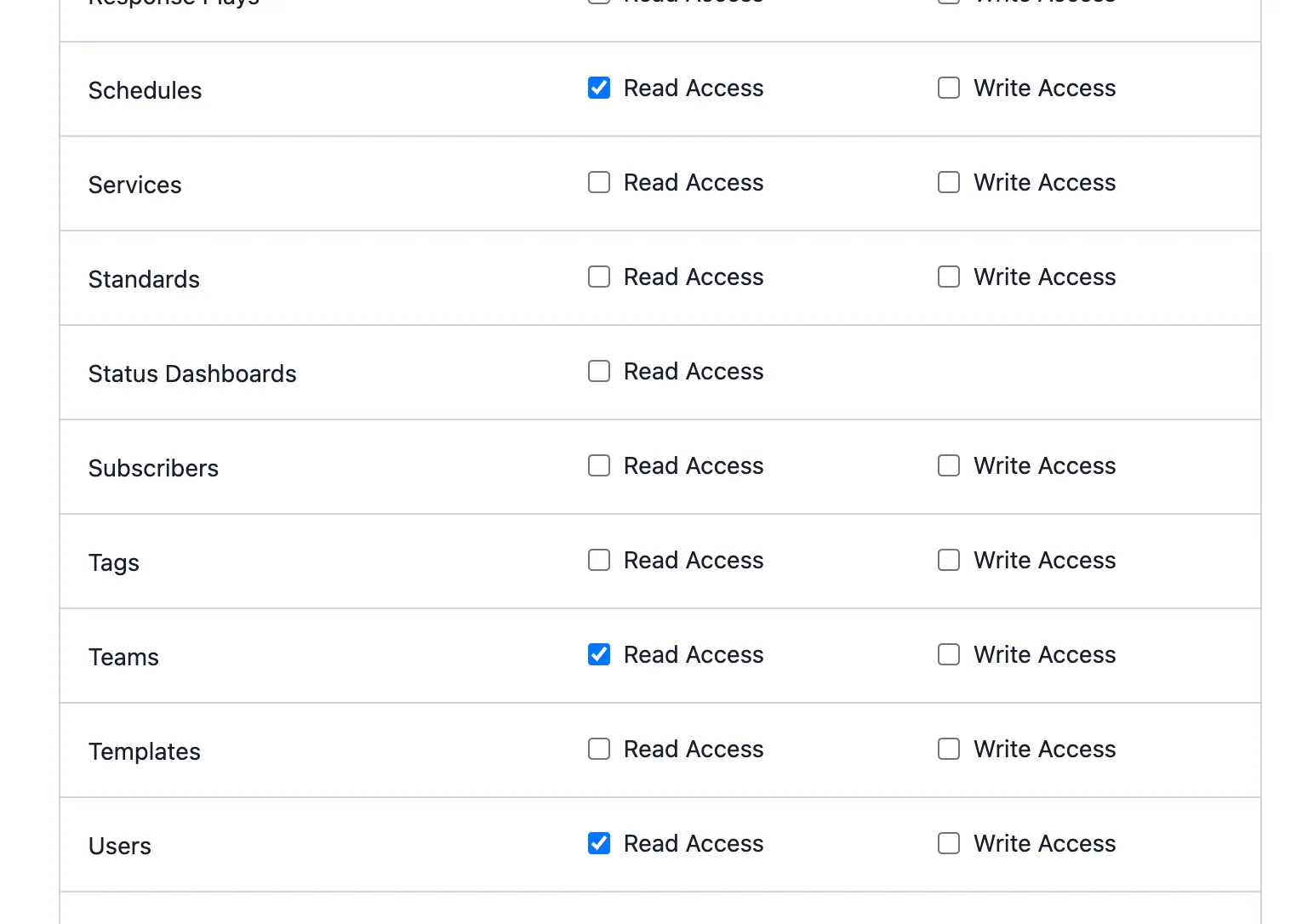
The final configuration should look like this:

5. Click **Register App**. PagerDuty shows a **Client ID** and a **Client Secret**. Copy both.
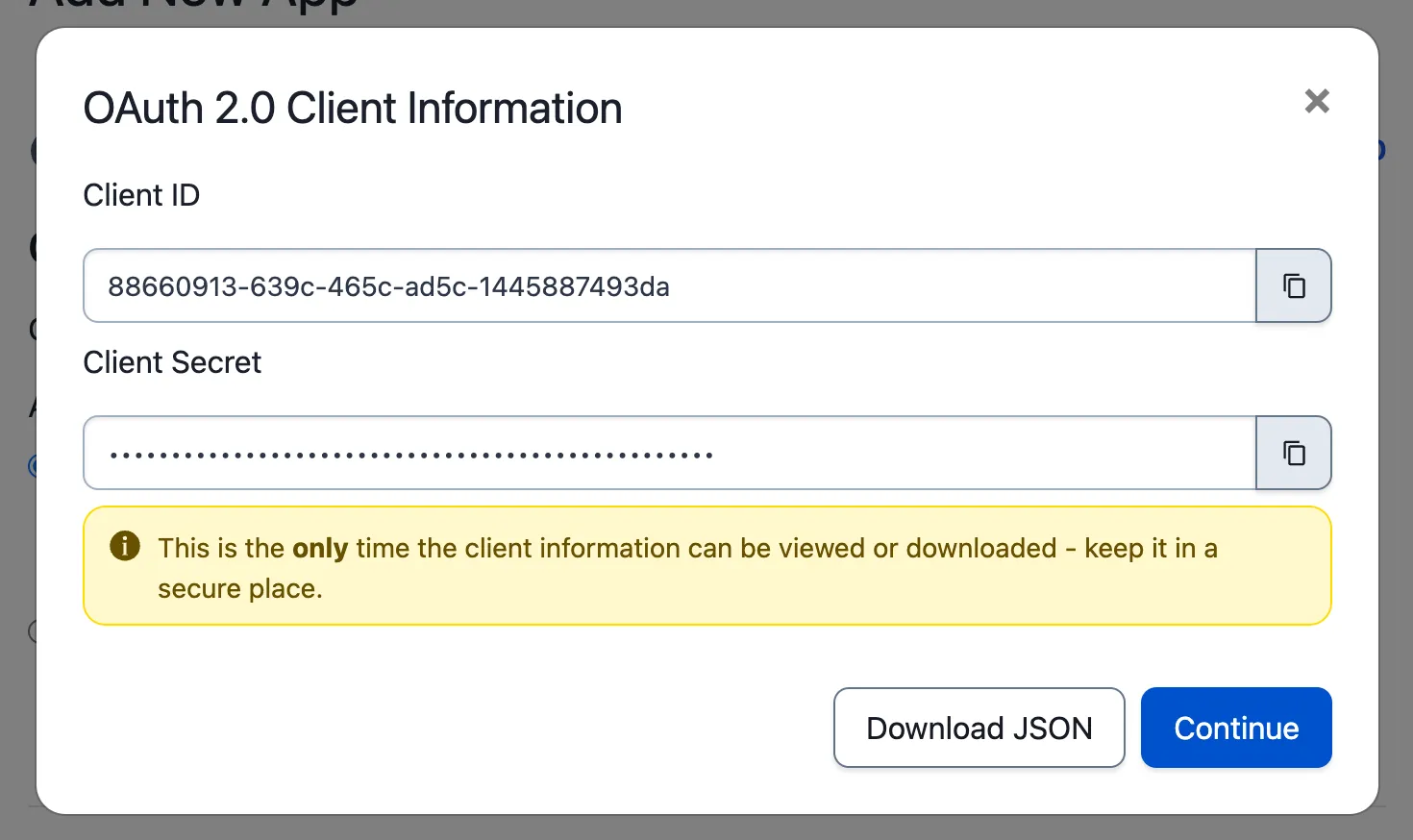
6. Open the [Round Robin dashboard](https://app.roundrobinbot.eu), go to **Settings → Integrations**, and click **Connect** on the PagerDuty card.
7. Enter the Client ID and Client Secret in the OAuth section of the dialog and click **Connect with OAuth**.
8. You are redirected to PagerDuty to authorize the connection. When you approve, PagerDuty sends you back to the Round Robin dashboard.
Authorize with an account that sees every schedule
Because the OAuth connection acts as the user who authorizes it, sign in with a PagerDuty account that can see every schedule you plan to use. An admin account is the safe choice.
If the connection ever needs to be re-authorized, use **Refresh Connection** on the PagerDuty card to run the login flow again.
## Disconnect
[Section titled “Disconnect”](#disconnect)
On **Settings → Integrations**, click **Disconnect** on the PagerDuty card and confirm.
Disconnecting unbinds every rotation
Disconnecting removes the PagerDuty binding from every rotation that uses it. Those rotations revert to **Manual** mode, so on-duty changes stop following the PagerDuty schedule until you reconnect and bind them again.
## Next steps
[Section titled “Next steps”](#next-steps)
* [PagerDuty and OpsGenie based rotations](/integrations/pagerduty-based-rotations/): link a rotation to a schedule now that PagerDuty is connected.
* [External rotations](/rotation-management/external-rotations/): how the sync behaves, and what it takes over.
# PagerDuty and OpsGenie based rotations
> Link a rotation to a PagerDuty or OpsGenie schedule so members and the user on duty sync automatically.
You can link a Round Robin rotation to a PagerDuty or OpsGenie schedule. The rotation’s members and the user on duty are then sourced directly from the external schedule instead of being managed in Round Robin.
This lets you keep using all of Round Robin’s Slack features (the on-duty group, topics, templates, mentions) without maintaining the same shift plan in two places.
This page uses PagerDuty in the examples; everything applies to OpsGenie as well.
**You need:** the provider connected first, so follow [Integrate PagerDuty with Round Robin](/integrations/integrate-pagerduty-with-round-robin/) or [Integrate OpsGenie with Round Robin](/integrations/integrate-opsgenie-with-round-robin/).
## Link a rotation to a PagerDuty schedule
[Section titled “Link a rotation to a PagerDuty schedule”](#link-a-rotation-to-a-pagerduty-schedule)
Say you have a PagerDuty schedule called *Service X* that manages the on-call duty for a service in your organization.
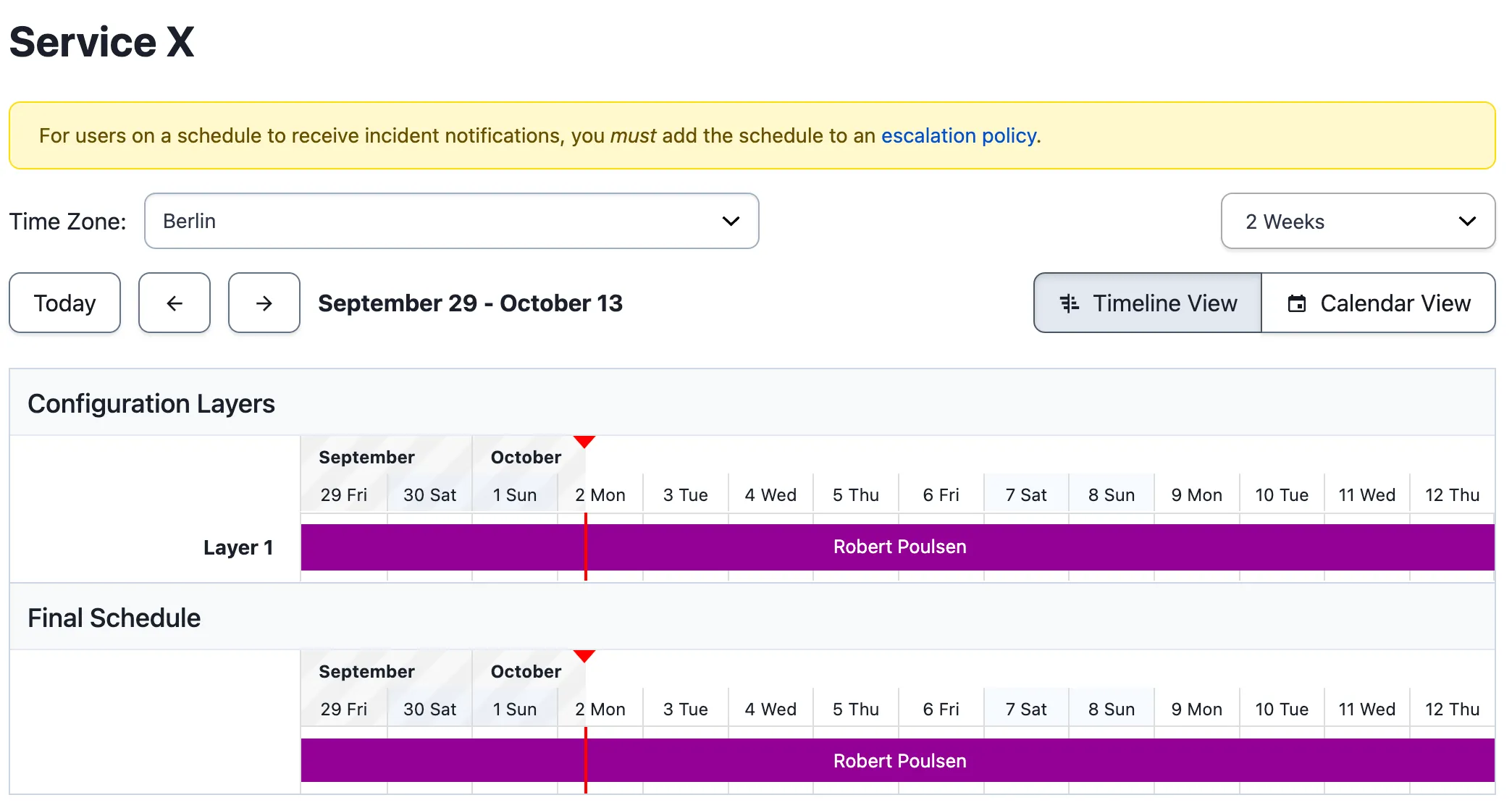
Everything happens in the [dashboard](https://app.roundrobinbot.eu):
1. Create a rotation as usual (the name does not have to match the schedule). Don’t bother adding members, because they will be managed automatically. You can still configure channels, topics, and other options.
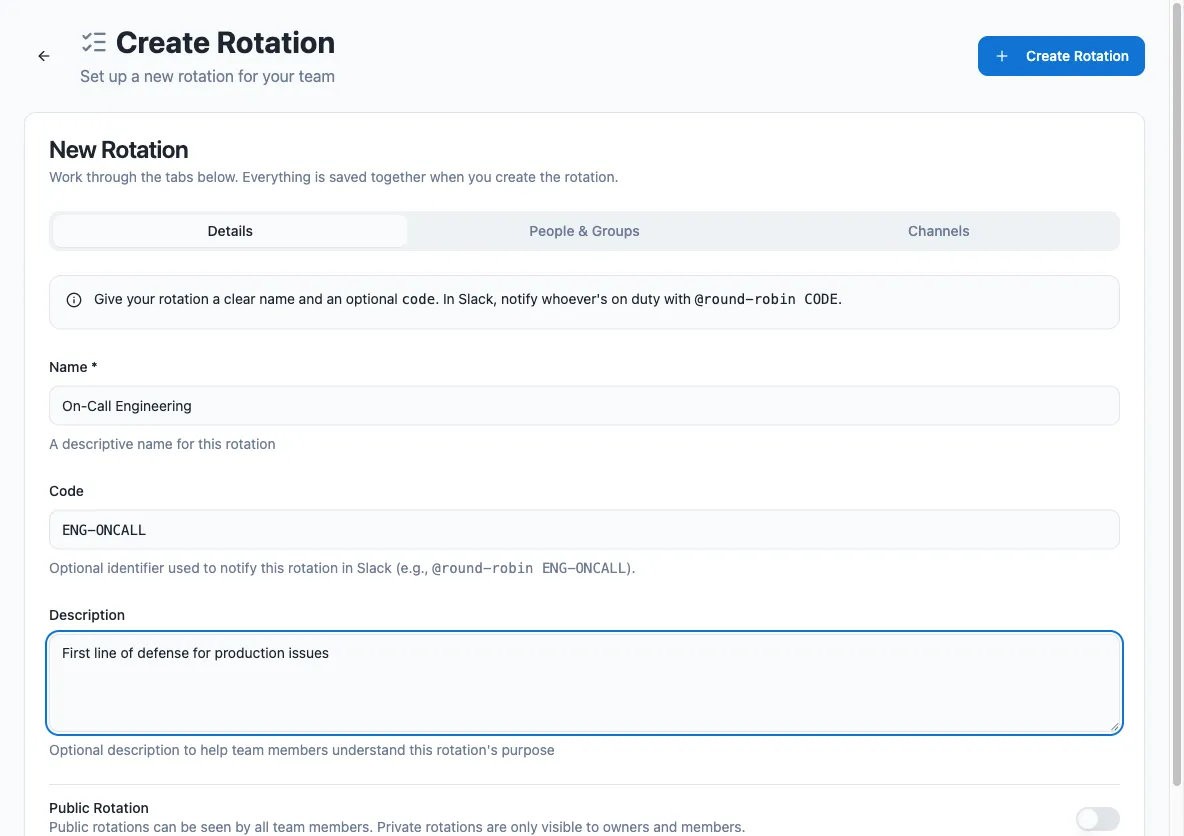
2. Open the rotation’s page, open the **Schedule** tab, and press **Edit schedule** on the **Schedule** card.
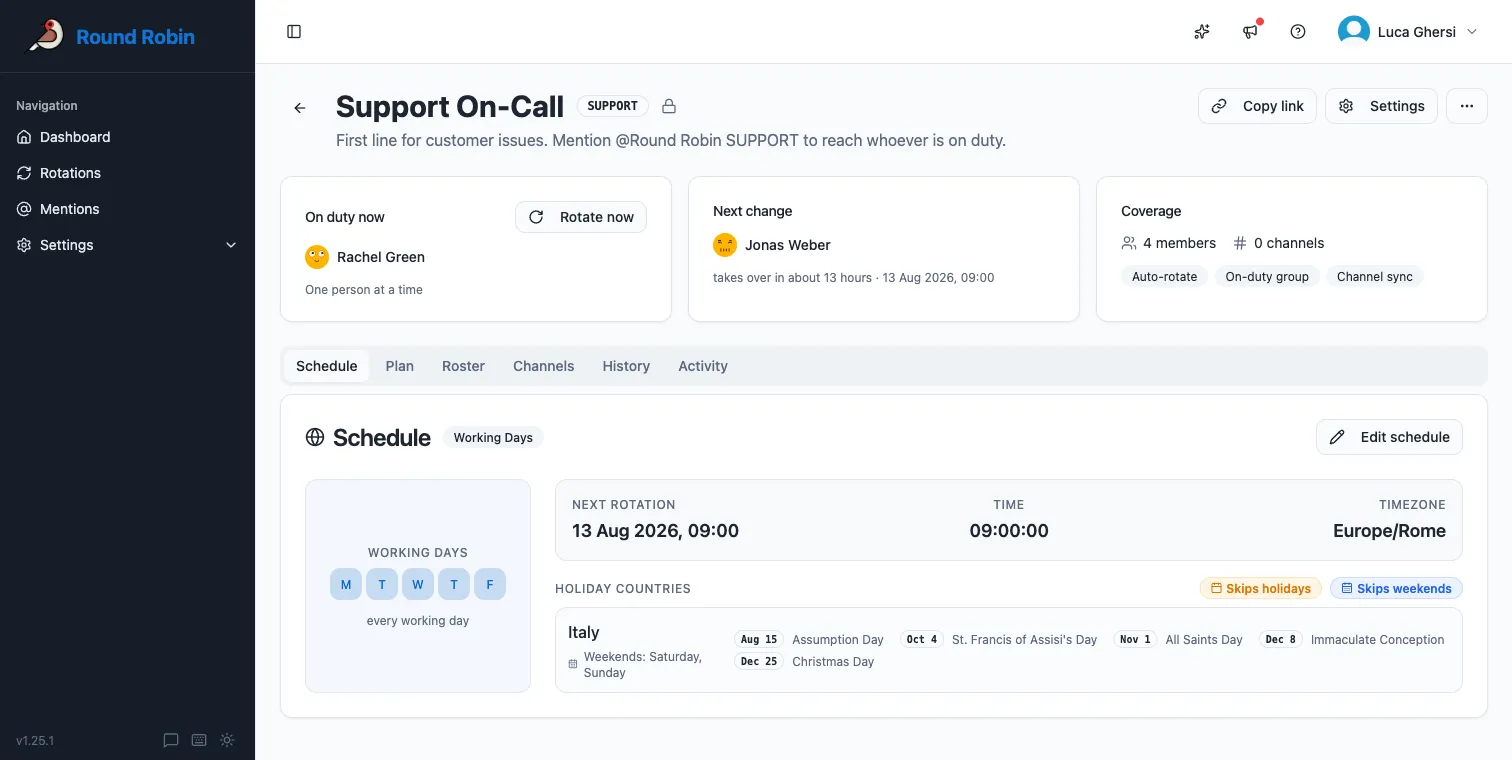
3. Under **Schedule Type**, pick **PagerDuty** (or **OpsGenie**) in the **External** group. These options only appear when the integration is connected.
4. Search for the schedule by name and select it, then save.
The rotation is now externally managed.
## Check the link worked
[Section titled “Check the link worked”](#check-the-link-worked)
Round Robin matches people between your provider and Slack **by email address**. The rotation’s **Users** panel shows how many schedule members are linked to Slack.
Missing members are almost always an email mismatch
If members are missing, verify that each user’s PagerDuty (or OpsGenie) email address matches their Slack email address.
In Slack, an externally managed rotation shows its external mode:
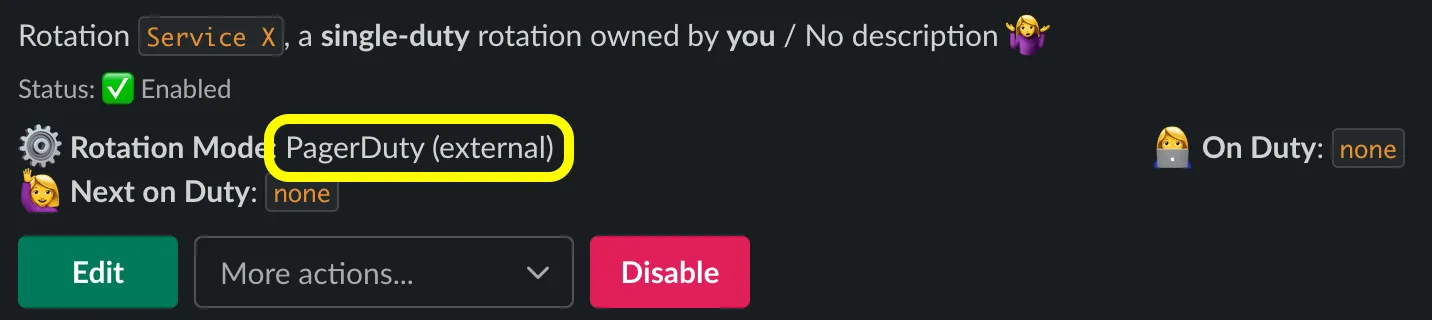
## Disconnect
[Section titled “Disconnect”](#disconnect)
Disconnecting the PagerDuty or OpsGenie integration itself, under **Settings → Integrations**, reverts every bound rotation to manual mode at once. To unlink a single rotation instead, see [External rotations](/rotation-management/external-rotations/).
## Next steps
[Section titled “Next steps”](#next-steps)
* [External rotations](/rotation-management/external-rotations/): how the sync works, and everything you cannot change while a rotation is linked.
* [Integrate PagerDuty](/integrations/integrate-pagerduty-with-round-robin/) or [Integrate OpsGenie](/integrations/integrate-opsgenie-with-round-robin/): connecting the provider itself.
# Rotation mentions
> Let anyone in your workspace mention Round Robin with a rotation code to reach the users currently on duty.
Mentions let anyone in your Slack workspace ask the on-duty users of a rotation for help, without knowing who is on duty. A user mentions the bot with a rotation code in a channel, and Round Robin notifies the people currently on duty, tracks whether someone acknowledges, and reports back to the requester.
Mentions are especially useful when Round Robin cannot manage a Slack user group for you (see [the on-duty user group feature](/groups-management/using-on-duty-handle/)), for example because workspace policy restricts user-group changes.
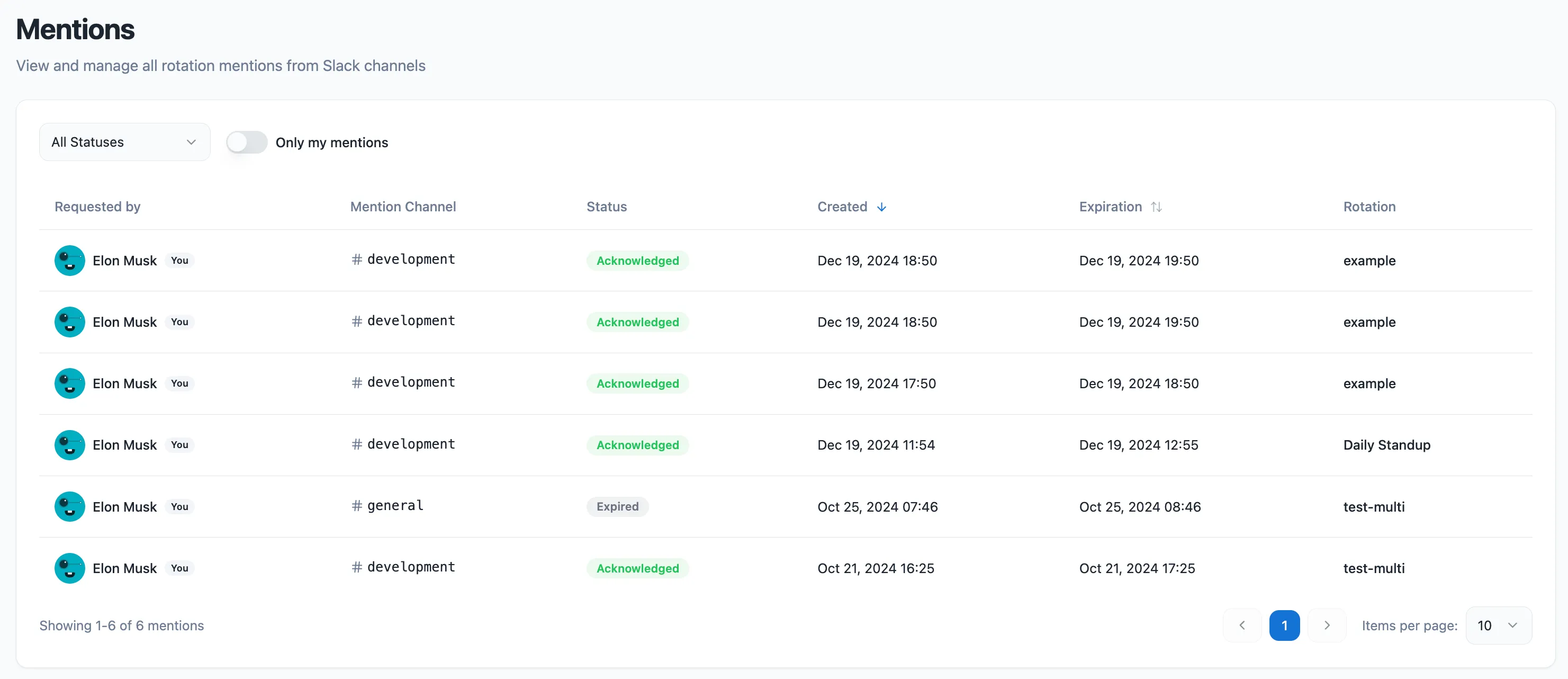
## Set up a rotation code
[Section titled “Set up a rotation code”](#set-up-a-rotation-code)
A mention targets a rotation by its **code**, so the rotation needs one first. In the dashboard at [app.roundrobinbot.eu](https://app.roundrobinbot.eu):
1. Open the rotation, click **Settings**, and stay on **Rotation details**.
2. On the **Details** tab, fill in the **Code** field. Keep it short and memorable; letters, numbers, and hyphens are allowed, but not spaces. It is stored uppercase, and matching is case-insensitive.
3. Save the rotation.
Why a code and not a Slack handle
Why a code instead of a native Slack tag? Slack does not let apps register custom “taggable” handles, so Round Robin uses `@Round Robin ` instead.
## Configure mention behavior
[Section titled “Configure mention behavior”](#configure-mention-behavior)
Mention behavior is configured per rotation, under **Settings → Alerts & mentions** in the dashboard. The basic flow (mention, notify, acknowledge) works on every plan; the options below tune it.
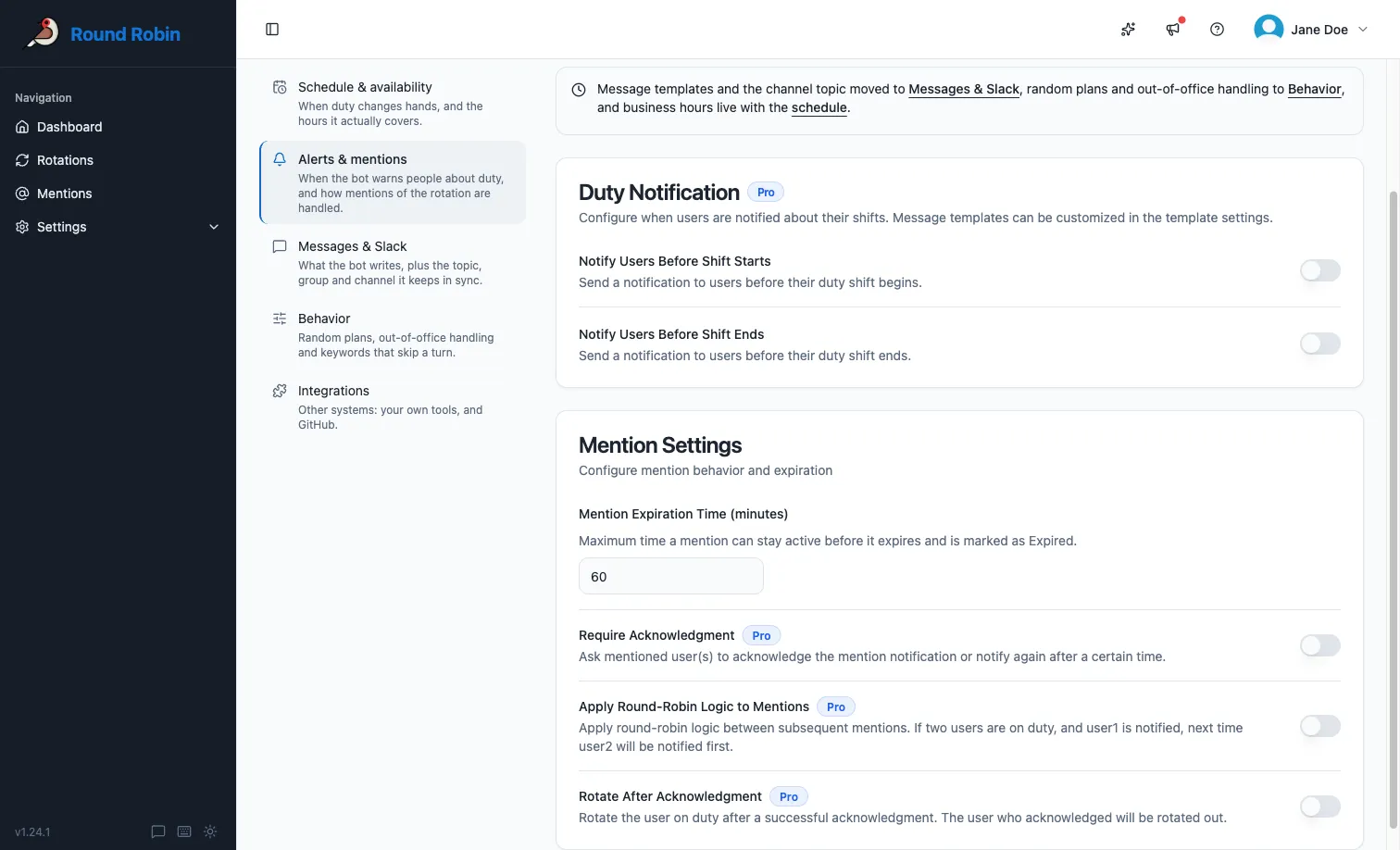
| Option | Plan | What it does |
| ----------------------------------- | ------------------------------------- | ---------------------------------------------------------------------------------------------------------------------------------------------------------------------------------------------------------------------------------------------------------------------- |
| Mention expiration time | Pro to change it (default 60 minutes) | Maximum time a mention stays open. If nobody acknowledges before it elapses, the mention expires and closes automatically. |
| Require acknowledgment | Pro | By default a mention is one-shot: on-duty users are notified once, and the mention simply waits until expiration. With this option on, Round Robin notifies again after the number of minutes you set (**Notify again after**, default 10) if nobody has acknowledged. |
| Apply round-robin logic to mentions | Pro | Instead of notifying every on-duty user at once, notify one at a time, rotating who goes first across mentions. |
| Rotate after acknowledgment | Pro | When an on-duty user acknowledges a mention, rotate them out of duty. |
## Create a mention
[Section titled “Create a mention”](#create-a-mention)
Mentions themselves happen in Slack, where the conversation is:
1. Go to a channel where the Round Robin bot is a member.
2. Type `@Round Robin `, for example `@Round Robin multi`. You can add a free-text message after the code; it is forwarded to the on-duty users.
3. Round Robin confirms your request with a message visible only to you, including how long the mention stays open.
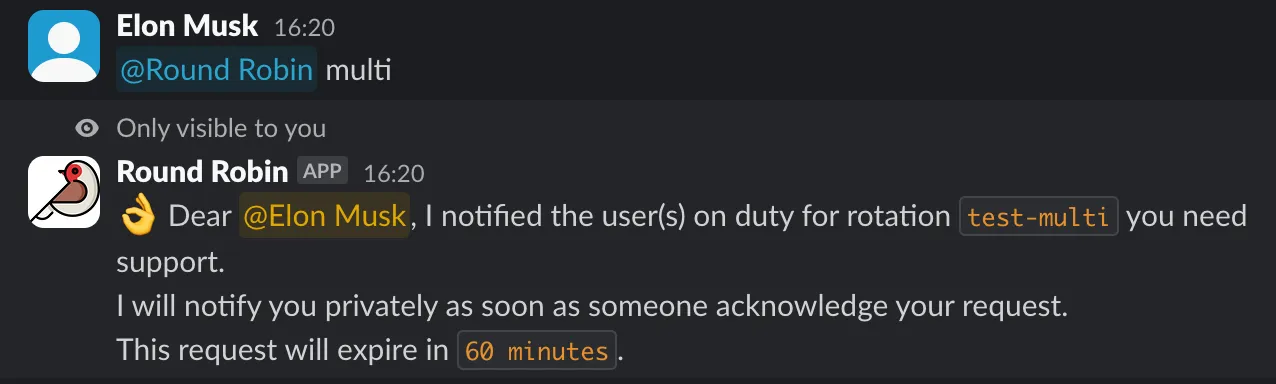
If the code does not match any rotation, Round Robin tells you so. Each person can have only one open mention per rotation at a time; if you mention the same rotation again while yours is still open, Round Robin reminds you the request is already pending.
## What happens next
[Section titled “What happens next”](#what-happens-next)
Each notified on-duty user receives a direct message with **Ack** and **Pass** buttons.
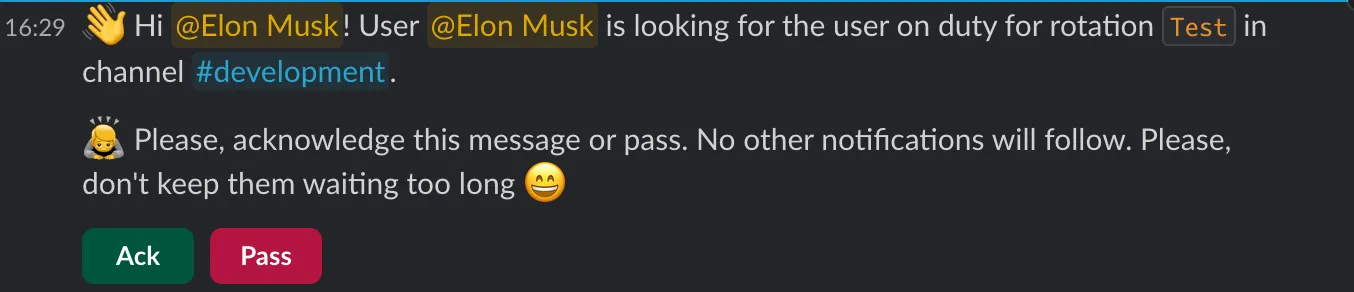
* **Ack**: the requester is told who acknowledged, and contact is established. The mention closes.
* **Pass**: the user declines. If other on-duty users were also notified, the mention stays open for them; if nobody notified is left, Round Robin either notifies again (depending on the rotation’s mention options) or closes the mention and informs the requester that nobody could answer.

If nobody is on duty when the mention is created, the requester is informed immediately and the mention closes.
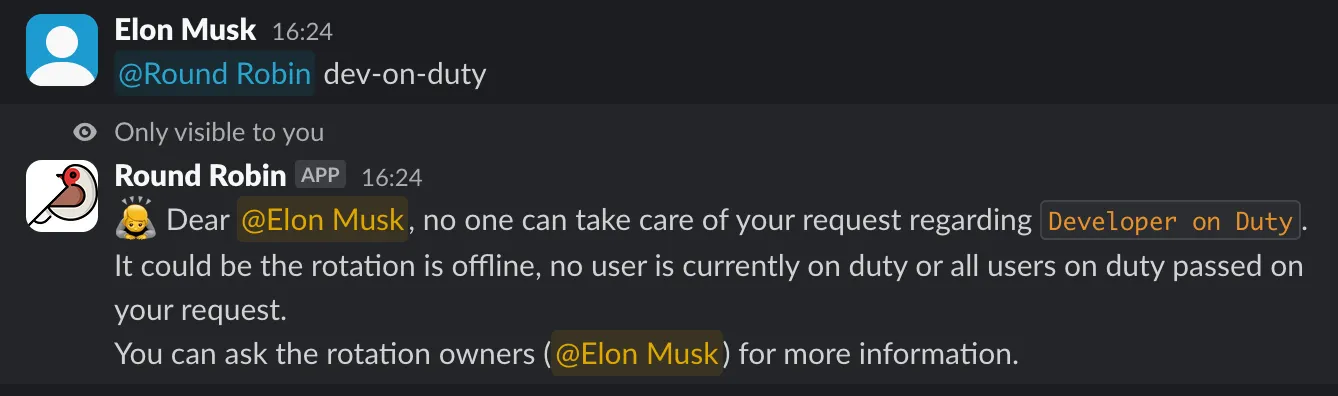
With **Require acknowledgment** on, on-duty users who have not responded are reminded after the configured minutes.

## Track mentions in the dashboard
[Section titled “Track mentions in the dashboard”](#track-mentions-in-the-dashboard)
The dashboard’s **Mentions** page lists all mentions and their status (open, acknowledged, ignored, expired), so you can review activity across your rotations.
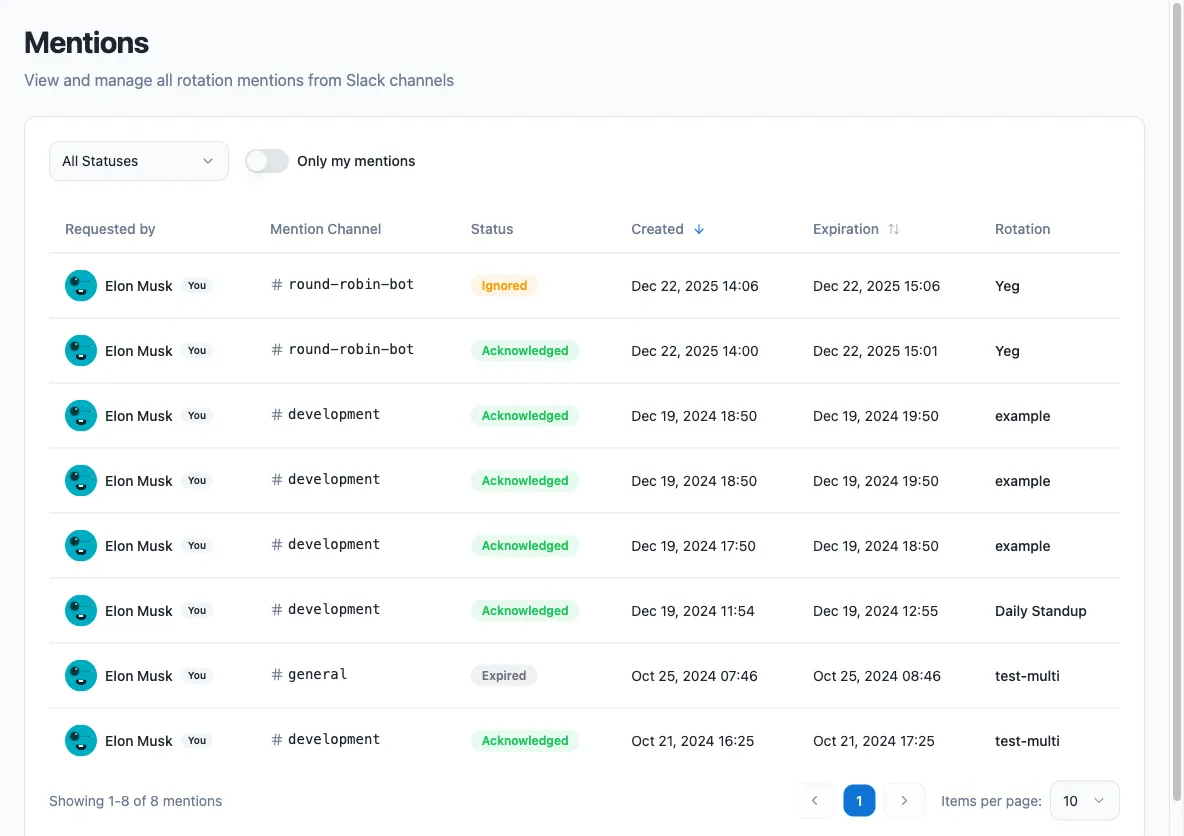
## How round-robin mentions work
[Section titled “How round-robin mentions work”](#how-round-robin-mentions-work)
Suppose a rotation has three users on duty: Robert, John, and Jack.
* A mention is created and only Robert is notified.
* When the next mention is created, John is notified first, then Jack on the one after, and so on.
On its own, this option only changes who gets notified: if the notified user passes, the mention closes and the requester is told nobody could answer. Combine it with **Require acknowledgment** to walk through the on-duty users within a single mention: if Robert passes, or neither acknowledges nor passes within the configured minutes, John is notified next instead of Robert being reminded.
Round-robin mentions cannot use user groups
Round-robin mentions cannot work through Slack user groups. Slack does not allow bots to be members of user groups, so Round Robin cannot intercept messages that tag a group handle, only direct mentions of the bot.
## Next steps
[Section titled “Next steps”](#next-steps)
* [Use an on-duty group](/groups-management/using-on-duty-handle/): a stable `@handle` instead of a mention, when your workspace allows it.
* [Round Robin in Slack](/rotation-management/round-robin-in-slack/): the whole Slack surface, including `/rr `.
* [Plans and billing](/billing/billing/): what the Pro mention options cost.
# Business hours rotations
> Restrict a rotation's on-duty time to the hours you actually cover, day by day across the week, with nobody on duty outside them.
Business hours mode restricts duties to the hours you cover. Outside those hours the rotation has no user on duty; when business hours start again, the same users come back on duty, unless a scheduled shift change happened in the meantime, in which case the next users in the plan take over.
Coverage is described as a **week**, not as a time of day: each period runs from a day and time to a day and time, so Monday to Friday 9 to 6, a late Thursday, a short Friday and a shift that runs from Friday evening to Monday morning are all sayable, and each is one entry.
Not available on external rotations
Business hours cannot be used on [external rotations](/rotation-management/external-rotations/): the PagerDuty or OpsGenie schedule owns when people are on duty.
## Enable business hours
[Section titled “Enable business hours”](#enable-business-hours)
Business hours are part of the schedule: they live on the same page, below the cadence and the skip options, because both decide when someone is on duty. You configure them from the dashboard at [app.roundrobinbot.eu](https://app.roundrobinbot.eu).
1. Open the rotation and select **Settings → Schedule & availability**.
2. Scroll to the **Business Hours** card and turn on **Enable Business Hours**.
3. Build the week under **Coverage**. **Mon-Fri 9-6** and **Every day** fill it in for you; **Add Period** adds a row you set yourself. The grid under the buttons draws the week as you go.
4. Press **Save**.
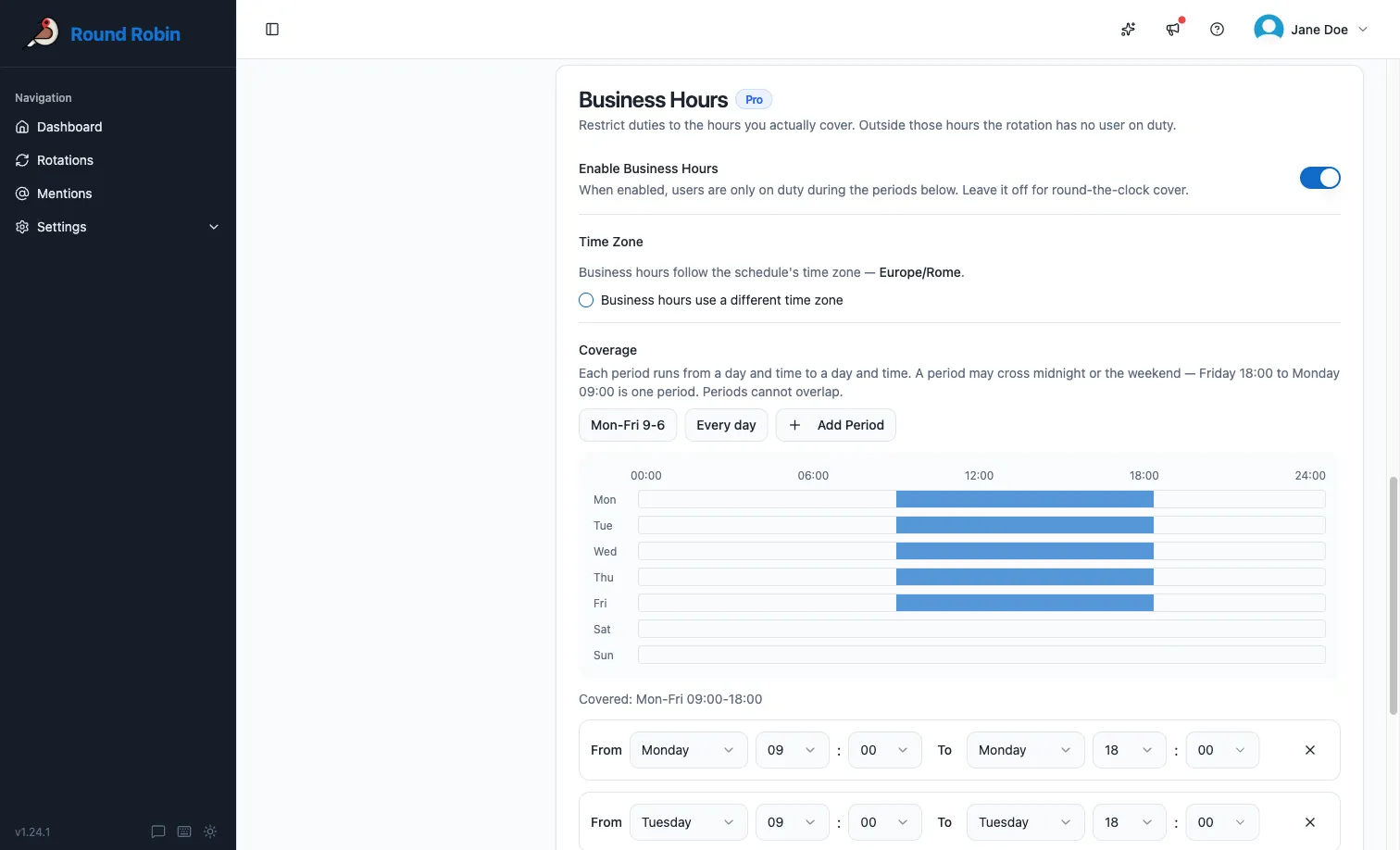
Business hours work on rotations without a schedule too: a manually rotated support rotation can still go quiet outside working hours.
### Coverage periods
[Section titled “Coverage periods”](#coverage-periods)
Each period is a stretch of the week: a start day and time, and an end day and time. The end is exclusive, so a period ending at 12:00 and one starting at 12:00 are one continuous stretch of cover, not a clash.
* **A working day**: Monday 09:00 to Monday 18:00.
* **A lunch break**: two periods on the same day, 09:00 to 13:00 and 14:00 to 18:00. The gap is off-time.
* **A night shift**: Monday 22:00 to Tuesday 06:00. A period may cross midnight.
* **A weekend shift**: Friday 18:00 to Monday 09:00. A period may cross the week boundary too.
Periods cannot overlap, and a period cannot start and end at the same point of the week, which would cover nothing. Both are caught in the dashboard before you save.
Round-the-clock cover is business hours off
There is no 24/7 setting, and no period that covers the whole week. A rotation with business hours turned off is on duty around the clock, which is the same thing said more simply.
### Time zone
[Section titled “Time zone”](#time-zone)
Business hours follow the **schedule’s time zone**, so there is nothing extra to set on a scheduled rotation. If you need them to run somewhere else, or the rotation has no schedule, tick **Business hours use a different time zone** and pick one. The picker is searchable, and your own time zone is suggested first.
It offers the same list as the [schedule](/rotation-management/create-or-edit-a-schedule/#time-zone): one entry per city, plus `UTC`. Nine to five means nine to five all year, which only a city can promise. A fixed offset such as `Etc/GMT+2` does not follow daylight saving, so it is not on the list and is refused over the API.
### Additional options
[Section titled “Additional options”](#additional-options)
| Option | Effect |
| ------------------------------------------------------------------------------- | ------------------------------------------------------------------------------------------------------------------------------------------------------------------------------------------------------------------------------------------------------------------------------------------------------------------------------------------------------ |
| Treat days skipped by the schedule as off-time | When the rotation’s schedule skips a day, the coverage on that day is dropped: nobody goes on duty, even though the week says the day is covered. The skips come from the schedule, so this is how a **holiday** becomes off-time: the week is fixed, and public holidays move. It has no effect unless a skip option on the schedule is on. |
| Do not notify channels if a user has multiple business hours shifts in sequence | Keeps the channel quiet when the same people are simply carrying on. The end-of-window message is dropped whenever the same people come back for the next window; the start-of-window message is dropped when that next window falls on the **same day** (a lunch break). A new morning is announced. See [What gets announced](#what-gets-announced). |
The first option changes *when duty runs*. The second changes only *what is posted to channels*: the people going on and off duty still get their direct messages, and the rotation still reads correctly in Slack.
## Worked examples
[Section titled “Worked examples”](#worked-examples)
Three things decide what happens: the **schedule** (how often duty changes hands), the **coverage week** (when duty runs at all), and the two options above. These examples take the same team (Ana, Ben and Chi) through the combinations.
### Office hours, weekly handover
[Section titled “Office hours, weekly handover”](#office-hours-weekly-handover)
*Schedule: weekly, Monday 09:00. Coverage: Mon-Fri 09:00-18:00. Both options off.*
Ana goes on duty Monday morning and holds the rotation all week. Every evening at 18:00 she goes off duty and the rotation has nobody on duty until 09:00 the next morning, when she comes back. Saturday and Sunday are not in the week, so the rotation is closed from Friday 18:00 until Monday 09:00. At that Monday 09:00 the schedule hands over, so Ben comes back instead of Ana.
The channel hears about it ten times: five mornings and five evenings.
### The same, with sequential notifications suppressed
[Section titled “The same, with sequential notifications suppressed”](#the-same-with-sequential-notifications-suppressed)
*As above, but **Do not notify channels if a user has multiple business hours shifts in sequence** is on.*
The five evening messages disappear, because Ana is coming back in the morning and there is nothing to report. The five morning messages stay: a new day is announced, even though it is the same person.
A weekly shift is still announced every morning
The option’s own example (“on duty Monday to Friday 9 to 5, they will only be notified once at the start”) describes the evening half only. Round Robin suppresses the *end* of each day, and the *start* of a window that resumes on the same day, but it announces each new morning. If you want one message a week, turn the two *Business Hours* channel messages off entirely under [**Settings → Messages & Slack**](/customizations/message-management/).
### A lunch break
[Section titled “A lunch break”](#a-lunch-break)
*Coverage: Mon-Fri 09:00-13:00 and 14:00-18:00. Sequential notifications suppressed.*
Two periods a day, so four events. With the option on, the channel hears nothing at 13:00 (Ana is back after lunch) and nothing at 14:00 (the same day, so the two windows are one duty day). The day reads as a single 09:00 to 18:00 shift. With the option off, the channel gets all four.
### Daily handover inside the day
[Section titled “Daily handover inside the day”](#daily-handover-inside-the-day)
*Schedule: daily, 12:00. Coverage: Mon-Fri 09:00-18:00. Sequential notifications suppressed.*
Ana is on duty from 09:00. At 12:00 the schedule hands over to Ben mid-window: a normal handover, announced as usual; business hours have nothing to do with it. At 18:00 Ben goes off duty; because tomorrow’s 09:00 window belongs to Ben until noon, the evening message is suppressed. Suppression only ever hides “the same people, carrying on”.
### A weekend on-call shift
[Section titled “A weekend on-call shift”](#a-weekend-on-call-shift)
*Schedule: weekly, Friday 18:00. Coverage: Fri 18:00 - Mon 09:00.*
One period, crossing the week boundary. Chi goes on duty on Friday evening and stays on duty continuously until Monday 09:00. There is no gap in the coverage, so there are no evening and morning messages at all. Then the rotation is closed all week until the next Friday.
### Working days, with holidays off
[Section titled “Working days, with holidays off”](#working-days-with-holidays-off)
*Schedule: working days (weekends and Italian public holidays skipped). Coverage: Mon-Fri 09:00-18:00. **Treat days skipped by the schedule as off-time** on.*
On an ordinary week nothing changes: the schedule and the coverage already agree about Monday to Friday. On 15 August the schedule skips the day, so the coverage on that day is dropped too and nobody is on duty: the rotation closes on Thursday evening and reopens on Monday morning. With the option **off**, the holiday is a working day as far as duty is concerned: whoever is on duty is on duty 09:00 to 18:00 on the 15th, because the coverage week does not know about holidays.
Weekends belong in the week, holidays belong in the schedule
Now that coverage is a week, a weekend is best said by simply leaving Saturday and Sunday out of it. The skip option earns its keep for the dates that move (public holidays, and any custom skip), which no fixed week can express.
### Business hours turned on, nothing covered
[Section titled “Business hours turned on, nothing covered”](#business-hours-turned-on-nothing-covered)
*Coverage: empty.*
This is a misconfiguration, not a way to pause a rotation: it asks for duty to be confined to hours that do not exist. Round Robin ignores it and runs the rotation **around the clock**, and the dashboard badges the rotation **Not in effect** so you can see why. To pause a rotation, disable it; to close it outside working hours, give it a coverage week.
## What gets announced
[Section titled “What gets announced”](#what-gets-announced)
For a business-hours rotation with **Do not notify channels if a user has multiple business hours shifts in sequence** turned on:
| Event | Channel message |
| ----------------------------------------------------------------------- | ------------------------------------------------------------- |
| A window ends and the same people return for the next one | Suppressed |
| A window ends and somebody else has the next one | Posted |
| A window starts later the same day (after a break) with the same people | Suppressed |
| A window starts on a new day, same people | Posted |
| A window starts with different people | Posted |
| The schedule hands over during a window | Posted: this is a normal handover, not a business-hours event |
With the option off, every row is posted. Direct messages to the people involved are sent either way, and the business-hours messages can be [edited or switched off individually](/customizations/message-management/).
## How the rotation behaves
[Section titled “How the rotation behaves”](#how-the-rotation-behaves)
While business hours are active, the rotation works as usual. When a coverage period ends, everyone is taken off duty; when the next one begins, the users who were on duty before come back automatically.
If the rotation is scheduled and a shift change falls inside off-time, no duty switch happens immediately. Instead, the next users in the plan are recorded and go on duty when business hours resume.
### Reading the status in the dashboard
[Section titled “Reading the status in the dashboard”](#reading-the-status-in-the-dashboard)
Rotation cards and the rotations table show a small status icon when business hours are enabled: a clock while business hours are active, and a coffee cup while the rotation is paused outside business hours.
## From Slack
[Section titled “From Slack”](#from-slack)
The rotation view in Slack shows a business-hours badge summarizing the week: `Mon-Fri 09:00-18:00`, or `Fri 18:00 - Mon 09:00` for a period that runs across the weekend.
During business hours, the **Next on Duty** block shows who takes over at the next shift change, marked with a `next shift` label:

When the rotation is off-business, **On Duty** shows an `off-business hours` marker with a coffee icon instead of a user, and **Next on Duty** shows who goes back on duty when the next period starts (usually the same users as before), together with the restart time:

If a scheduled shift change occurs before the next coverage period begins, **Next on Duty** shows the following users in the plan instead.
## Next steps
[Section titled “Next steps”](#next-steps)
* [Create or edit a schedule](/rotation-management/create-or-edit-a-schedule/): the same page, and the weekend and holiday skips the off-time option builds on.
* [Customize rotation messages](/customizations/message-management/): the dedicated business-hours on- and off-duty messages.
* [Round Robin in Slack](/rotation-management/round-robin-in-slack/): how an off-hours rotation reads on a card.
# Sync a channel's membership
> Keep a Slack channel's members equal to whoever is on call, adding people as they come on duty and removing them when they go off.
Channel membership sync keeps the **members of a Slack channel** equal to whoever is currently on call. When duty changes hands, Round Robin invites the incoming on-duty user to the channel and removes the outgoing one.
The usual reason to want this is a noisy channel: an alerting or monitoring channel that a tool posts into, where you want the current on-call in the room and nobody else being pinged out of hours. It is the membership counterpart of the [on-duty group](/groups-management/using-on-duty-handle/): same trigger, but instead of rewriting a `@handle` it rewrites who is actually in the channel.
**You need:** edit rights on the rotation, and Round Robin in the target channel.
## Set it up
[Section titled “Set it up”](#set-it-up)
1. Sign in at [app.roundrobinbot.eu](https://app.roundrobinbot.eu) and open your rotation.
2. Click **Settings**, open **Messages & Slack**, and find the **Channel sync** card.
3. Turn **Keep a channel in sync** on.
4. Pick the **target channel**. Any channel Round Robin is a member of will do, because it does not have to be one of the rotation’s notification channels. Only channels the bot is in appear in the picker.
5. Choose a **sync mode** (below).
6. Click **Save**.
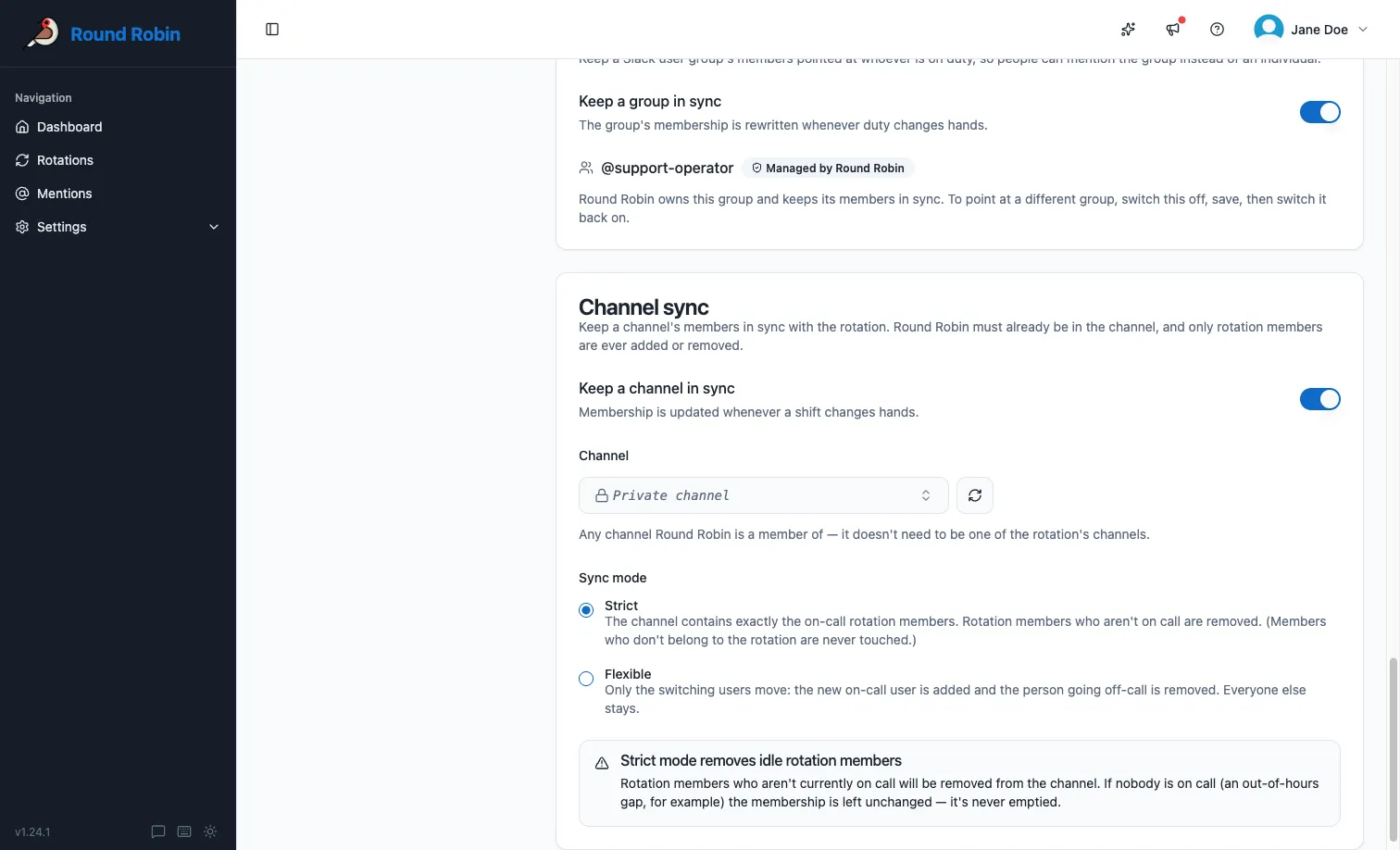
## The two modes
[Section titled “The two modes”](#the-two-modes)
| Mode | What happens on a duty change |
| ------------ | ---------------------------------------------------------------------------------------------------------------------------------------------------------------- |
| **Strict** | The channel ends up containing exactly the on-call rotation members. Rotation members who are not on call are removed, even if they were already in the channel. |
| **Flexible** | Only the people switching move: the incoming on-duty user is added, the outgoing one is removed. Everybody else stays, including idle rotation members. |
Two rules apply in both modes:
* **Only rotation members are ever touched.** Anyone in the channel who is not part of the rotation (your manager, a bot, the alerting app) is never added or removed. Round Robin manages its own people and leaves the rest of the channel alone.
* **Strict mode never empties the channel.** If nobody is on call at all (an out-of-hours gap on a [business-hours rotation](/rotation-management/business-hours-rotations/), for instance), membership is left exactly as it is until somebody is on call again.
## What Round Robin cannot manage
[Section titled “What Round Robin cannot manage”](#what-round-robin-cannot-manage)
Some channels are refused when you save, and some removals are refused by Slack afterwards.
Public channels often block removals
By default, Slack only lets **workspace admins** remove people from a **public** channel. Round Robin can still add people, but the removals silently fail, so the channel accumulates members instead of swapping them.
Either ask a workspace owner to allow removing members from public channels in Slack’s workspace permissions, or, simpler and always reliable, **use a private channel**. The dashboard warns you when you pick a public channel.
Refused outright, at save time:
* **`#general`.** Slack does not allow anybody to be removed from it.
* **Shared and Slack Connect channels.** External people cannot be managed this way.
* **Channels Round Robin is not in.** Invite the bot to the channel first.
Also skipped quietly, when a sync runs: deactivated accounts and users Slack does not recognise. Unlike [on-duty groups](/groups-management/using-on-duty-handle/), **bots and guests are valid here** and are synced like anyone else, because they can be channel members.
## Permissions it uses
[Section titled “Permissions it uses”](#permissions-it-uses)
Membership changes go through the scopes Round Robin already asks for at install: [`channels:manage`](https://api.slack.com/scopes/channels:manage) for public channels and [`groups:write`](https://api.slack.com/scopes/groups:write) for private ones. Nothing extra to grant: see [Permissions and scopes](/setup/permission-scopes/).
## Turn it off
[Section titled “Turn it off”](#turn-it-off)
Turn **Keep a channel in sync** off on the **Channel sync** card and click **Save**. The rotation stops changing the channel’s membership immediately, and **whoever is in the channel at that moment stays**, because nobody is added or removed on the way out. You can re-enable it later.
The same is true if a Pro workspace goes back to the Free plan: the configuration is kept, but nothing syncs while the workspace is free, and it resumes if you upgrade again.
## Next steps
[Section titled “Next steps”](#next-steps)
* [Use an on-duty group](/groups-management/using-on-duty-handle/): the handle-based alternative to moving people around.
* [Permissions and scopes](/setup/permission-scopes/): the scopes this uses.
* [Plans and billing](/billing/billing/): what happens to the configuration on a downgrade.
# Create a rotation
> Create your first rotation from the web dashboard, or quickly from Slack with /rr.
A rotation is the core element of Round Robin: a pool of people (added directly or through Slack user groups) who take turns being on duty. This tutorial walks you through creating your first rotation from the web dashboard (the primary way to manage Round Robin), with Slack as a quick alternative.
## Create a rotation from the dashboard
[Section titled “Create a rotation from the dashboard”](#create-a-rotation-from-the-dashboard)
1. Sign in at [app.roundrobinbot.eu](https://app.roundrobinbot.eu) and open **Rotations**. This page lists all rotations you can see, with search and filters.
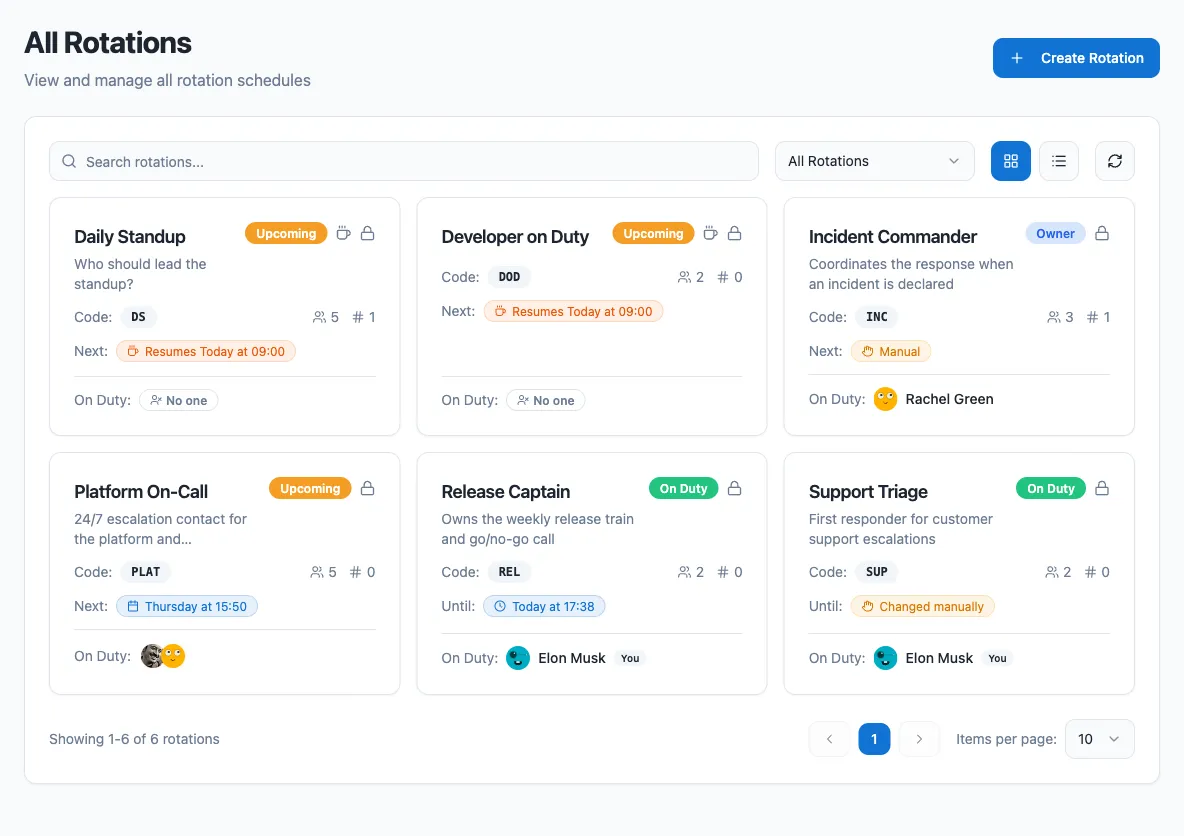
2. Click **Create Rotation**.
3. Work through the three tabs: **Details** (name, code, description, public/private), **People & Groups** (owners, members, member user groups), and **Channels**. Everything is saved together.

4. Click **Create Rotation**. You land on the new rotation’s page, where you can continue with schedules, templates, and integrations.
A few dashboard-specific details:
* The **Code** field accepts only letters, numbers, and hyphens, and is stored uppercase.
* You are pre-filled as an owner and cannot remove yourself.
* You can leave members, groups, and channels empty and configure them later from the rotation page or from Slack.
### Rotation fields
[Section titled “Rotation fields”](#rotation-fields)
| Field | Required | Plan | What it does |
| ----------- | -------- | ---- | --------------------------------------------------------------------------------------------------------------------------------------------------------------------------------------------------------------------------------------------------------------------------------------------------------------------------------------------------------- |
| Name | Yes | All | Identifies the rotation everywhere. |
| Description | No | All | Helps members understand what the rotation is for. |
| Code | No | All | A short, memorable identifier (no spaces) other users can use to notify whoever is on duty by mentioning the bot, e.g. `@Round Robin ENG-ONCALL`. See [Mentions](/mentions/what-are-mentions/). |
| Duty size | No | Pro | How many members are on duty at the same time (default `1`). |
| Owners | Yes | Pro | Owners manage the rotation and are the only ones who can edit it. Being an owner does not make you a member. You must always be in the owners list yourself: the form is rejected otherwise, so you cannot lock yourself out. On the free plan the field is hidden and you become the owner automatically. |
| Visibility | No | Pro | Mark the rotation as private to make it visible only to owners and members. [Admins and owners](/setup/people-and-roles/) can still see every rotation, private ones included: pick **Everyone’s rotations** on the Rotations page. By default a rotation is public. On the free plan there is nothing to hide from anybody, so every rotation is public. |
| Channels | No | All | Channels notified on rotation events, such as a change of duty. The bot cannot post to private channels it is not a member of. A rotation can also keep a channel’s *membership* equal to whoever is on call (see [Sync a channel’s membership](/rotation-management/channel-membership-sync/)). |
| Members | No | All | Users in the on-call pool who take duty turns. |
| Groups | No | All | Slack user groups whose members join the pool. If the group’s membership changes later, the rotation updates automatically. |
The channel picker is empty, or a channel is missing
The **Channels** picker only offers channels **Round Robin has been invited to**. It is not a search of your whole workspace. If it comes up empty, the bot is not in any channel yet.
Invite it from Slack in the channel you want to use:
```plaintext
/invite @Round Robin
```
Then come back and press the reload button next to the picker; it can take about a minute for a newly joined channel to appear. Two more rules apply: a **private** channel shows up only if you are a member of it too, and `#general` and [Slack Connect](https://slack.com/connect) shared channels are never offered, because the bot cannot manage them.
At the rotation limit, creation is blocked
If your workspace is at or above its plan’s rotation limit, no new rotations can be created until you free a slot or upgrade. See [Billing](/billing/billing/).
At the people limit, new members are refused
Your plan includes a number of people in rotation (8 on the Free plan). Once they are all in a rotation, adding somebody new is refused and nothing is saved. Adding somebody who is already in another rotation still works, since they are already counted. See [Billing](/billing/billing/).
## The rotation page
[Section titled “The rotation page”](#the-rotation-page)
Opening a rotation shows who is on duty now, who takes over next and when, and how much the rotation covers, before you click anything. Underneath are six tabs, opening on the Schedule:
* **Schedule**: the cadence that drives the rotation, when it next hands over, and its time zone.
* **Plan**: who is due next, and when, for the whole upcoming period. A rotation you rotate by hand, or one that picks at random, has no plan ahead and says so.
* **Roster**: the people in the rotation, in turn order, and the Slack user groups it draws from.
* **Channels**: the channels the rotation posts in.
* **History**: every shift that has already happened, for any date range, exportable as CSV or JSON.
* **Activity**: every change made to the rotation, and who made it. See [See who changed what](/rotation-management/rotation-activity/).

Everything you can configure lives behind the **Settings** button at the top. The rarer actions (the handover note, disabling the rotation, deleting it) are in the **⋯** menu next to it.
## Members from other workspaces and organizations
[Section titled “Members from other workspaces and organizations”](#members-from-other-workspaces-and-organizations)
Rotations aren’t limited to full members of your workspace:
* **Guests** (single- or multi-channel) can be rotation members like anyone else. They are marked *(guest)* in the pickers. Note a Slack platform limitation: guests can’t mention user groups, so they can’t use an on-duty group handle to reach whoever is on duty. Mentioning the bot with the rotation’s code (`@Round Robin CODE`) works for them in channels the bot is in.
* **Slack Enterprise Grid**: the people and user-group pickers search your whole organization, not just the current workspace. Results from another workspace show a badge with that workspace’s name, and cross-workspace members work in rotations like local ones.
* **External people** (from another organization, connected through a [Slack Connect](https://slack.com/connect) shared channel) can take duty turns, and are marked with an **external** badge in pickers and member lists. Because Round Robin isn’t installed in their organization, some things can’t work for them: the bot **can’t send them direct messages**, **can’t add them to on-duty user groups**, and **won’t sync them into channels**. Reach them by notifying a shared channel the rotation posts to.
## Edit a rotation
[Section titled “Edit a rotation”](#edit-a-rotation)
Open the rotation from the **Rotations** list and edit it. The same tabs appear pre-populated with the current values: use **People & Groups** to manage owners, members, member user groups, and duty size, and **Channels** to change which channels are notified.
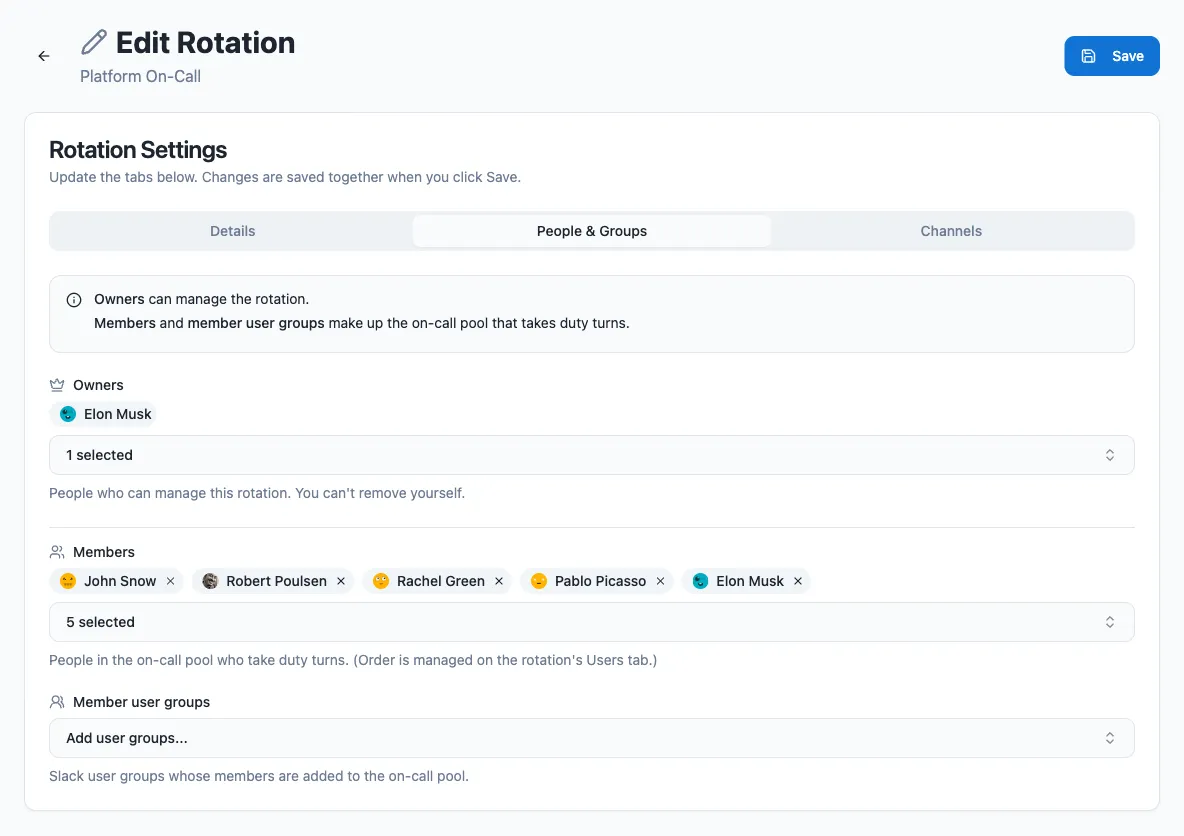
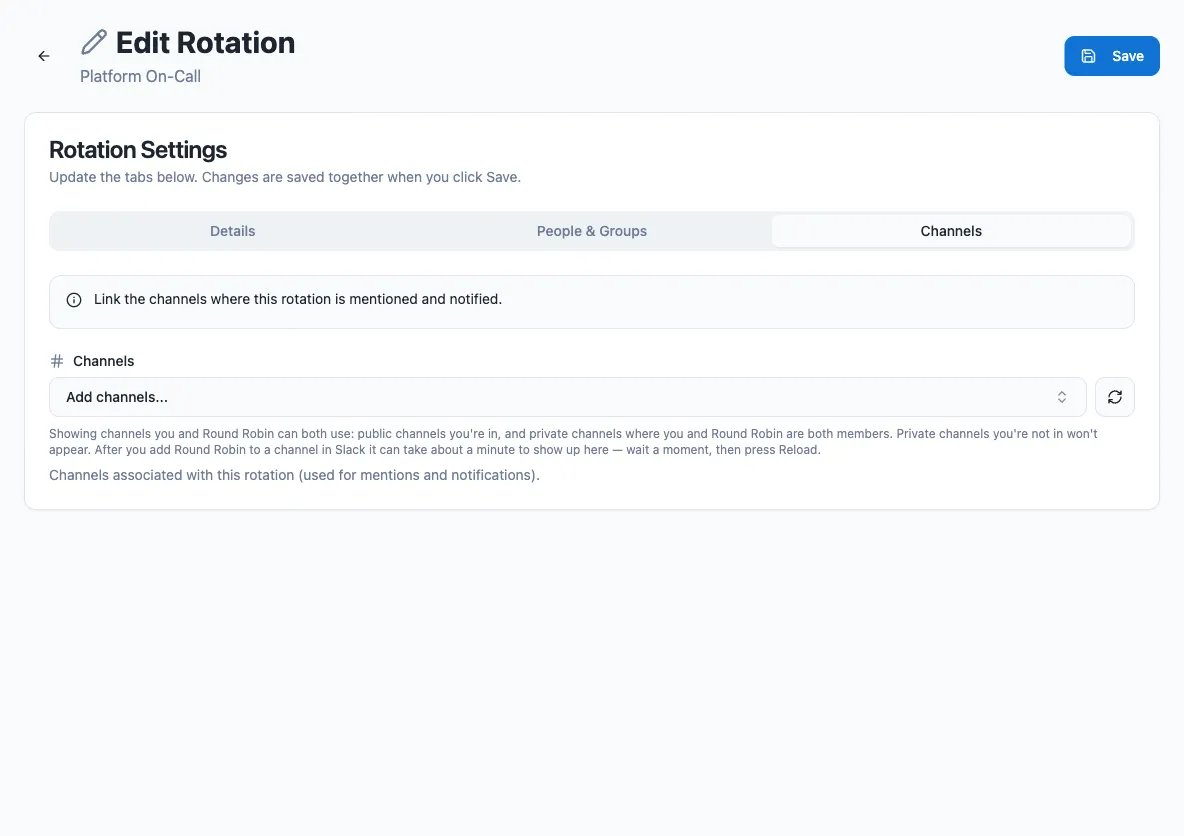
External rotations own their own members
Rotations linked to an external schedule (PagerDuty or OpsGenie) are externally managed: you cannot edit their members or duty size, because the on-call pool is synced from the integration.
## From Slack
[Section titled “From Slack”](#from-slack)
Creating and editing rotations happens in the **web dashboard** (above), because the forms are richer there and everything stays in one place. Inside Slack you *view* and *act on* rotations: see who is on call, rotate duty, and summon whoever is on duty. See [Round Robin in Slack](/rotation-management/round-robin-in-slack/) for the full Slack surface.
Two quick ways to jump into creating a rotation:
* Open the bot’s **App Home** and press **New rotation**: it takes you straight to the dashboard form.
* If you use an AI assistant connected to the [MCP server](/ai/mcp-server/), just ask it, e.g. *“create a rotation called Payments On-Call with me and Dana.”*
## Next steps
[Section titled “Next steps”](#next-steps)
* [Create or edit a schedule](/rotation-management/create-or-edit-a-schedule/) to rotate duty automatically.
* [Customize messages](/customizations/message-management/) the bot posts on duty changes.
# Create or edit a schedule
> Add an automatic schedule to a rotation, choose a cadence, and skip weekends and national holidays.
A rotation runs in one of two modes: **manual**, where you rotate people yourself with the **Rotate** button, and **auto**, where Round Robin moves to the next person on a schedule you define. Adding a schedule switches the rotation to auto mode; removing it (or picking the **Manual** type) switches it back to manual.
## Edit the schedule in the dashboard
[Section titled “Edit the schedule in the dashboard”](#edit-the-schedule-in-the-dashboard)
1. Open the [dashboard](https://app.roundrobinbot.eu), select your rotation, and open its **Schedule** tab. The **Schedule** card shows the current cadence, the next rotation time, and its time zone. You need edit rights on the rotation, and the rotation must be enabled.
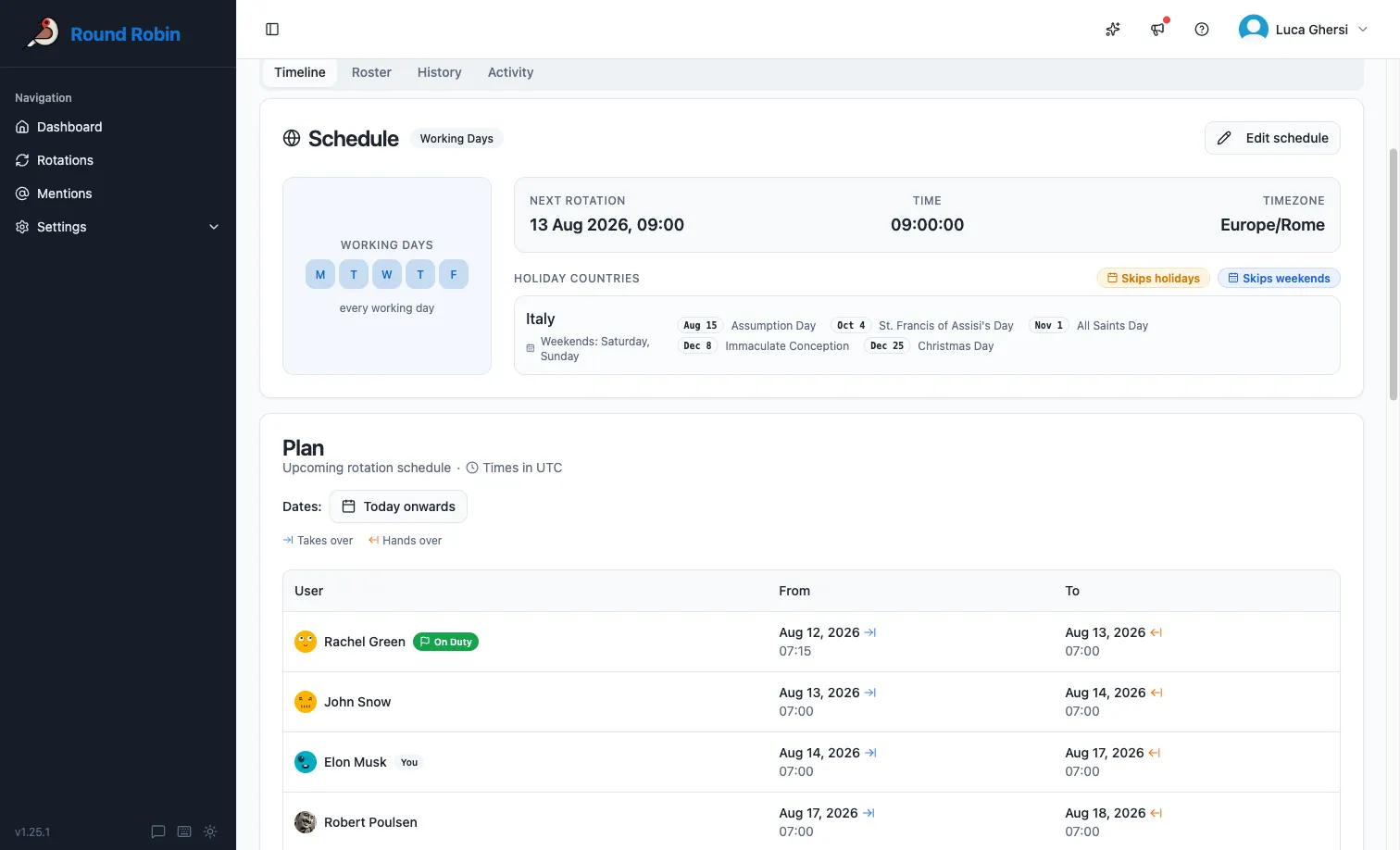
2. On the **Schedule** card, press **Edit schedule** to open the schedule editor.
3. Pick a schedule type. The settings section below updates with the fields for that type.
4. Fill in the time zone, starting date, and rotation time (plus any type-specific fields), review the **Skip Options** and **Business Hours**, and press **Save**. Saving keeps you on the editor with a confirmation, so you can keep adjusting; if you navigate away with unsaved changes, the dashboard asks before discarding them.
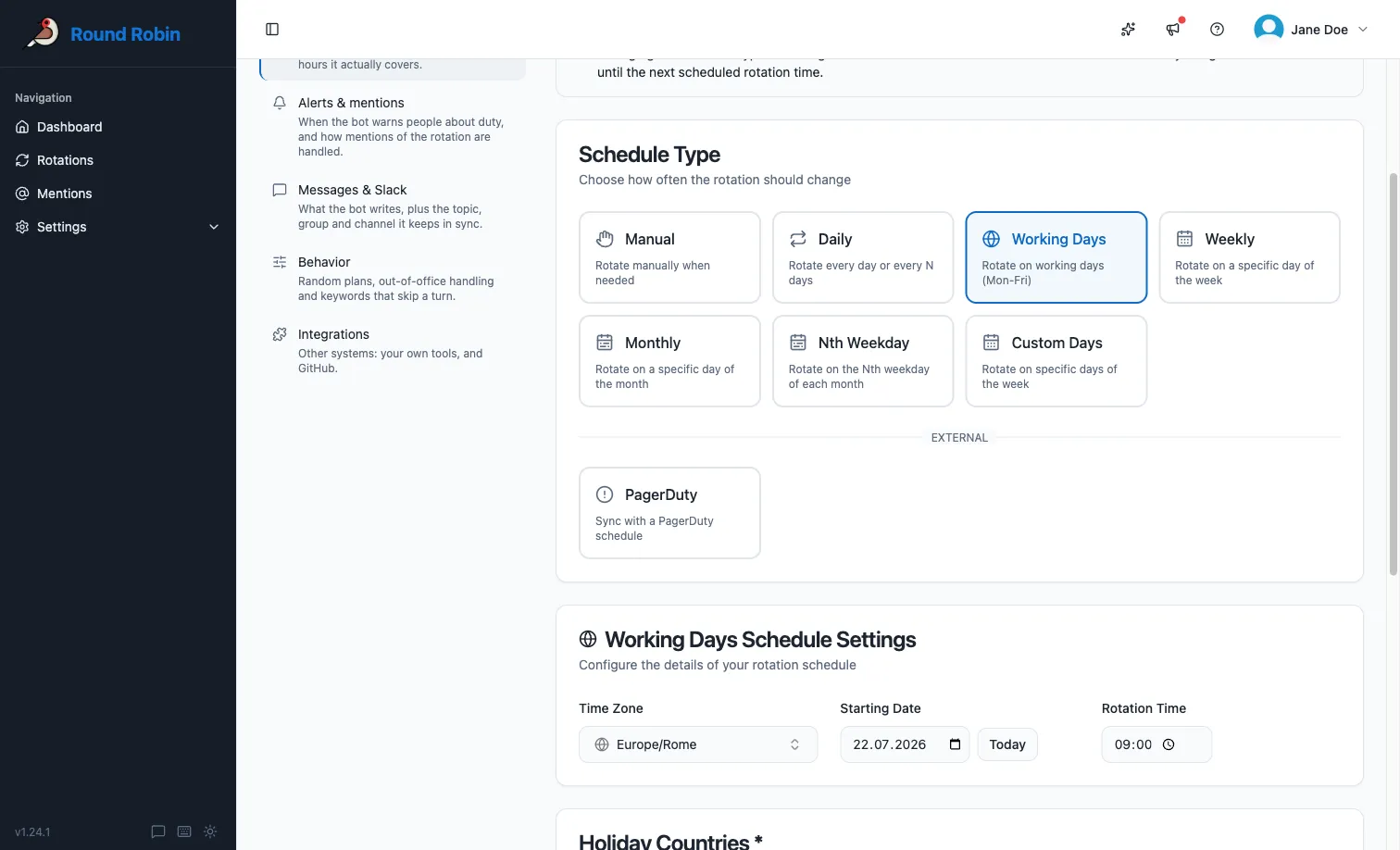
To return a rotation to manual mode, select the **Manual** schedule type and save. Because this deletes the schedule configuration (cadence, time zone, and skip settings), the dashboard asks you to confirm first.
Schedule changes apply to the next rotation
Changing the schedule type or settings affects when the *next* rotation occurs. The current duty assignment stays in place until the next scheduled rotation time.
## Schedule types
[Section titled “Schedule types”](#schedule-types)
| Type | Rotates | Example |
| ------------ | ------------------------------------------------------------ | --------------------------------- |
| Daily | One or more times per day, at fixed time slots | Every day at 08:00 and 20:00 |
| Working Days | Every `period` working days, based on the selected countries | Every two working days |
| Weekly | The same weekday, every `period` weeks | Every Monday; every second Monday |
| Monthly | The same day of the month | The 10th of every month |
| Nth Weekday | The chosen occurrence(s) of a weekday, every `period` months | The second Monday of the month |
| Custom Days | Each selected weekday, every week | Monday, Wednesday, and Friday |
### Period
[Section titled “Period”](#period)
Where a schedule type supports a period, it controls the gap between rotations:
* **Weekly**: a period of 1 means every week, 2 means every two weeks, and so on.
* **Working Days**: 2 means every two working days, 3 every three, and so on.
* **Nth Weekday**: the period counts months. A period of 2 with “first Monday” rotates on the first Monday every two months.
### Choosing the day
[Section titled “Choosing the day”](#choosing-the-day)
Weekly and monthly schedules rotate on a day you pick with **Rotate On**: a weekday for weekly, a day of the month for monthly. Because a schedule is anchored to its starting date, picking a day moves that date to the next one that matches: choose *Every Friday* on a Wednesday and the starting date jumps to the coming Friday, choose *the 31st* and it jumps to the next month that has one. You can also set the starting date directly and let the day follow from it.
### Daily schedules
[Section titled “Daily schedules”](#daily-schedules)
The daily type is designed for shifts that change one or more times per day, for example 24/7 support handovers. Time slots use `HH:mm` (24-hour) or `H:mm AM/PM`; if you omit the minutes, `:00` is assumed.
## Time zone
[Section titled “Time zone”](#time-zone)
Every schedule runs in a time zone you pick during creation (in IANA format, for example `Europe/Berlin`), independent of your own Slack time zone. It defaults to your Slack time zone. The picker is searchable: type a few letters of the city or region, and your own time zone is suggested first.
Once set, a schedule time of 10:00 means 10:00 in that time zone: the rotation fires there, not in your local time.
The list is a city per entry (`Europe/Berlin`, `America/New_York`, `Asia/Kolkata`), plus `UTC`. A city is what makes daylight saving work: Berlin knows when it springs forward, and a schedule set to 10:00 stays at 10:00 through the change. That is why the list has no fixed offsets on it: `Etc/GMT+2` never changes, so a rotation set to it drifts an hour away from everybody’s working day twice a year. Sending one over the API or an assistant is refused. An old name or an abbreviation (`US/Eastern`, `EST`, `Asia/Calcutta`) is accepted and stored as the city it means (`America/New_York`, `Asia/Kolkata`).
## Skipping weekends and holidays
[Section titled “Skipping weekends and holidays”](#skipping-weekends-and-holidays)
Every schedule type can skip non-working days based on one or more countries:
* **Working Days** schedules require at least one country, because that is how Round Robin knows which days count as working days.
* All other types offer two optional checkboxes, **Skip weekends** and **Skip national holidays**. For either to take effect, select at least one country.
You can select multiple countries, and their effects combine. For example, a working-day rotation for Germany and Israel skips Friday and Saturday (the Israeli weekend) as well as Saturday and Sunday (the German weekend):
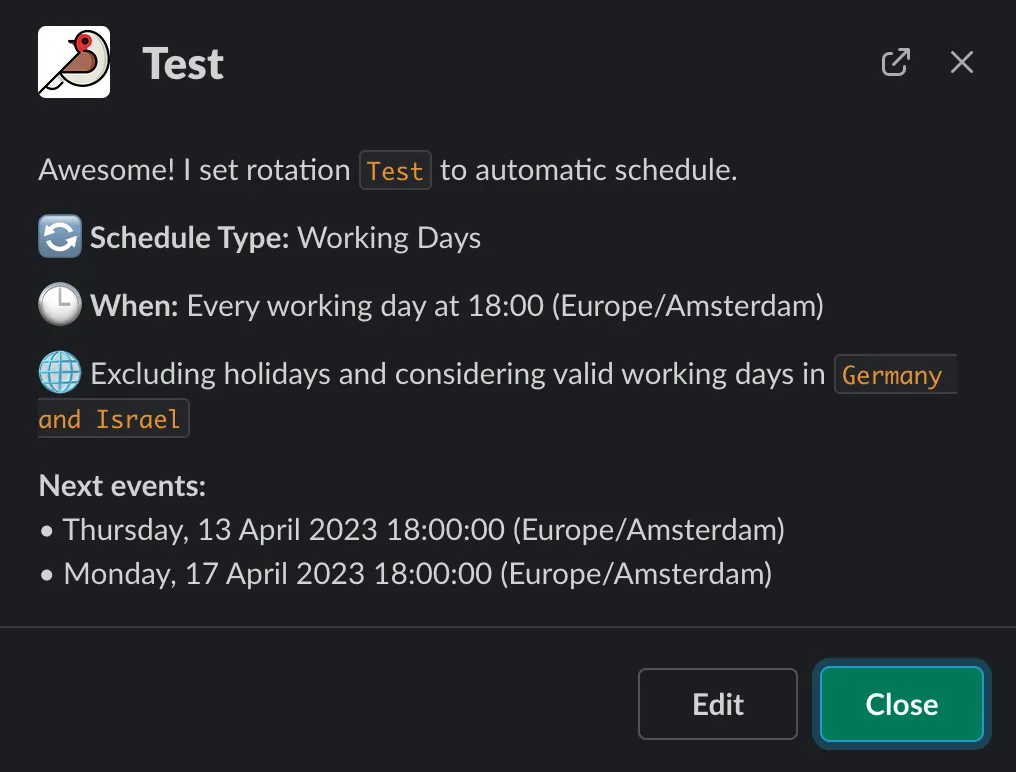
Public holidays work the same way: a rotation scheduled over the Easter break with Germany selected skips both Good Friday and Easter Monday.
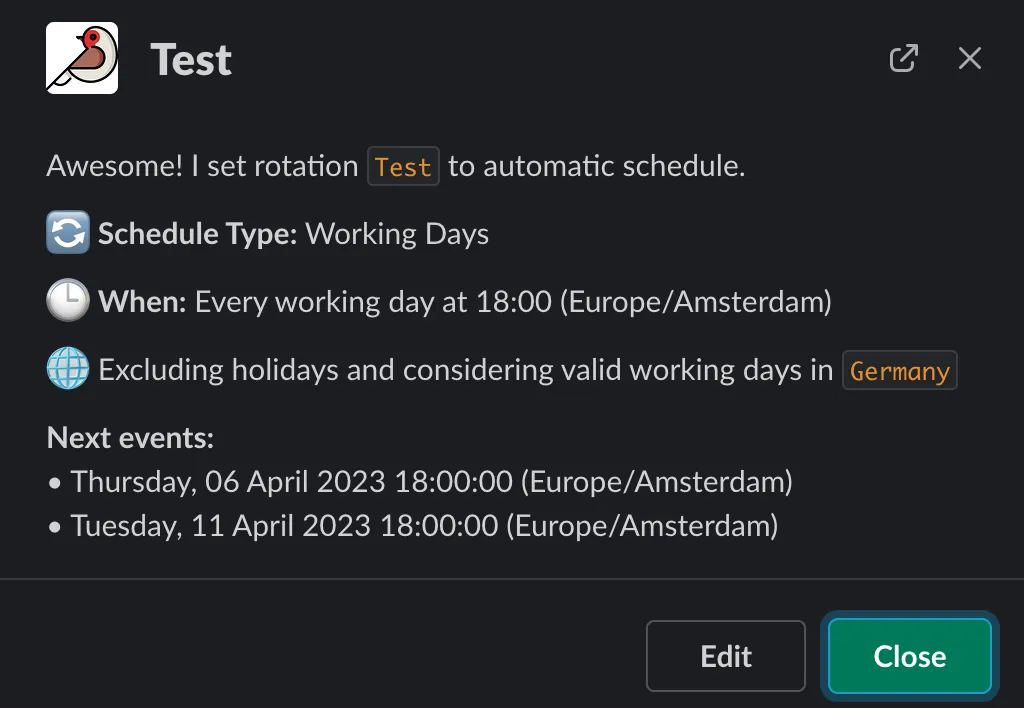
Only national holidays count
Only **national** public holidays are considered, not regional ones. For example, Easter Monday is not a holiday in Scotland, so it does not count as a national UK holiday.
## Business hours
[Section titled “Business hours”](#business-hours)
The same page carries **Business Hours**: the hours of the day the rotation is actually staffed. Outside them nobody is on duty, even mid-shift. They apply to manual rotations too, and by default they run in the schedule’s time zone. See [Business hours rotations](/rotation-management/business-hours-rotations/).
## From Slack
[Section titled “From Slack”](#from-slack)
Schedules are configured in the **web dashboard**, where every schedule type and option is available. From Slack you can jump there quickly: open the bot’s **App Home** (or the rotation’s card) and choose **Open in dashboard**. If you use an AI assistant connected to the [MCP server](/ai/mcp-server/), you can also set common schedules conversationally, e.g. *“schedule PAYMENTS weekly on Mondays at 9am Europe/Rome.”*
## Next steps
[Section titled “Next steps”](#next-steps)
* [Business hours rotations](/rotation-management/business-hours-rotations/): the hours of the day the rotation is actually staffed.
* [Out-of-office and availability](/rotation-management/out-of-office/): skip people who are away when duty changes hands.
* [Round Robin in Slack](/rotation-management/round-robin-in-slack/): cards, the flexpane, the App Home and commands.
# External rotations
> Bind a rotation to a PagerDuty or OpsGenie schedule so members and on-call duty sync automatically from your on-call provider.
An external rotation is a Round Robin rotation whose schedule is owned by an outside on-call provider: **PagerDuty** or **OpsGenie**. Round Robin periodically reads the provider schedule and keeps the rotation in sync: the member list mirrors the schedule’s participants, and whoever is on shift in the provider becomes the on-duty user in Slack. You keep all the Slack-side features (mentions, channel topics, shift notifications) without managing the same shifts in two places.
**You need:** PagerDuty or OpsGenie connected under **Settings → Integrations**. See [Integrate PagerDuty](/integrations/integrate-pagerduty-with-round-robin/) or [Integrate OpsGenie](/integrations/integrate-opsgenie-with-round-robin/).
## Connect a rotation to an external schedule
[Section titled “Connect a rotation to an external schedule”](#connect-a-rotation-to-an-external-schedule)
Before you start, connect your provider in the [dashboard](https://app.roundrobinbot.eu) under **Settings** > **Integrations**. See [Integrate PagerDuty](/integrations/integrate-pagerduty-with-round-robin/) or [Integrate OpsGenie](/integrations/integrate-opsgenie-with-round-robin/). Any existing rotation can be bound to an external schedule; there is no separate “external rotation” type to create.
1. In the dashboard, open the rotation and go to its **Edit Schedule** page.
2. In the schedule type picker, an **External** section shows a PagerDuty or OpsGenie card, but only for providers you have connected.
3. Pick the provider, then search for and select the schedule you want to bind. A details panel shows the schedule before you commit.
4. Save. The rotation switches to external mode, and the first sync fills in members and the on-duty user.
Switching to external resets the rotation’s options and replaces any existing schedule with the external binding.
## Viewing an external rotation
[Section titled “Viewing an external rotation”](#viewing-an-external-rotation)
On the rotation’s page in the dashboard:
* The **Users** tab shows a read-only roster of everyone on the linked provider schedule, with an “N of M linked to Slack” badge, each member’s Slack link status, and who is on duty (including an unmapped on-duty person matched by email).
* The schedule card shows a read-only view of the external schedule, with a timeline of upcoming shifts, instead of the internal schedule details.
## How the sync works
[Section titled “How the sync works”](#how-the-sync-works)
On every sync, Round Robin:
1. Reads the linked schedule from PagerDuty or OpsGenie.
2. Matches each schedule participant to a Slack user **by email address**.
3. Overwrites the rotation’s member list with the matched users, and stores the schedule’s time zone.
4. Sets whoever is currently on shift as on duty, until the end of their shift. If nobody is on shift, the duty is cleared.
The sync runs roughly once a minute, so a change in the provider is picked up shortly after you make it, not instantly.
If the person currently on shift has no Slack account with a matching email, Round Robin tracks them as an **unmapped external duty**: the shift is still visible on the dashboard, but no Slack user is assigned.
Email addresses have to match
Make sure people use the same email address in Slack and in your on-call provider, because that is the only way Round Robin links the two identities.
External rotations still behave like any other rotation for everything Slack-facing: shift start and end notifications, channel topic updates, and on-duty mentions and templating work as usual.
## What you cannot change in Round Robin
[Section titled “What you cannot change in Round Robin”](#what-you-cannot-change-in-round-robin)
Because the external schedule owns the rotation, some features are disabled:
| Feature | Behavior on an external rotation |
| -------------------------- | ---------------------------------------------------------------------------------------------- |
| Members and user groups | Not editable: the on-call pool is synced from the provider and any change would be overwritten |
| Manual rotation / set duty | Blocked: duty is driven by the external schedule |
| Internal schedules | Blocked: you cannot add a Round Robin schedule on top |
| Business hours | Not available |
| Incoming webhooks | Not available |
To change who is on call, edit the schedule in PagerDuty or OpsGenie; Round Robin picks it up on the next sync.
## Disconnect an external schedule
[Section titled “Disconnect an external schedule”](#disconnect-an-external-schedule)
1. Open the rotation’s **Edit Schedule** page. External rotations show an **External Schedule** alert explaining that the schedule cannot be edited here.
2. Click **Disconnect external schedule** and confirm.
Disconnecting removes the binding, stops the sync, and reverts the rotation to **manual** mode. The current on-call pool (as last synced) is kept as the starting member list, so you can keep rotating the same people by hand or add a Round Robin schedule (see [Create or edit a schedule](/rotation-management/create-or-edit-a-schedule/)). You can re-link an external schedule at any time.
Disconnecting the integration itself, under **Settings → Integrations**, reverts every bound rotation to manual mode at once.
## Next steps
[Section titled “Next steps”](#next-steps)
* [PagerDuty and OpsGenie based rotations](/integrations/pagerduty-based-rotations/): the provider-side walkthrough, with screenshots.
* [Integrate PagerDuty](/integrations/integrate-pagerduty-with-round-robin/) or [Integrate OpsGenie](/integrations/integrate-opsgenie-with-round-robin/): connecting a provider in the first place.
* [Round Robin in Slack](/rotation-management/round-robin-in-slack/): everything Slack-facing still works the same way.
# Out-of-office and availability
> Mark yourself unavailable so Round Robin automatically skips you when a rotation would put you on duty.
Round Robin can automatically skip rotation members who are away. When the duty plan is calculated, unavailable members are excluded for the affected period and, where possible, the next available member takes over.
There are three sources of out-of-office information:
| Source | Plan | Where you manage it | When it applies |
| ------------------------------------- | ---- | ------------------------------------------------------------------------------------------------------- | -------------------------------------------------------------------- |
| Availability settings | All | Dashboard, **Settings → Availability** | Always enforced, for every rotation in scope |
| Google Calendar out-of-office events | Pro | Your Google Calendar, synced via the [Google Calendar integration](/integrations/google-calendar-sync/) | Only if the rotation’s out-of-office consideration option is enabled |
| No-duty keywords in your Slack status | Pro | Dashboard, **Settings → Team settings**, and per rotation | Whenever your Slack status matches, for as long as it matches |
The two work well together: keep recurring unavailability in your calendar, and use availability settings for one-off time away, or manage everything in Round Robin if you don’t use the calendar sync.
## Add an unavailability window
[Section titled “Add an unavailability window”](#add-an-unavailability-window)
You manage your own availability from the dashboard at [app.roundrobinbot.eu](https://app.roundrobinbot.eu). Each user configures their own windows; there is no Slack command for this.
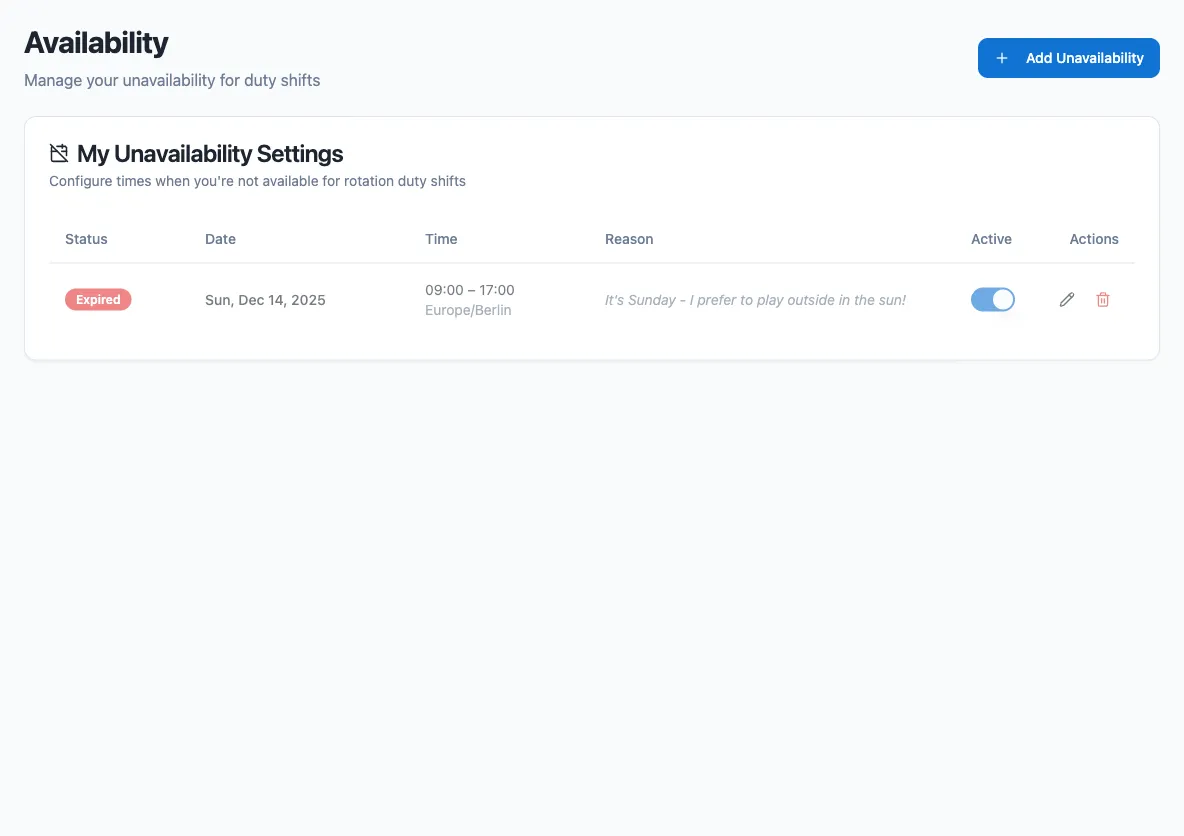
1. In the sidebar, go to **Settings → Availability**.
2. Select **Add Unavailability**.
3. Set the **start date and time** and the **end date and time**. Enable **Same day** for windows that start and end on the same date.
4. Pick the **time zone** the window should be interpreted in.
5. Optionally add a **reason** (for example, “vacation” or “doctor appointment”). It is shown when you are skipped.
6. Choose the scope: **All rotations**, or **Specific rotations only** and pick the rotations it applies to.
7. Optionally set a recurrence (see below).
8. Save.
You can edit or delete windows from the same list at any time, and each window has an **Active** toggle so you can disable it temporarily without deleting it.
## Recurrence
[Section titled “Recurrence”](#recurrence)
A window repeats according to its recurrence rule:
| Rule | Behavior |
| -------------------- | --------------------------------------------------------------- |
| Does not repeat | A one-time window. |
| Daily | Repeats every N days. |
| Weekly | Repeats every N weeks on the selected weekdays. |
| Monthly (on day) | Repeats every N months on a fixed day of the month. |
| Monthly (on weekday) | Repeats every N months on the 1st–4th or last selected weekday. |
Recurring windows end either **after a number of occurrences** or **on a specific date**.
## Skip by Slack status
[Section titled “Skip by Slack status”](#skip-by-slack-status)
**Pro.** If a word in your Slack status means you are not available, Round Robin can skip you for as long as that status is set. Nobody has to remember to add a window: you set your status, and the rotation passes you over.
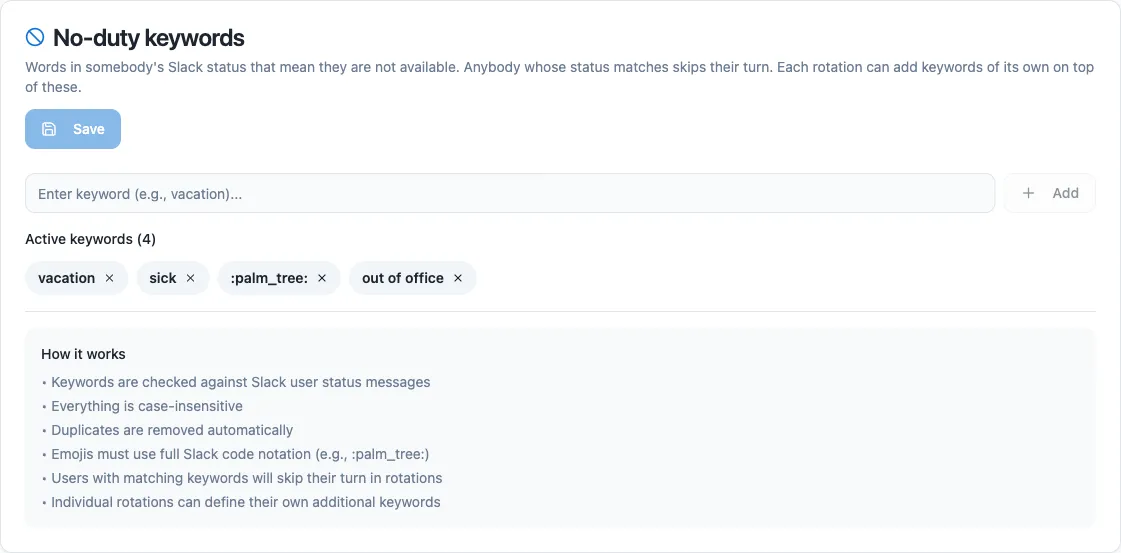
1. Open **Settings → Team settings** and find the **No-duty keywords** card.
2. Add a keyword, for example `vacation` or `:palm_tree:`, and save.
The details:
* Keywords are matched against the **status message**, not the emoji, and matching is case-insensitive.
* Emoji have to be written in full Slack code notation, for example `:palm_tree:`.
* Every rotation inherits the workspace keywords. A rotation can add its own on top, from its **Settings → Behavior** section, or ignore the workspace list entirely and use only its own.
## How skipping works
[Section titled “How skipping works”](#how-skipping-works)
When Round Robin builds a rotation’s duty plan:
1. Your availability settings are checked first. They are always enforced: no rotation option is needed.
2. Google Calendar out-of-office events are checked next, but only if the rotation’s **Out-of-Office Time Consideration** option (under **Settings → Behavior**) is set to consider them. See [Google Calendar sync](/integrations/google-calendar-sync/) for the details.
3. Your Slack status is checked when duty is about to change: if it matches a no-duty keyword, your turn passes to the next available member.
If a window overlaps a duty period, you are marked as skipped for that slot, together with the source (availability setting or Google Calendar) and the reason you provided.
When someone is skipped, the bot sends the rotation owners a direct message saying who was skipped, the reason, and the out-of-office period.
Being skipped does not change the order
Availability settings tell Round Robin when you are away; they do not change the rotation order itself. Skipped members simply do not appear in the plan for the affected slots.
## Next steps
[Section titled “Next steps”](#next-steps)
* [Google Calendar sync](/integrations/google-calendar-sync/): read out-of-office straight from your calendar.
* [Create or edit a schedule](/rotation-management/create-or-edit-a-schedule/): skipping weekends and holidays for the whole rotation.
* [How Round Robin works](/start/core-concepts/): what being *skipped* means for the duty plan.
# See who changed what
> Every rotation keeps a record of the changes made to it, and who made them. Administrators can read the same record across the whole workspace.
Every rotation keeps a record of what was changed on it, when, and by whom: “Robert changed the schedule to weekly”, “Mike rotated manually”, “CI Bot added two members”. It answers the question you ask when a rotation is not behaving the way you remember setting it up.
There are two ways in:
* **A rotation’s own Activity tab.** Anybody who can see the rotation can read it. Free and Pro.
* **Workspace activity**, in Settings. Every change to every rotation, and to the workspace itself, in one feed. Administrators, on Pro.
## A rotation’s activity
[Section titled “A rotation’s activity”](#a-rotations-activity)
1. Sign in at [app.roundrobinbot.eu](https://app.roundrobinbot.eu) and open the rotation.
2. Open the **Activity** tab.
Entries are grouped by day, newest first, and written as sentences: who did it, what they did, and what it changed from and to. People appear by name, never as a Slack id.
A change with more in it than one sentence can carry says the rest on a quieter second line: which channels or owners were added and which were dropped, both by name, and which parts of a setting moved when one setting holds several, such as a schedule or the hours it covers.
Narrow it down with the filters above the feed:
* **Any change** is every kind of change on offer, grouped by the area it belongs to: Duty, People, Schedule, Channels & messages, Notes, External schedules, Rotation settings. **All** beside a heading takes the whole area in one click; tick the lines under it to ask for one kind on its own. There is a search box at the top for when you know what you are after.
* **All time** limits the feed to a named window, or to a range of days you set yourself.
Each button says what it is set to: the name when you have picked one thing, a count when you have picked several, and a tick beside every choice when you open it again.
**Load more** brings back the next page.
## Workspace activity
[Section titled “Workspace activity”](#workspace-activity)
Settings has an **Activity** page that shows the same records for every rotation in the workspace, plus the changes made to the workspace itself. It is the page to open when the question is “what has been going on?” rather than “what happened to this rotation?”.
1. Open **Settings** and choose **Workspace activity**.
2. Narrow the feed down with the filters above it.
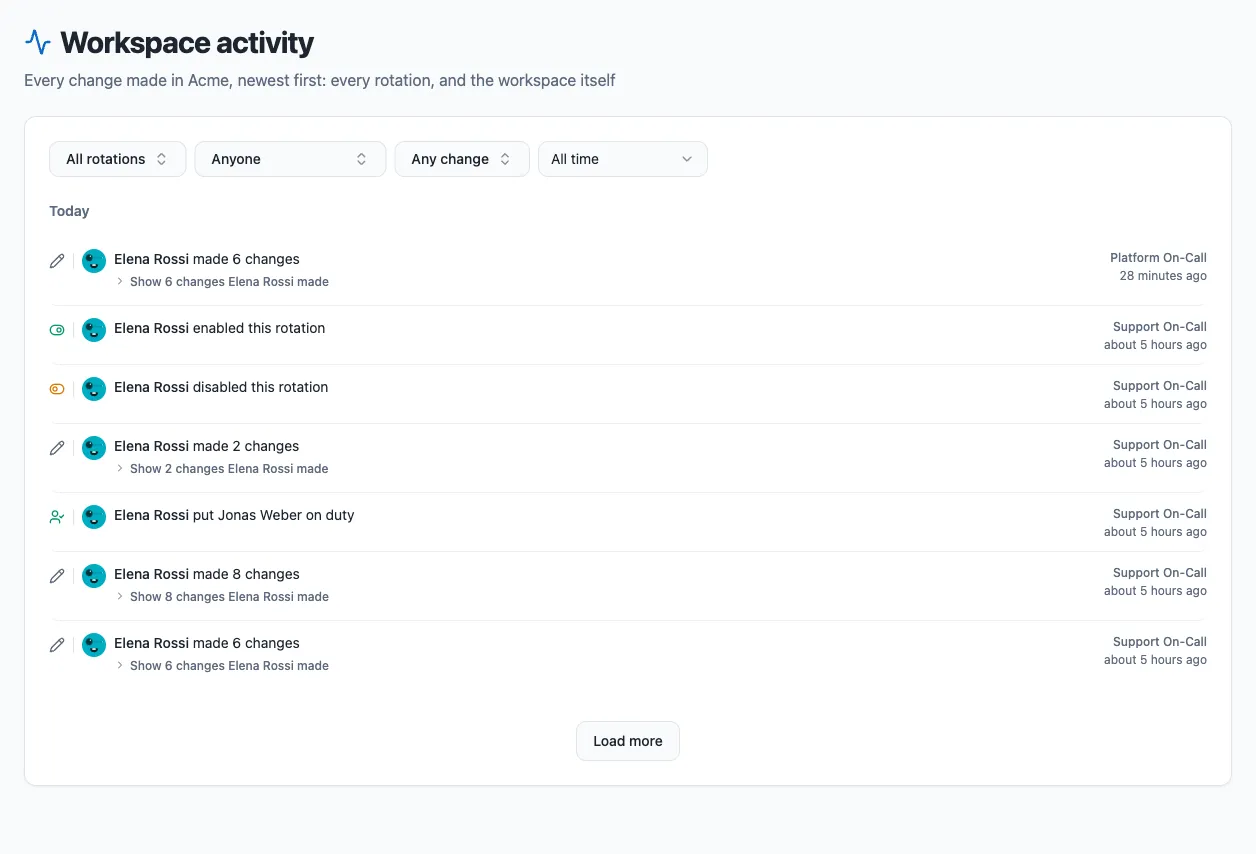
Each day is one list in time order, and every row names what it is about: the rotation, as a link to that rotation’s own Activity tab, or **Workspace** for a change to the workspace itself, such as the plan or who administers it.
On top of the kind-of-change and date filters a rotation’s tab offers, this page has two of its own:
* **All rotations** picks one rotation, or several. Start typing to search by name. Choosing a rotation leaves the workspace’s own rows out, since they belong to no rotation.
The list offers the rotations the feed actually has changes for, which is not the same as the rotations that exist today. A rotation that has since been deleted is on it, marked **Deleted** and under the name it had at the time, so its entries can be read on their own. A rotation nobody has ever changed is not, because asking for it would only empty the feed.
* **Anyone** picks who made the change, by name, so “what has Robert been changing?” is one question rather than a read of the whole feed.
The four filters sit on one line, and **Clear filters** puts the whole feed back.
Both are answered by the server, so **Load more** keeps walking the whole workspace’s matching changes rather than sifting the page you are already looking at.
**You need:** the Pro plan, and Admin or Owner in the workspace. Each rotation’s own Activity tab stays open to everybody on every plan.
A rotation that has since been deleted still appears here, under the name it had at the time. It can be filtered down to like any other.
## What is recorded
[Section titled “What is recorded”](#what-is-recorded)
Anything a person or a program does to a rotation:
* **Lifecycle**: created, deleted, enabled, disabled, mode changed.
* **Details**: name, description, code, visibility, duty size, owners.
* **Members**: one entry per person added or removed, so “when did Carol leave?” has a single answer. Reordering the list is recorded too.
* **Schedule**: schedule set, changed or removed, time zone, business hours.
* **Slack**: notification channels, the on-duty group, the channel topic, message templates, no-duty keywords.
* **Notes**: a note set, cleared, or the note history cleared.
* **Duty**: a manual rotation, somebody put on duty explicitly, duty cleared.
* **External schedules**: connected and disconnected.
Workspace activity adds what was done to the workspace itself, under a **Workspace** filter of its own:
* **The app itself**: Round Robin added to the workspace, or put back after having been removed, and removed from it. A removal says why it happened: somebody uninstalled the app, Slack revoked our access, the workspace went over its plan limits, or it left a Slack organisation.
* **Plan**: moved to Pro, moved back to Free.
* **Administrators**: a role granted or taken away, and an ownership claim.
* **Handover settings**: clearing the on-duty group before each handover, and whether the group may be left empty.
* **Email**: that Round Robin sent one, and what its subject was.
Each entry says who acted:
* **A person**, by their Slack display name, whether they made the change in the dashboard, in Slack, or through an AI assistant.
* **An API key**, by the name you gave the key, so an integration is recognisable as itself.
* **Round Robin**, when the change followed automatically from something else, such as a member dropped because they left the Slack workspace.
Somebody who has since left the workspace has no name left to show, so their entries are written without one: “the schedule was changed to weekly”.
## What is not recorded
[Section titled “What is not recorded”](#what-is-not-recorded)
**Scheduled duty changes.** A rotation that advances on its own, at the time its schedule says, does not write an activity entry. It would fill the feed with the one thing that is not news, and the rotation already keeps that in full: open the **History** tab, which lists every shift with its start, its end, and why duty changed hands.
**Anything that is not a change.** Reading a rotation, listing it, or being shown it in Slack leaves no entry.
**Personal data.** An entry stores identifiers and the values that changed, not IP addresses and not message bodies. Names you see in the feed are looked up when the page is drawn, from the workspace directory, rather than copied into the record. The one exception is the record that an email was sent, and it keeps only the domain: mail to `ada@example.com` is recorded as sent to `a***@example.com`, so a “did that go to the right company?” question has an answer without the record naming anybody. The feed shows neither, only the subject line.
## How long it is kept
[Section titled “How long it is kept”](#how-long-it-is-kept)
A rotation’s history lives as long as the rotation does. Nothing is trimmed while the rotation exists, so a change made two years ago is still there.
When a rotation is deleted its history is kept for **13 months** from the deletion, including the record of the deletion itself, and then removed.
# Round Robin in Slack
> Everything Round Robin does inside Slack: rotation cards, the flexpane, the App Home, slash commands, and summoning whoever is on call.
Round Robin is managed from the [web dashboard](https://app.roundrobinbot.eu), but the day-to-day happens in Slack: notifications when duty changes, a rich **rotation card** you can act on, an App Home, quick commands, and the **mention flow** to reach whoever is on call. This page is the map of that surface.
Configuration lives in the dashboard
Creating, editing and scheduling rotations is done in the **dashboard** (or conversationally through the [MCP server](/ai/mcp-server/)). In Slack you view rotations and take quick actions on them.
## Rotation cards
[Section titled “Rotation cards”](#rotation-cards)
When duty changes, Round Robin posts a message to the rotation’s channels, and attaches a **rotation card**: a compact, live summary of the rotation.
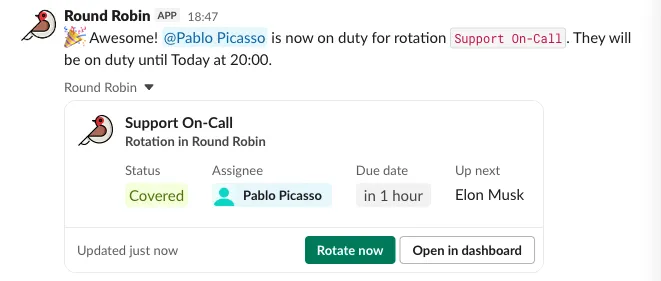
A card shows the current status, who is on duty, when their shift ends, and who is up next, with two buttons:
* **Rotate now**: advance the rotation to the next person immediately.
* **Open in dashboard**: jump to the rotation’s dashboard page.
For [business-hours rotations](/rotation-management/business-hours-rotations/) the card follows the working window: the shift end is the end of the current window, and outside it the status shows **Off hours**.
### Choose when the card appears
[Section titled “Choose when the card appears”](#choose-when-the-card-appears)
The card is attached to duty-change messages by default, and you can tune this per rotation in the dashboard under **Options → Rotation Card**:
* **Attach Card To On-Duty Messages**: on by default; turn it off for chatty rotations where the extra card is noise.
* **Attach Card To Off-Hours Messages**: off by default; for business-hours rotations, also attach the card to the “going off-business hours” message.
### Get the rotation card anytime
[Section titled “Get the rotation card anytime”](#get-the-rotation-card-anytime)
You don’t have to wait for a duty change:
* **Paste the rotation’s link**: share `https://app.roundrobinbot.eu/rotations/…` in any conversation and it unfurls into the card (the **Copy link** button on the rotation’s dashboard page puts it on your clipboard). This works regardless of the options above.
* **Share it from the App Home**: pick **Share card to a channel…** from a rotation’s **More actions…** menu and choose where to post it. The bot must be a member of the channel.
### The flexpane
[Section titled “The flexpane”](#the-flexpane)
Click a card to open the **flexpane** on the right, a fuller view of the rotation.
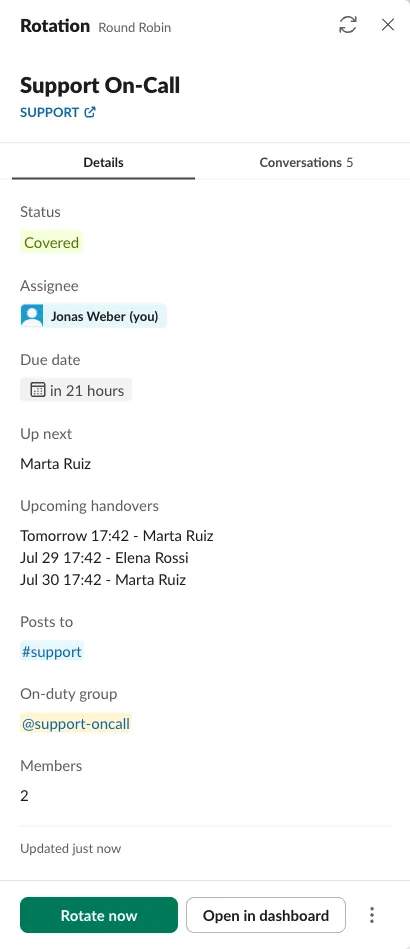
The **Details** tab shows the on-duty person, the next three handovers, the channels the rotation posts to, its on-duty user group, and the member count. The **Conversations** tab gathers every place the rotation’s card has been shared, so you can follow the discussion around it. A pinned **Rotate now** button sits at the bottom.
The **⋯** menu on the card and flexpane adds **Switch user on duty**, the same modal available from the App Home.
## App Home
[Section titled “App Home”](#app-home)
The bot’s **Home** tab shows every rotation you can see (status, schedule, who is on duty, and the next shift) with quick actions on each:
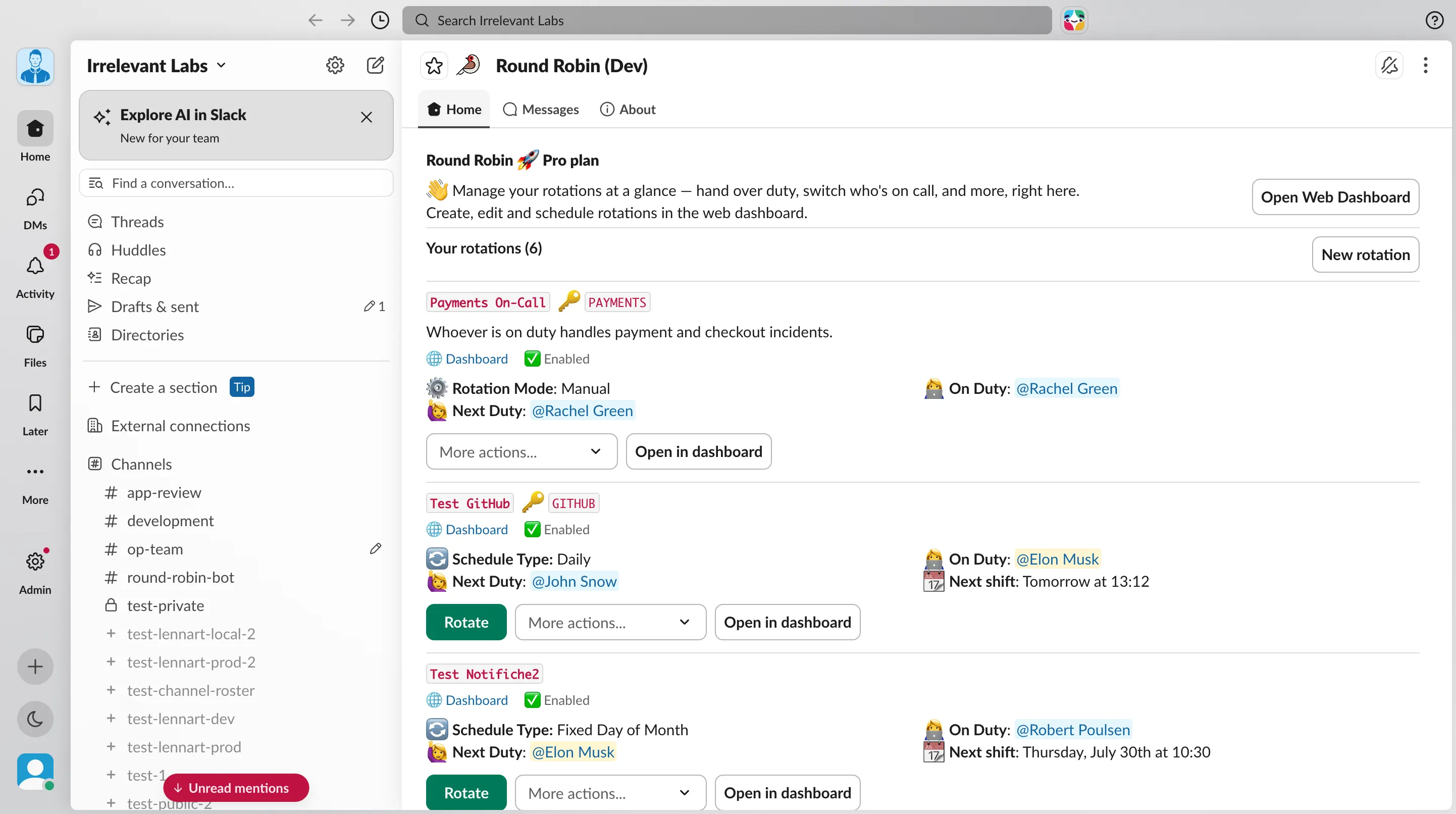
* **Rotate**: advance the rotation to the next person right now.
* **More actions…**: switch who is on duty, set the rotation’s notes, or share the rotation card to a channel.
* **Open in dashboard**: jump to the rotation’s page for everything else, editing, scheduling, enabling or disabling, members and groups.
Choosing **Switch user on duty** opens a modal to hand duty to a specific person:
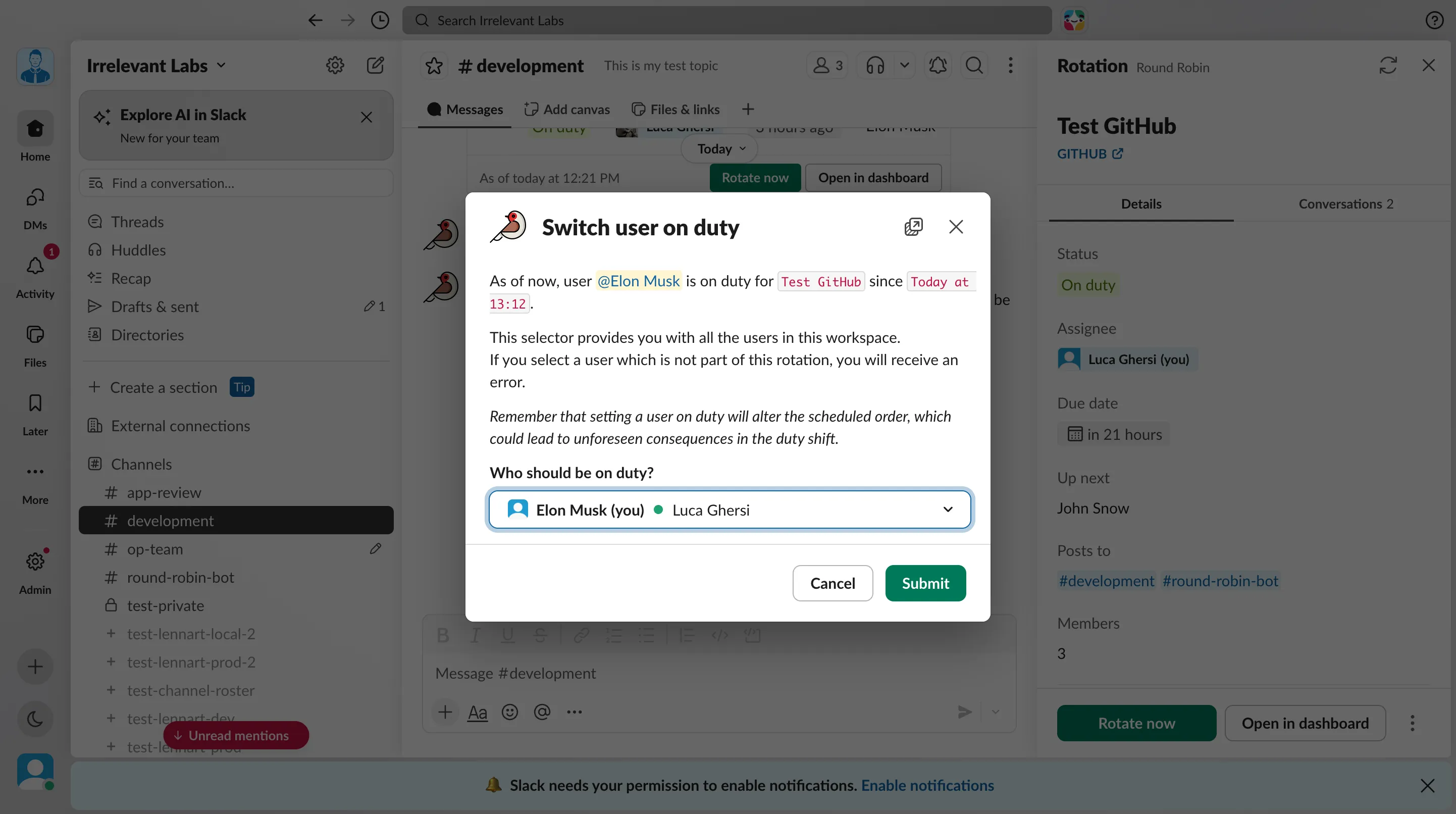
The **New rotation** button and the **Open Web Dashboard** button take you to the dashboard, which is where rotations are created and configured.
## Commands
[Section titled “Commands”](#commands)
The one Round Robin slash command is `/rr` (it may be named differently in your workspace, e.g. `/rrdev` in a test install). It always replies **only to you**.
| Command | What it does |
| ------------------- | ----------------------------------------------------------------------------------------------------------------- |
| `/rr ` | Shows who is on call right now for a rotation, who is up next, and a link to open it. Codes are case-insensitive. |
| `/rr duties` | A quick overview of who is on duty across every rotation you can see. |
| `/rr` or `/rr help` | A short reminder of everything the bot can do. |
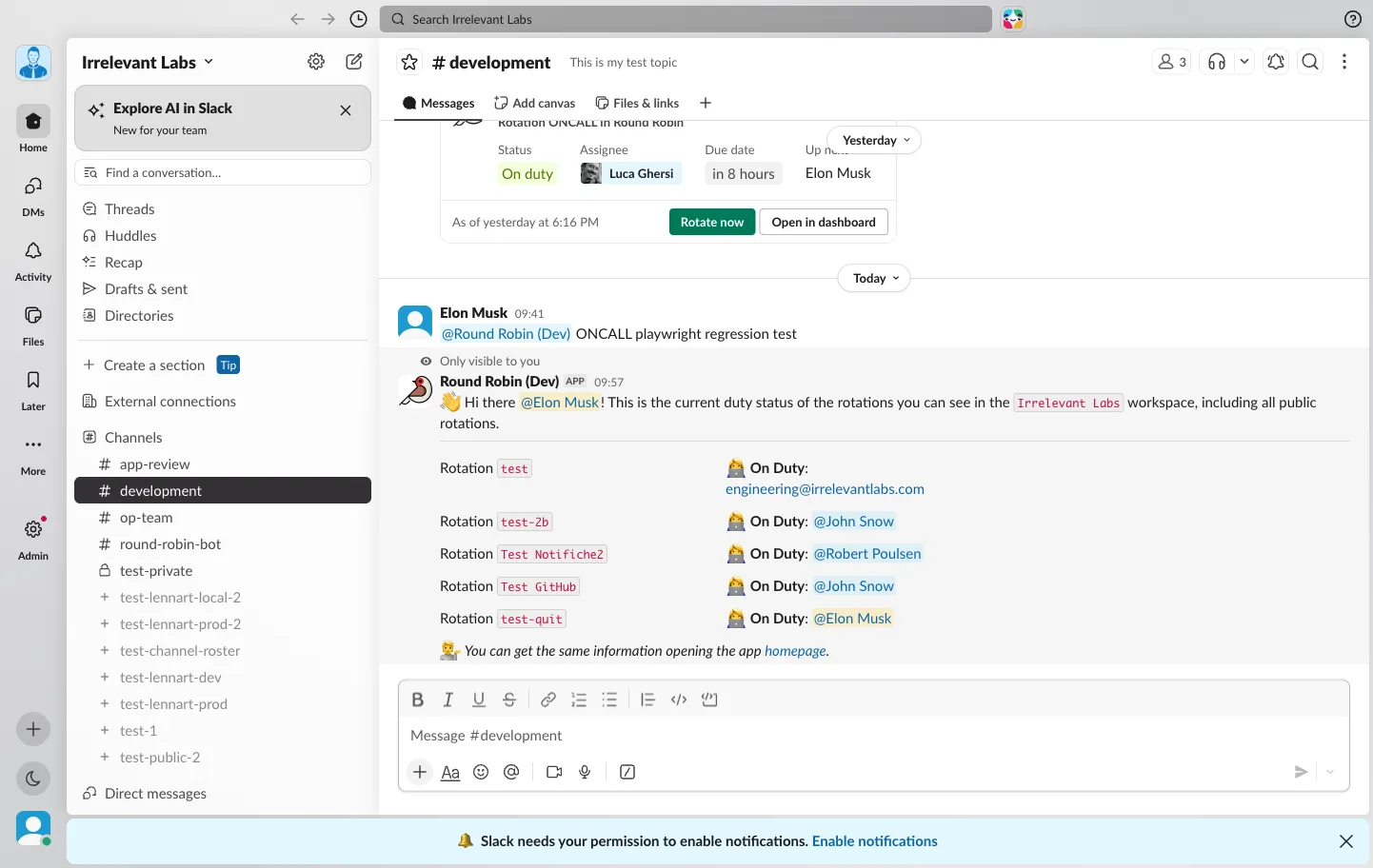
`/rr ` is the fastest way to answer “who’s on call for PAYMENTS?” without leaving the conversation:
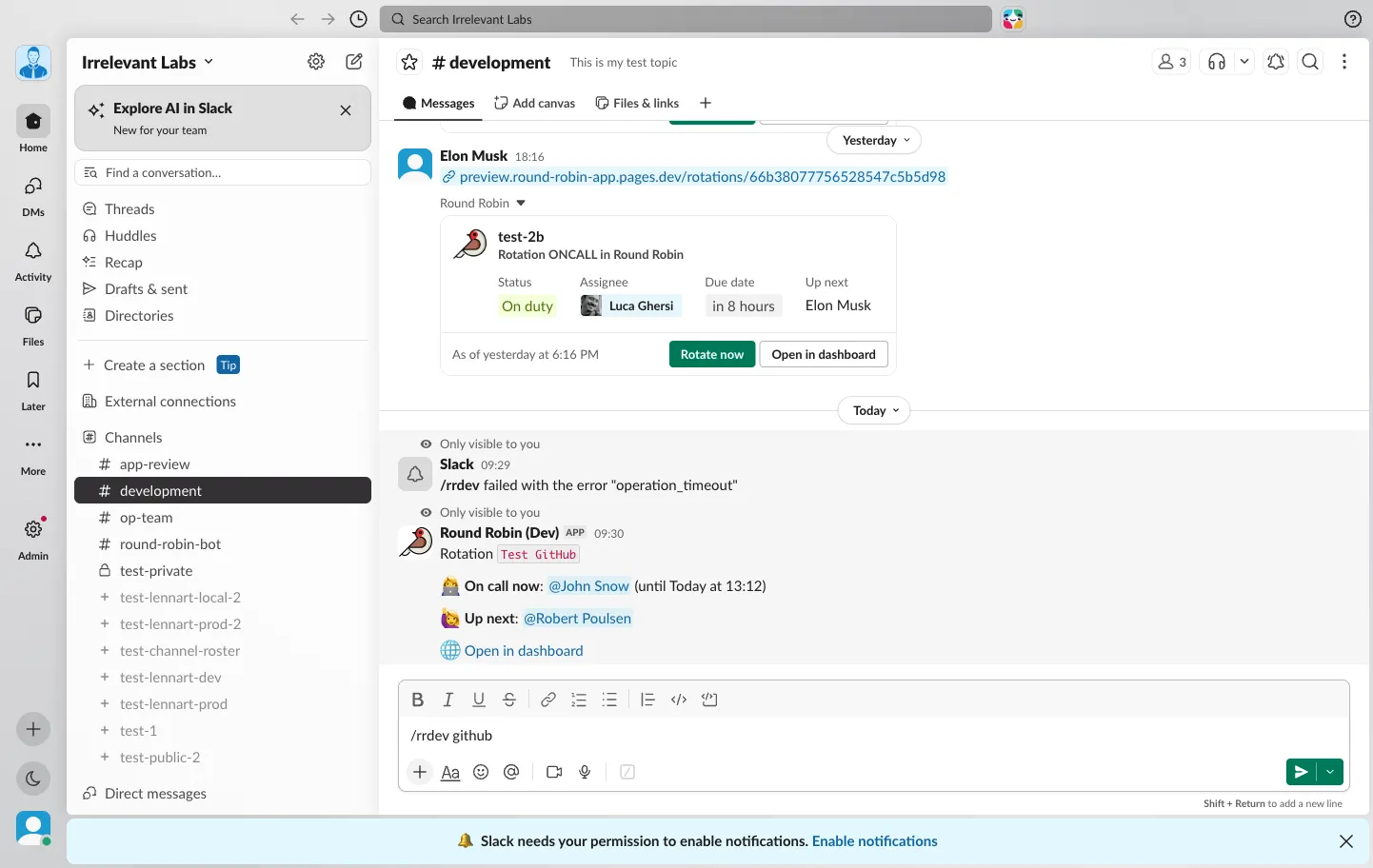
## Summoning whoever is on call
[Section titled “Summoning whoever is on call”](#summoning-whoever-is-on-call)
To reach the person on duty, mention the bot with the rotation code: `@Round Robin PAYMENTS the checkout is down`. The on-duty person gets a direct message with **Ack** and **Pass** buttons, and you get a private confirmation. This is the **mention flow**. See [What are mentions](/mentions/what-are-mentions/) for the full walkthrough.
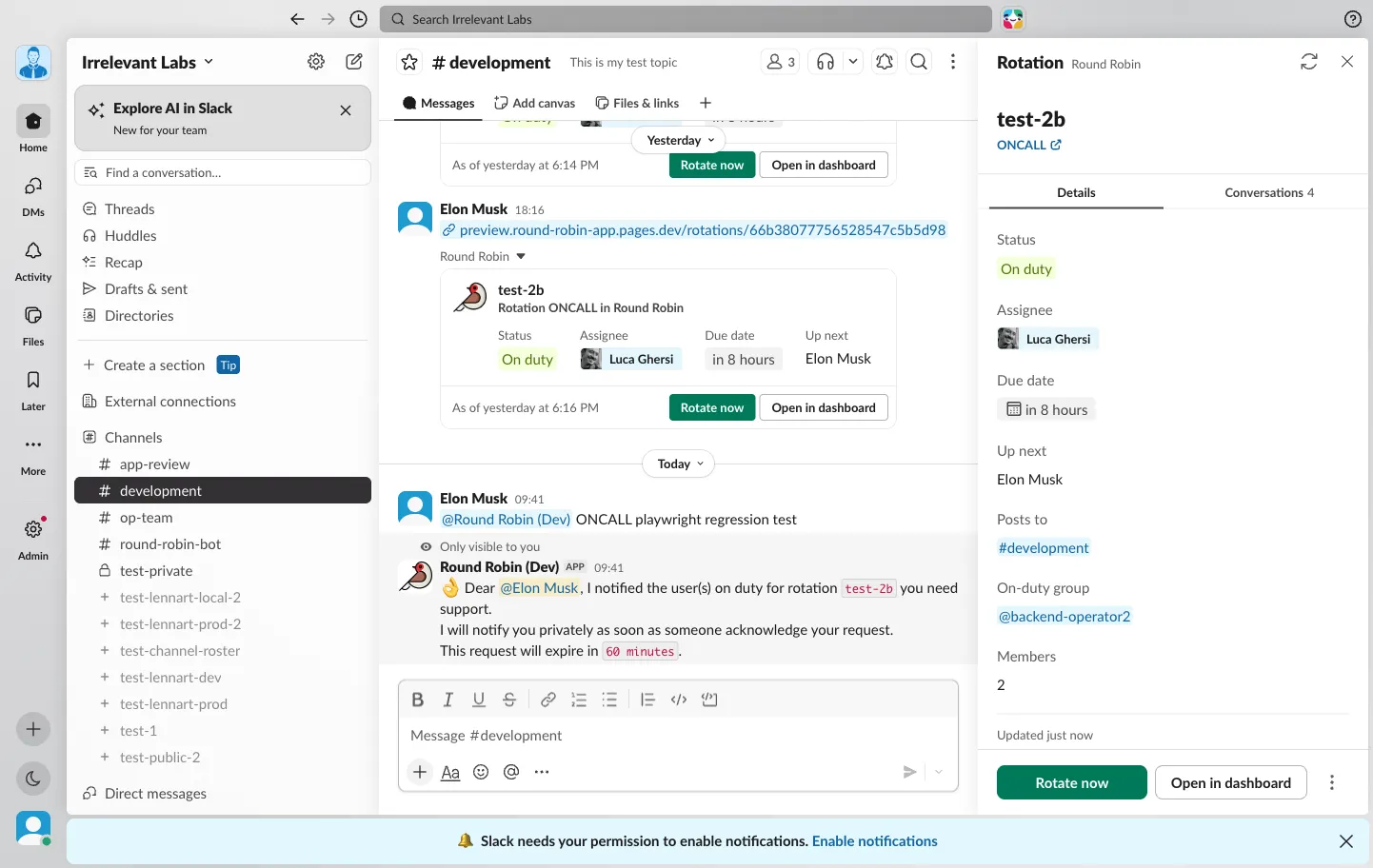
## Next steps
[Section titled “Next steps”](#next-steps)
* [Create a rotation](/rotation-management/create-a-rotation/) in the dashboard.
* [Connect an AI assistant](/ai/mcp-server/) to manage rotations conversationally.
* [What are mentions](/mentions/what-are-mentions/): the full summon/ack flow.
# People and roles
> Who can administer a Round Robin workspace: Slack admins, admins, owners, and how to grant or remove access.
Round Robin has three levels of access: **member**, **admin**, and **owner**. You manage them in the dashboard at [app.roundrobinbot.eu](https://app.roundrobinbot.eu), under **Settings → People & roles**.
**A free workspace has no roles at all**: no members, no admins, no owners. Everybody can do everything: create a rotation, edit or delete any rotation including one they are not in, rotate it, change the workspace settings. Nothing on this page needs to be set up there, because there is nothing to grant. The Free plan’s two rotations and eight people are size limits, not permissions, and apply to everybody equally.
Roles arrive with Pro. If you granted them and later went back to Free they are kept, not deleted: they do nothing while the workspace is free, and come back exactly as they were if you upgrade again.
## What each role can do
[Section titled “What each role can do”](#what-each-role-can-do)
Each level adds to the one before it.
A **member** can:
* Use the rotations they belong to: rotate, set notes, set their own availability.
* Create rotations, and manage the ones they own.
An **admin** adds:
* See and manage every rotation in the workspace, private ones included.
* Workspace settings, integrations (PagerDuty, OpsGenie, Google Calendar, GitHub), and the usage history.
* Grant and remove the admin role.
* See what the workspace is charged, and download invoices.
An **owner** adds:
* Change the plan and the payment method, or cancel the subscription.
* Grant and remove the owner role.
A workspace can have as many admins and as many owners as you like.
## Where the admin role comes from
[Section titled “Where the admin role comes from”](#where-the-admin-role-comes-from)
On a Pro workspace, there are two ways to be an admin:
* **From Slack.** Anyone who is an admin or an owner of your Slack workspace is automatically an admin in Round Robin. This is read live from Slack: you cannot grant it or remove it here, only in Slack. Round Robin shows these people with a **from Slack** note next to their badge.
* **Granted in Round Robin.** On a Pro plan, any admin can give the admin role to somebody who is not a Slack admin, and take it back later.
Roles are attached to the Slack account, not to a dashboard login. Somebody can be given a role before they have ever signed in to the dashboard; the access is waiting for them when they do.
## Give somebody a role
[Section titled “Give somebody a role”](#give-somebody-a-role)
1. Open **Settings → People & roles**.
2. In the **Admins & owners** card, select **Add admin** (or **Add owner**, if you are an owner) and search for anybody in your workspace. The picker searches everyone in Slack, not only the people already listed here.
You can also change somebody’s role from their own page: open them from **All people** and select **Change role**.
Every change asks for a confirmation that spells out what the person gains or loses.
## Change or take away a role
[Section titled “Change or take away a role”](#change-or-take-away-a-role)
The menu next to the person (in the **Admins & owners** card, or under **Change role** on their own page) lists the three levels, with their current one ticked. Pick the one you want them on:
| Pick | What it does |
| ---------- | ---------------------------------------------------------------------------------------------------------------------------------------------------------- |
| **Member** | Takes their access away. They keep only the rotations they belong to. |
| **Admin** | Manage the workspace, its rotations and its people, but not the subscription. Picking this for an owner leaves them a full admin without the subscription. |
| **Owner** | Everything an admin can do, plus the subscription. |
Making somebody a member again needs whoever can manage the role they hold: an owner to demote an owner, an admin to demote an admin.
Two things are deliberately not possible:
* **You cannot remove your own role.** Losing access is somebody else’s decision, so you cannot lock yourself out by accident.
* **You cannot remove the last owner.** A workspace with no owner has nobody who can pay for it.
If the person is an admin of your Slack workspace, **Member** is not offered: dropping their Round Robin role would leave them an admin anyway, because Slack says they are one. Change that in Slack.
## When somebody leaves the workspace
[Section titled “When somebody leaves the workspace”](#when-somebody-leaves-the-workspace)
A role stays where it is when its holder leaves your Slack workspace. Round Robin marks them **Left the workspace** on this page so you can hand the role over and remove it.
If every owner of a paying workspace has left, nobody can manage the subscription any more. Any admin of your Slack workspace can then open **Settings → People & roles** and select **Take ownership** to recover it. This works only when no reachable owner is left, so it cannot be used to take a workspace from an active owner. On the Free plan there is nothing to recover, so the option does not appear.
## The people list
[Section titled “The people list”](#the-people-list)
Under the roles card, **All people** lists everybody Round Robin knows about in the workspace: everyone in a rotation, plus everyone holding a role. You can search by name, email, or Slack ID, and filter by role. Select somebody to see their details and the rotations they belong to.
This is not your whole Slack workspace
The list is not your whole Slack workspace. Somebody who has never been in a rotation and holds no role does not appear until they do.
## Next steps
[Section titled “Next steps”](#next-steps)
* [Plans and billing](/billing/billing/): who can change the plan, and what Pro adds.
* [Create a rotation](/rotation-management/create-a-rotation/): owners, members, and private rotations.
* [How Round Robin works](/start/core-concepts/): role is one of the three things a rotation row tells you.
# Install Round Robin
> Install Round Robin in your Slack workspace and understand why each requested permission scope is needed.
To use Round Robin, a workspace admin (or a member allowed to install apps) adds it to your Slack workspace. During installation, Slack shows you the list of permission scopes the app requests. This page explains what each scope is used for, so you can review the request with confidence.
Round Robin uses granular bot permissions: every scope below is requested as a **bot token** scope, and the app requests only the scopes its features need. The installation never asks for user token scopes.
## Install the app
[Section titled “Install the app”](#install-the-app)
1. Open [the installation link](https://api.roundrobinbot.eu/api/install). It redirects you to Slack’s authorization page.
2. Review the requested permissions and select **Allow**.
3. Slack completes the installation and you can start using the `/rr` command and the [dashboard](https://app.roundrobinbot.eu).
On Enterprise Grid, install at the org level
On Slack Enterprise Grid, installation happens at the organization level. After you approve the scopes, Slack takes you to the organization admin page where you choose which workspaces to add Round Robin to.
## Scope reference
[Section titled “Scope reference”](#scope-reference)
| Scope | Why Round Robin needs it |
| ------------------------------------------------------------------------------------------------------------------------------- | ---------------------------------------------------------------------------------------------------------------------------------------------------------------------- |
| [app\_mentions:read](https://api.slack.com/scopes/app_mentions:read) | Detect when the bot is @-mentioned in a channel it belongs to, so it can respond and route mentions to the person on duty. |
| [channels:read](https://api.slack.com/scopes/channels:read) | List public channels when you create or manage a rotation, and check the type of channel the bot is interacting with. |
| [channels:manage](https://api.slack.com/scopes/channels:manage) | Update the topic of a public channel with rotation information, and invite or remove members when a rotation keeps a channel’s membership in sync with who is on call. |
| [chat:write](https://api.slack.com/scopes/chat:write) | Post rotation messages in channels the bot was invited to. |
| [chat:write.public](https://api.slack.com/scopes/chat:write.public) | Post in public channels the bot is not a member of. |
| [commands](https://api.slack.com/scopes/commands) | Enable the `/rr` slash command and message shortcuts. |
| [groups:read](https://api.slack.com/scopes/groups:read) | List the private channels the bot is a member of when you manage a rotation, and check the channel type. |
| [groups:write](https://api.slack.com/scopes/groups:write) | Update the topic of a private channel the bot is a member of, and manage its membership when channel sync is enabled. |
| [im:read](https://api.slack.com/scopes/im:read) / [im:write](https://api.slack.com/scopes/im:write) | Open direct message conversations to send private notifications to individual users. |
| [reactions:read](https://api.slack.com/scopes/reactions:read) / [reactions:write](https://api.slack.com/scopes/reactions:write) | Support mention acknowledgment: when someone reacts to a message that mentions the on-duty group, Round Robin marks the mention as handled. |
| [team:read](https://api.slack.com/scopes/team:read) | Read basic workspace information, such as the workspace name, when Round Robin is installed. |
| [usergroups:read](https://api.slack.com/scopes/usergroups:read) | List existing Slack user groups so you can link one to a rotation. |
| [usergroups:write](https://api.slack.com/scopes/usergroups:write) | Create the on-duty user group and update its members so it always reflects who is currently on call. |
| [users:read](https://api.slack.com/scopes/users:read) | List workspace users when you create or edit a rotation. |
| [users:read.email](https://api.slack.com/scopes/users:read.email) | Match Slack users to accounts in external integrations, such as PagerDuty schedules and Google Calendar out-of-office events, by email address. |
## When Round Robin asks for new scopes
[Section titled “When Round Robin asks for new scopes”](#when-round-robin-asks-for-new-scopes)
When a new feature requires a scope your installation does not have yet, the [dashboard](https://app.roundrobinbot.eu) shows an **App Update Required** alert. Select **Reinstall App** to run the Slack authorization flow again with the updated scope list; your rotations and settings are preserved.
## Next steps
[Section titled “Next steps”](#next-steps)
* [How Round Robin works](/start/core-concepts/): the concepts before you configure anything.
* [Create a rotation](/rotation-management/create-a-rotation/): you will be live in a couple of minutes.
* [Round Robin in Slack](/rotation-management/round-robin-in-slack/): what the bot does once it is installed.
# Trigger rotations with webhooks
> Use incoming webhooks to rotate, set the on-duty user, or open a mention from external systems.
An incoming webhook is a unique URL plus a secret key that lets external systems (CI pipelines, schedulers, incident tooling) trigger actions on a rotation without going through Slack.
Webhooks are removed on 31 August 2026
Use the [public API](/api/) instead. An [API key](/api/keys/) covers everything a webhook does and more: it is scoped to the rotations and actions you choose, it can be revoked or rotated on its own, and its calls are attributable to the key rather than anonymous.
Rotations that already have a webhook keep it, and it keeps working, until that date. Rotations that do not have one cannot be given one.
## Find your webhook URL and key
[Section titled “Find your webhook URL and key”](#find-your-webhook-url-and-key)
1. Open the dashboard at [app.roundrobinbot.eu](https://app.roundrobinbot.eu) and go to your rotation’s details page.
2. Click **Settings**, open **Integrations**, and choose **Webhooks**.
3. Copy the **Rotation Webhook URL** and the **Secret API Key**. The key is hidden by default; use the eye button to reveal it or the copy button to copy it directly.
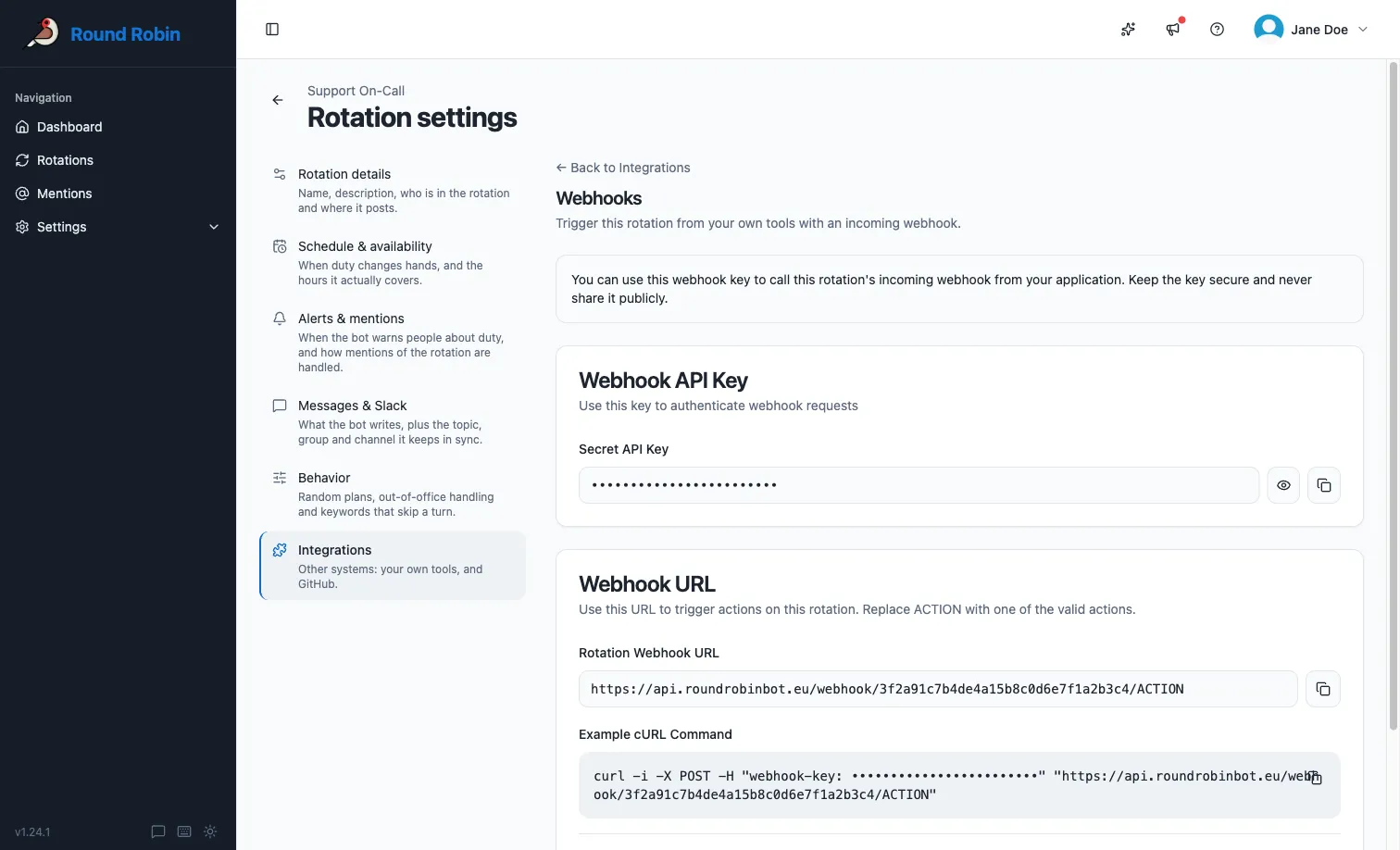
The same URL and key are shown on every visit. If the page shows only the deprecation notice, this rotation has no webhook: use [an API key](/api/keys/).
Who can see the key, and where webhooks do not work
Only users with edit permission on the rotation can view the webhook key, and the rotation must be enabled. Webhooks are not available for externally managed rotations (for example, rotations synced from PagerDuty or OpsGenie).
## Call the webhook
[Section titled “Call the webhook”](#call-the-webhook)
Send an HTTP `POST` to the webhook URL, replacing `ACTION` with one of the actions below. Authenticate with the secret key in a `webhook-key` header. If the action takes parameters, pass them in the query string.
```bash
curl -i -X POST \
-H "webhook-key: YOUR_SECRET_KEY" \
"https://api.roundrobinbot.eu/webhook/YOUR_WEBHOOK_PATH/rotate"
```
## Actions
[Section titled “Actions”](#actions)
| Action | URL segment | Query parameters | What it does | Public API replacement |
| ----------- | ----------- | --------------------------------------------------------------------------------------------------------------------------------------------------------------------------------- | ------------------------------------------------------------------------------------------------------------------------------------------------------------------------- | ------------------------------------------------------------------------------ |
| Rotate | `rotate` | None | Advances the rotation to the next user on duty. | `POST /v1/rotations/{rotationId}/rotate` |
| Set on duty | `setonduty` | `email` (required): the Slack email address of the user to put on duty | Sets an explicit user on duty. The user must be a member of the rotation. | `PUT /v1/rotations/{rotationId}/on-call` |
| Mention | `mention` | `userId` (required): Slack user ID of the person asking for help; `channelId` (required): Slack channel ID where the mention is answered; `message` (optional): free-text context | Opens a mention on the rotation, notifying whoever is on duty, exactly as if the bot had been mentioned in Slack. See [What are mentions?](/mentions/what-are-mentions/). | None. Mention the bot in Slack, or connect [an AI assistant](/ai/mcp-server/). |
For example, to set a specific user on duty:
```bash
curl -i -X POST \
-H "webhook-key: YOUR_SECRET_KEY" \
"https://api.roundrobinbot.eu/webhook/YOUR_WEBHOOK_PATH/setonduty?email=jane.doe@example.com"
```
## Errors
[Section titled “Errors”](#errors)
| Situation | Result |
| ------------------------------------------------------------------------------------------------------------- | --------------------------------------------------------------- |
| Missing `webhook-key` header | `401 Unauthorized` |
| Wrong secret key | Request rejected as invalid access code |
| Unknown action in the URL | `404 Not Found` |
| Rotation is disabled | Request rejected; enable the rotation first |
| `setonduty` with a missing email, an email that matches no Slack user, or a user who is not a rotation member | Request rejected with a validation error explaining the problem |
Treat the webhook key like a password
Treat the webhook key like a password. Anyone who has both the URL and the key can change who is on duty for the rotation.
## Next steps
[Section titled “Next steps”](#next-steps)
* [The public API](/api/): what replaces this, with the same actions and more.
* [API keys](/api/keys/): create the key your integration uses instead of a webhook key.
* [Scopes and access](/api/scopes/): scope a key to the rotations and actions it needs.
* [Connect an AI assistant](/ai/mcp-server/): the conversational way to do the same things.
# How Round Robin works
> The handful of ideas the rest of the documentation assumes: rotations, duty, schedules, codes, groups and mentions.
Round Robin answers one question for your workspace: **who is on call right now?** Everything else on this site is a way of setting that up, or a way of getting hold of that person.
A **rotation** is a pool of people who take turns. At any moment some of them hold the **duty** (usually one person, more if you say so). A **schedule** decides when the duty moves on. Round Robin announces every handover in Slack, and keeps a `@handle`, a channel topic, or a channel’s membership pointing at whoever currently holds it.
That is the whole product. The rest is vocabulary.
## The words this documentation uses
[Section titled “The words this documentation uses”](#the-words-this-documentation-uses)
| Term | What it means |
| ------------------ | ------------------------------------------------------------------------------------------------------------------------------------------------------ |
| **Rotation** | A pool of people who take turns being on call, plus the settings that decide how. [Create one](/rotation-management/create-a-rotation/). |
| **Member** | Somebody in the pool. Members take turns on duty. |
| **Owner** | Somebody who can edit the rotation. An owner is not automatically a member. |
| **Duty / on duty** | Holding the rotation right now. **Duty size** is how many people hold it at once (default 1). |
| **Handover** | The moment duty passes to the next person. |
| **Next on duty** | Who takes over at the next handover. |
| **Schedule** | The cadence that fires handovers: daily, weekly, working days, and so on. [Set one up](/rotation-management/create-or-edit-a-schedule/). |
| **Business hours** | The hours of the day a rotation is actually staffed. Outside them nobody is on duty. [How they work](/rotation-management/business-hours-rotations/). |
| **Skipped** | Passed over at a handover because you are away. [Availability and out-of-office](/rotation-management/out-of-office/). |
| **Code** | A short name for a rotation (`PAYMENTS`, `SUPPORT`) used in Slack. Letters, numbers and hyphens; stored uppercase, matched case-insensitively. |
| **Mention** | Reaching the on-duty people by writing `@Round Robin PAYMENTS` in a channel. They get Ack/Pass buttons. [The full flow](/mentions/what-are-mentions/). |
| **On-duty group** | A Slack user group like `@oncall` whose members Round Robin rewrites at every handover. [Set one up](/groups-management/using-on-duty-handle/). |
| **Rotation card** | The live summary of a rotation the bot posts in Slack. [The Slack surface](/rotation-management/round-robin-in-slack/). |
| **Notes** | Free text on a rotation (a runbook link, a caveat) visible to anyone who can see it. |
## The three modes
[Section titled “The three modes”](#the-three-modes)
A rotation is always in exactly one of these, and the mode decides who is allowed to move the duty.
| Mode | Duty moves when | Set it by |
| ------------ | ----------------------------------------------------------------------------------------------- | ------------------------------------------------------------------------- |
| **Manual** | Somebody presses **Rotate**. | Being the default, or picking the **Manual** schedule type. |
| **Auto** | The schedule fires. You can still rotate by hand in between. | [Adding a schedule](/rotation-management/create-or-edit-a-schedule/). |
| **External** | PagerDuty or OpsGenie says so. Round Robin mirrors their schedule and does not decide anything. | [Linking an external schedule](/rotation-management/external-rotations/). |
## The three things a rotation row tells you
[Section titled “The three things a rotation row tells you”](#the-three-things-a-rotation-row-tells-you)
In the dashboard’s rotation list each row carries up to three badges. They are three independent facts, not one status, and reading them as a single “state” is the usual way to get confused:
* **Your shift.** What is happening to *you* on this rotation: *On duty until 18:00*, *On duty · paused until 09:00* (business hours), *You’re next*, or nothing at all.
* **Your role.** *Owner* or *Member*, or nothing if you are neither. This says what you may change, not whether you are on call.
* **Lifecycle.** *Disabled* when the rotation is switched off. A disabled rotation announces nothing and rotates nobody.
A rotation can perfectly well show you as *On duty* while you are only a member, or show nothing at all while it is running fine for somebody else.
## Where things happen
[Section titled “Where things happen”](#where-things-happen)
Rotations are **created and configured in the [dashboard](https://app.roundrobinbot.eu)**. Slack is where the day-to-day happens: handover announcements, rotation cards, `/rr`, and mentions. You can also do both conversationally through an [AI assistant](/ai/mcp-server/).
## Next steps
[Section titled “Next steps”](#next-steps)
* [Install Round Robin](/setup/permission-scopes/), if you have not already.
* [Create a rotation](/rotation-management/create-a-rotation/): you will be live in a couple of minutes.
* [Round Robin in Slack](/rotation-management/round-robin-in-slack/): the map of everything the bot does.